
The same screens as the accounting module
Pre-audit statements groups six of the seven Financial statements screens of the Accounting module (only Cash-flow notes is missing), opened on the client's file and on the mission's fiscal year:
| Screen | What it is for |
|---|---|
| Third-party balance mapping | Placing the third-party accounts in the headings of the financial statements. |
| General balance mapping | Placing the general accounts in the headings. |
| Cash flow statement mapping | Preparing the cash-flow statement. |
| Intermediate balances mapping | Preparing the intermediate management balances. |
| Notes to the statements | The notes to the financial statements. |
| Financial statements generation | The statements themselves, with their checks. |
« Before audit » means: without the entries you post in the Entries memo. All the rest of the accounting counts, draft vouchers included. The N-1 column, for its part, keeps the audit entries of the previous fiscal year: it is the published comparative.
What you need to see them
- The client has an accounting file, with a fiscal year that closes in the mission's year. Otherwise the screen says so: « The client has no accounting file: no pre-audit financial statements. » or « The client's accounting file has no year for … ».
- The file has a financial statements model, chosen from the client's sector and type.
- You have the right to view the accounting: files, entries, fiscal years.
What stays with the accounting module
A line at the top of each screen recalls it: the mappings are those of the accounting module, but the official bundle, notes and tax reconciliation remain its own. Under the audit, four actions are therefore hidden:
- Save the financial statements and Print the bundle;
- entering the N-1 column;
- « Enregistrer les notes » (save the notes);
- « Modifier » (edit) on the tax reconciliation, which can be read but not changed.
Generating and exporting the pre-audit statements
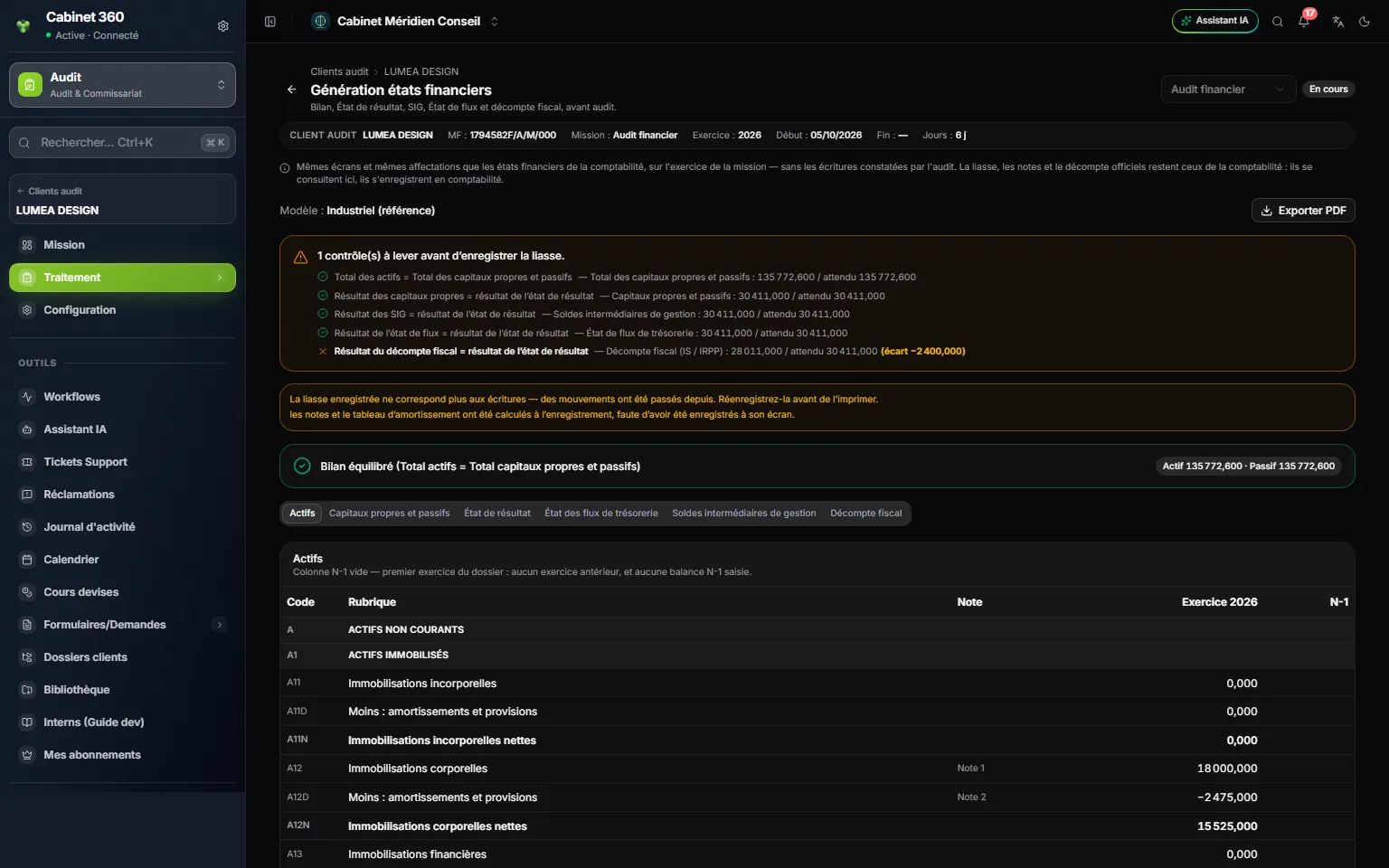
- 1. The reminder: the same screens as the accounting module, without the audit entries.
- 2. Export PDF: the pre-audit statements, in one file.
- 3. The checks: the balance of the balance sheet, then each result against that of the income statement.
- 4. The balanced balance sheet: total assets equal to total equity and liabilities.
- 5. One tab per statement, from the assets to the tax reconciliation.
- 6. The columns: the mission's fiscal year and N-1, and the change when N-1 exists.
The Financial statements generation screen shows the file's Model, then a box of checks, to the millime:
- total assets against total equity and liabilities;
- the result of the equity, that of the intermediate management balances, that of the cash-flow statement and that of the tax reconciliation, each against the result of the income statement;
- depending on the model, a check of the cash flows.
A check that fails is struck through with a cross, with the difference, or with what is missing when it could not be made. Six tabs follow: Assets, Equity and liabilities, Income statement, Cash-flow statement, Intermediate management balances and Tax reconciliation.
Export PDF downloads the pre-audit statements. If the balance sheet is not balanced, a second button, Force the export, produces the document all the same, for an internal review.
The consistency tests
The tests re-read the balances of the fiscal year in the client's books: your audit entries included, draft vouchers included. They do not read the files imported into the mission.
The standard catalogue holds 42 tests. 33 are computed from the entries: a supplier with a debit balance, a suspense account not cleared, a cash account in credit, the legal reserve against the share capital, cash payments of 5 000 DT or more… The other 9 call for your judgement: they always come out To verify, with what you need to look at.
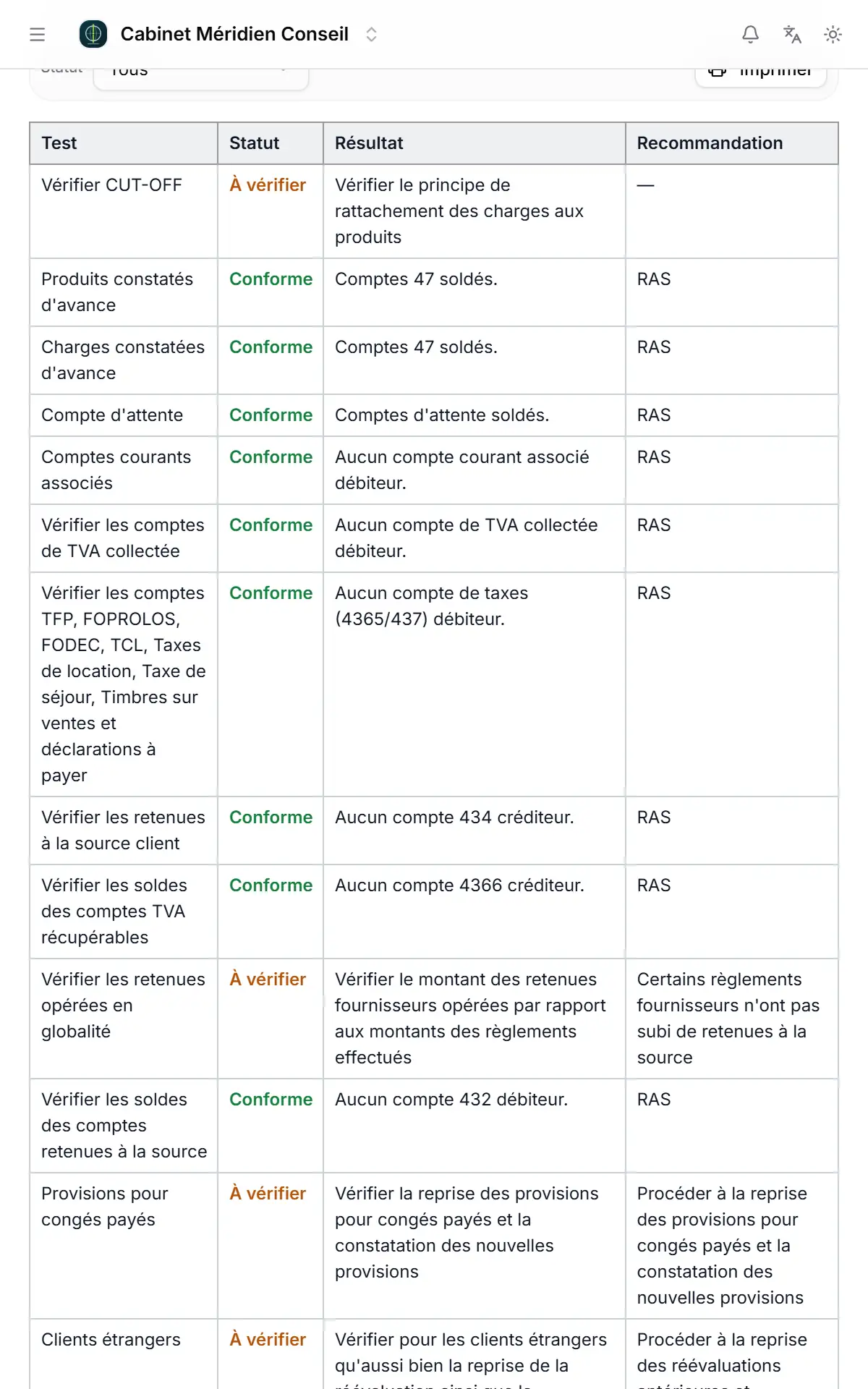
- 1. Status: Anomaly, To verify or Compliant.
- 2. To verify: a judgement test, or a point that the calculation does not settle.
- 3. Result: what the test found in the accounts.
- 4. Recommendation: the correction to propose to the client.
The screen opens on three counters, Anomalies, To verify and Compliant. The Status filter keeps only one of the three. The table gives, for each test, its title, its status, its result and its recommendation; a compliant test reads « RAS » (nothing to report).
Print offers two outputs: PDF, through the browser's print window, and Word, a file to download. The printed report shows the table as it is filtered on screen, under the firm's name, with the client, the fiscal year and the date it was issued.
The test on the bank statements read by OCR only appears if such statements have been posted. Without them, the table holds 41 lines instead of 42.