
Regulated agreements and related parties
The screen has two tabs: Related parties and Executive remuneration. This inventory prepares the auditor's special report, which you draft at the end of the mission (chapter 11).
Related parties
- In the Related parties tab, click Add.
- Enter the related party's Title, required.
- In Type, required, type the exact code: « client », « fournisseur » (supplier), « compte_courant » for a shareholder current account, or « autres » (other). An empty box or any other word, even the « convention » that the box suggests, is refused.
- Enter, if needed, the Third-party code and the Relationship: the nature of the link with the company.
- Click Add.
The table shows the type in plain words, Customer, Supplier, Shareholder current account or Other, and sorts the rows by type.
Executive remuneration
- In the Executive remuneration tab, click Add.
- Enter the Name of the executive or the partner, required, and their Position.
- Enter the Amount, that is the gross salary, the CNSS contribution and the Benefits in kind.
- Click Add.
Nothing is taken from the client's record: each executive is entered here.
The tax and payroll review
The Payroll & tax review screen has four tabs. The menu opens each of them directly: Payroll journals, Social declarations, one reconciliation per scheme (CNSS reconciliation (general scheme), CNSS reconciliation (Karama), CAVIS reconciliation, Group insurance reconciliation) and Tax declarations, which opens the tax summary.
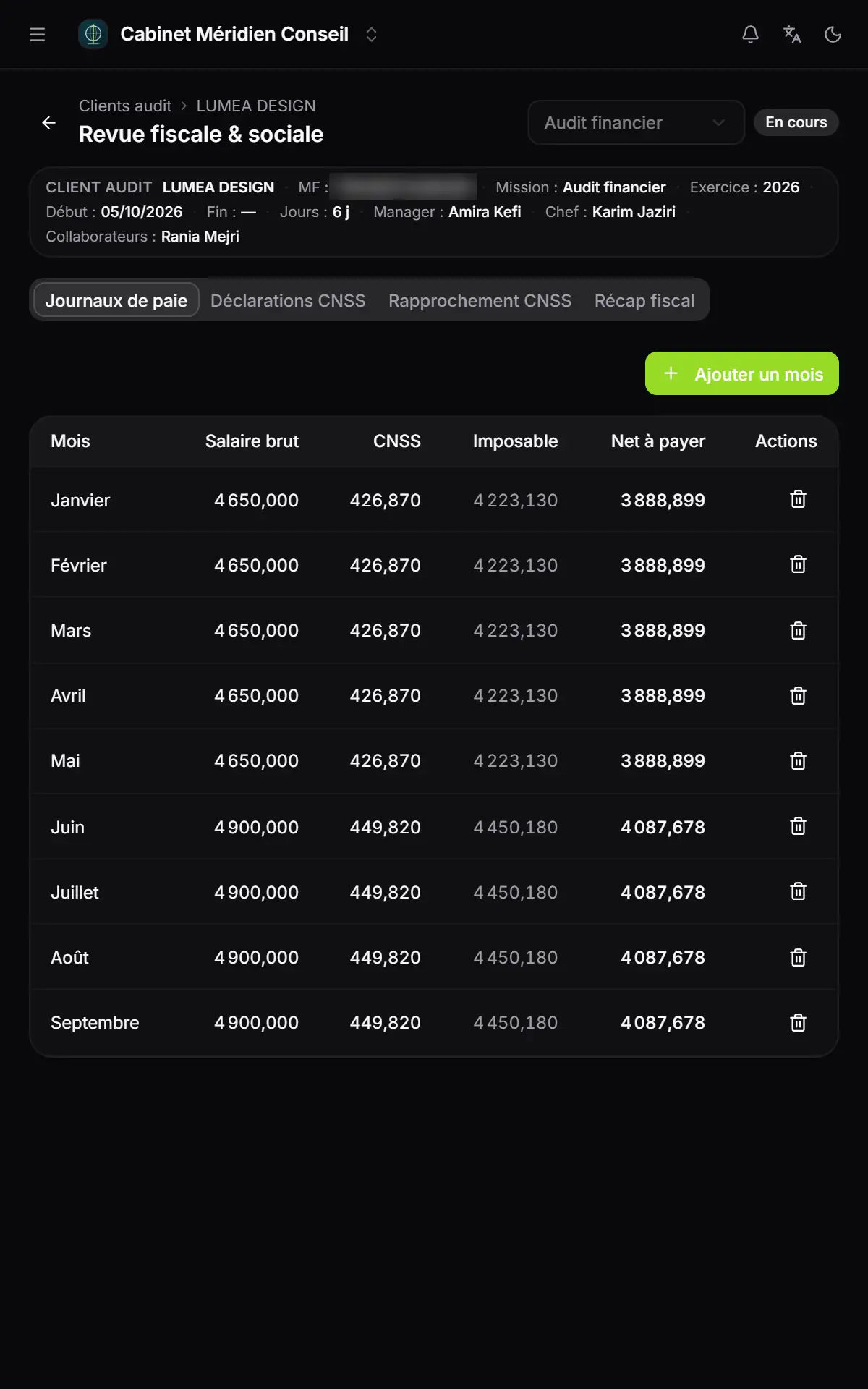
- 1. Payroll journals: one journal per month.
- 2. CNSS declarations: one declaration per type, scheme and quarter.
- 3. CNSS reconciliation: the declared totals, against the payroll ledger.
- 4. Tax summary: the synthesis of the tax review.
- 5. The columns: gross salary and CNSS entered; Taxable and Net pay computed when saving.
The payroll journals
- Click Add a month.
- Choose the Month, then enter the Gross salary, the CNSS, the IRPP and the CSS from the client's payroll ledger.
- Click Save.
The software computes two amounts:
- Taxable = gross salary − CNSS;
- Net pay = taxable − IRPP − CSS.
The month's CNSS is entered as it appears in the payroll ledger: it is not recomputed. A mission has a single journal per month; a second « January » is refused.
The CNSS declarations
- Click Add a declaration.
- Choose the Declaration type (CNSS, CAVIS or Group insurance), the Scheme (General scheme, Karama or Self-employed) and the Quarter.
- Enter the gross amount of each month of the quarter: Gross, month 1, Gross, month 2, Gross, month 3.
- Click Save.
The software adds up the quarter's gross amount and computes the contributions with the rates of the client's tax record, for the mission's year:
| Declaration | What is computed on the quarter's gross amount |
|---|---|
| CNSS, general scheme | Employee contribution, employer contribution and work accident |
| CNSS, Karama | The employer contribution only |
| CAVIS | The contribution at the CAVIS rate |
| Group insurance | The employee and employer shares |
A rate that the client's record does not carry is taken from the firm's default rates, then, for the general-scheme CNSS and work accident, from the national payroll rates of the mission's year. The CAVIS, Karama and group insurance rates have no national rate: with no rate on the client's record or in the firm, they are worth zero.
The reconciliation
At the top, the CNSS declarations — totals by scheme / quarter table gives, for each scheme and each quarter, the number of declarations, the total gross and the total payable. You compare them with the payroll ledger of the Payroll journals tab: the software does not compute the gap, you comment on it.
- Choose the Scheme and the Quarter. For the general scheme and Karama, the screen recalls the matching declared amount and total gross.
- Write the Reconciliation note.
- Click Save. The note keeps its author's name.
The tax summary
The Tax summary tab keeps one synthesis per mission: a free Observation, then Data (key / value), which you add line by line with Add a line. For example « TVA collectée déclarée » (output VAT declared) and its amount. Click Save; the next save updates the synthesis.