
Creating a mission
Open the client, then click New mission. The button exists in four places. From a client's page or from the page of one of its missions, the client is already chosen. From the Dashboard or Audit clients, you choose it in the form.
- 1. Designation: the mission's name, required.
- 2. Audit type: it decides the mission's menu.
- 3. Client: a client with the Audit service.
- 4. Fiscal year: the audited year.
- 5. Fiscal year start and Fiscal year end: the audited period.
- 6. Mission start and Mission close: the working period.
- 7. Statutory auditor; the co-auditor is on the left, on the next line.
- 8. Budgets of the manager and of the mission lead, in days.
- 9. Create mission: active as soon as the designation and the client are entered.
- Enter the Designation, for example « Audit des comptes 2026 ».
- Choose the Audit type: Internal control is offered by default; choose Financial audit to certify accounts, or Tax audit.
- Choose the Client and, if you wish, a Title. From a client's page or a mission's page, these two fields do not appear: the title takes the designation.
- Enter the Fiscal year, the audited year, then the Fiscal year start and the Fiscal year end.
- Enter the Mission start and the planned Mission close.
- Choose the Statutory auditor and, in a joint audit, the Co-auditor (joint audit), who must be a different one.
- Enter the Manager budget (days), the Lead budget (days), in half-days if needed, and the Mission cost.
- Click Create mission: « Mission créée » (mission created) appears, and the Mission page opens.
Saving is refused, with the reason, when an end date comes before its start date or falls on the same day. If the fiscal year start and end are entered, it is also refused when the client already has a mission on the same fiscal year and the same period.
The Mission page
The Mission page is the mission's home. At the top: the client, the designation, the type, the tax ID and the fiscal year. On the right, Client record opens the client's record, New mission creates another one for this client, Edit opens the configuration and Close the mission closes it.
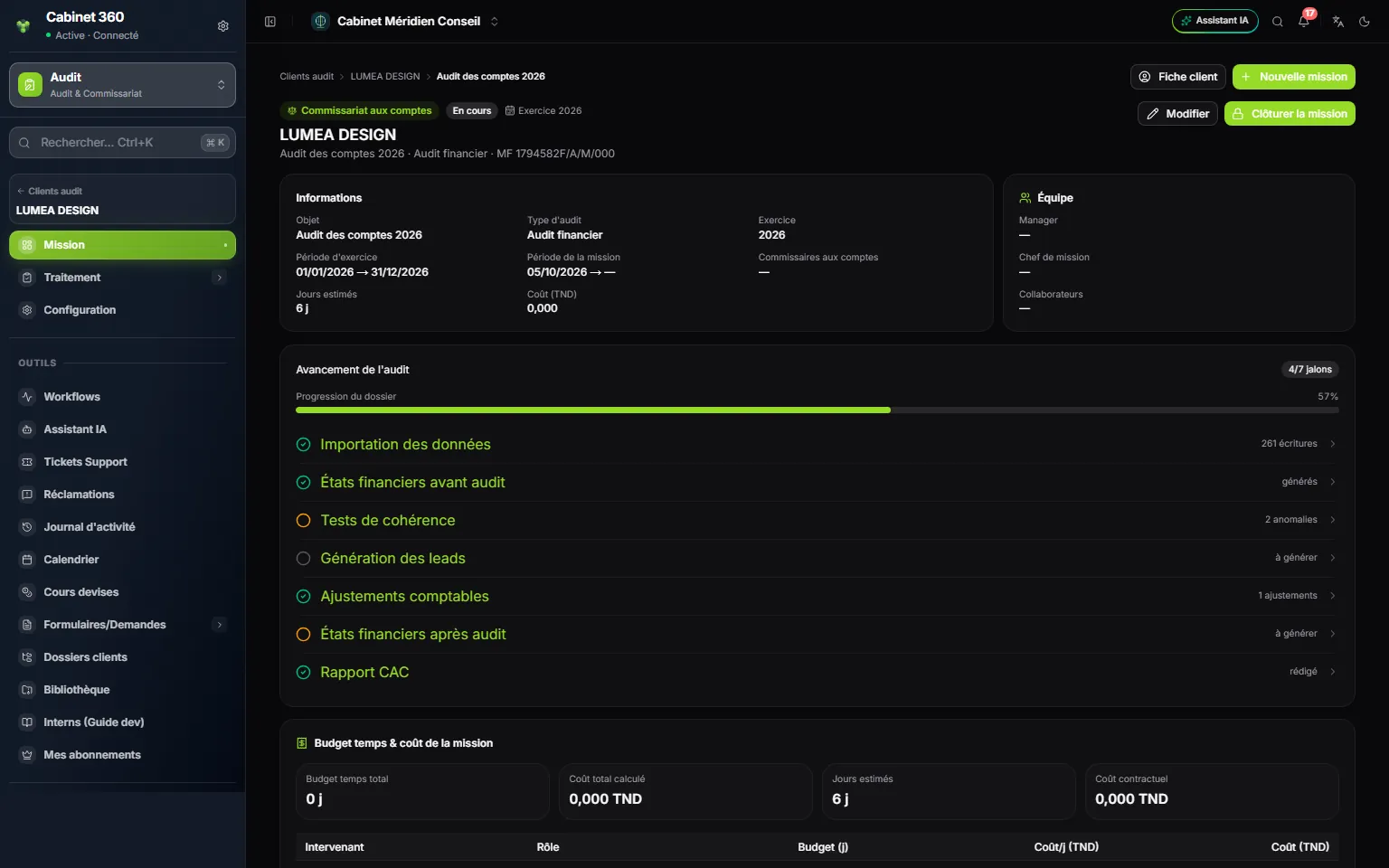
- 1. Client record, New mission, Edit the mission or Close the mission.
- 2. Information: subject, type, fiscal year, periods, auditors, cost.
- 3. Team: manager, mission lead, collaborators.
- 4. The milestones reached, out of seven for a financial audit.
- 5. A milestone: one click opens the step's screen; on the right, its state.
- 6. Mission time budget & cost.
The audit progress
The Audit progress block shows a File progress bar and one milestone per main step. A green milestone is reached; a click on its row opens the matching screen.
| Milestone of a financial audit | Reached when… | State shown |
|---|---|---|
| Data import | the client's accounting file has entry lines for the fiscal year; the files imported into the mission do not count | the number of lines, « 261 entries », or « to import » |
| Financial statements before audit | the client's file has a fiscal year for that year and a financial statements model | « generated » or « to generate » |
| Consistency tests | never ticked: it is a reminder, in orange | the number of anomalies, or « to review » |
| Leads generation | the mission has at least one lead | the number of leads, or « to generate » |
| Accounting adjustments | there is an audit entry, an accepted correction or a reclassification | the number of adjustments |
| Financial statements after audit | never ticked: it is a reminder, in orange | « to generate » |
| CAC report | a report is created | « drafted » or « to draft » |
The two orange reminders are never ticked: the bar of a financial audit therefore stops at 5 milestones out of 7.
An internal control or tax audit mission has three milestones: Team assignment, reached when each section of the questionnaire is handed to someone; Questionnaire answers, reached when every question has an answer; Lead / manager approval, reached when all the assigned sections, at least one, are validated (chapter 13).
The time budget and the cost
| Tile | What it counts |
|---|---|
| Total time budget | The days of the table below. |
| Calculated total cost | For each team member, their days × their daily cost. |
| Estimated days | A number of days that no screen lets you enter: a mission created on screen shows 0 days. |
| Contractual cost | The amount before tax of the mission's fee invoice (chapter 12). |
The Team member · Role · Budget (d) · Cost/day (TND) · Cost (TND) table lists the named manager and mission lead, with their budgets, and, in internal control or tax audit, each collaborator ticked in the team who has at least one section, with the days of their sections. The Mission cost entered in the form is shown in Information, but enters no calculation.
Editing the mission
Configuration, at the bottom of the menu, or Edit on the Mission page, opens Mission configuration: the same form as at creation, with all its fields. Click Save: « Mission mise à jour » (mission updated).
Naming the team
The Team assignment screen names the Mission manager and the Mission lead, each with a budget in days, then ticks the Collaborators. The lists offer the firm's active members. A member who has left the team is marked « not on the team »: remove them before saving.
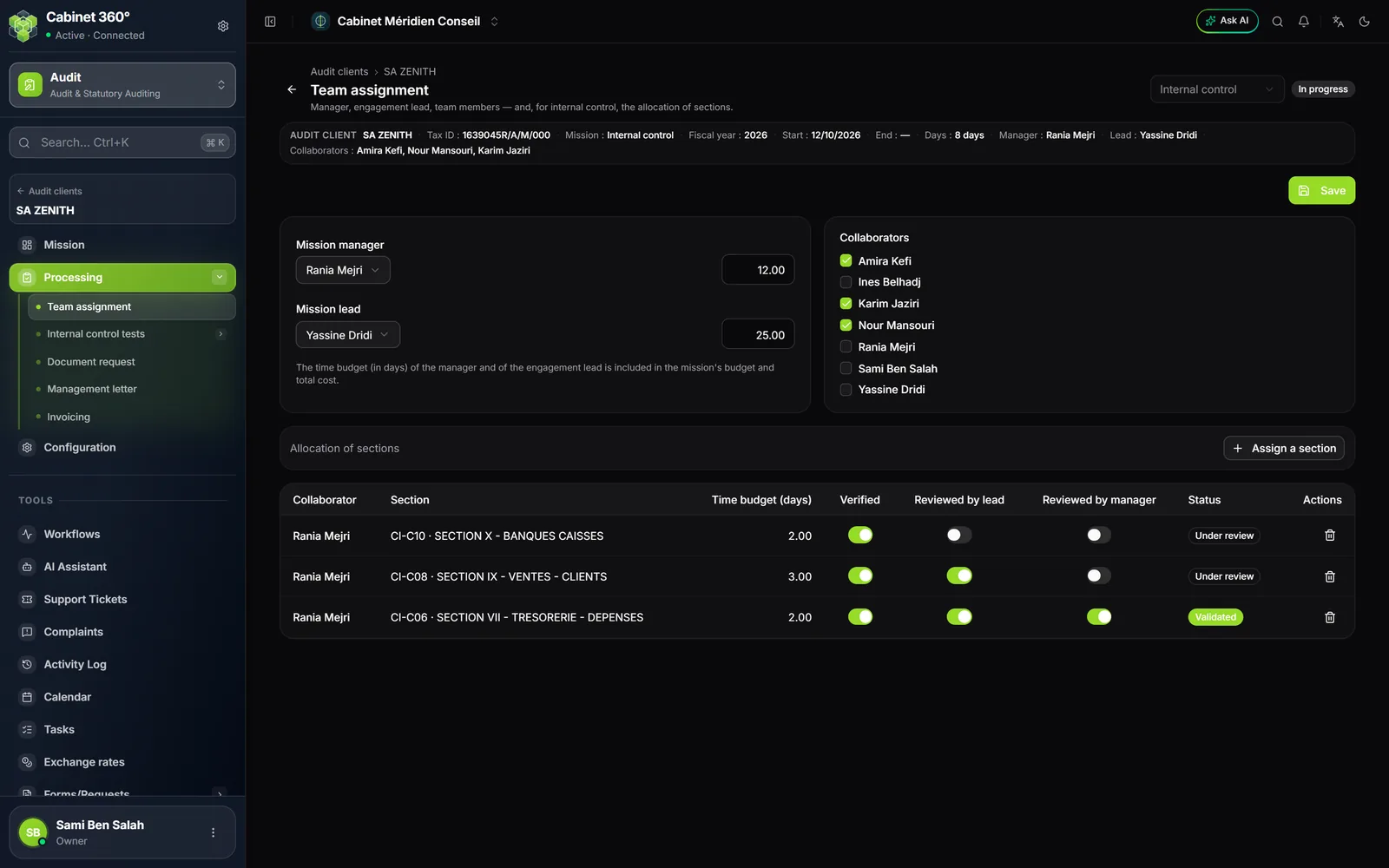
In internal control and tax audit, the bottom of the screen shares the questionnaire's sections among the members (chapter 13).
Closing, re-opening, deleting
Close the mission closes it at once, without confirmation. It becomes read only, and every screen shows « Mission closed — read only. Re-open it to edit. » Its documents can still be printed and exported.
| Action | Who | Condition |
|---|---|---|
| Close the mission | A member who can edit the audit | Internal control and tax audit: at least one assigned section, and all of them validated. |
| Re-open mission | The firm's owner or an administrator | None. |
| Delete | A member who can delete in the audit | The mission no longer has any entry in the Entries memo. Once closed, only an administrator can delete it. |
A mission is deleted from its client's list of missions, after the confirmation « Delete this mission and all its related data? ».