
What the module does
The Email Hosting module gives your firm email on its own domain name. Instead of a free address, each staff member gets an address such as direction@meridien-conseil.tn, with a mailbox, a password and storage space.
Everything is set up from IntegraSys:
- you add your domain (the name after the @);
- you publish at your registrar the DNS records the screen gives you;
- IntegraSys verifies that the domain is yours;
- you create the mailboxes, then, if needed, aliases: addresses that pass mail on to other mailboxes.
Mail is read in the webmail, which opens from IntegraSys, or in Outlook, Thunderbird, Apple Mail and phone apps.
The domain can be the firm's own or a client's: the module's home page speaks of "Professional mailboxes on your clients' own domain". Every domain you add counts against your subscription's limits.
What you need before you start
- The Email Hosting module. The owner or an administrator adds it in Tools › My Subscriptions, button Add. It opens as soon as the payment is verified.
- A domain name you already own, bought from a registrar, and access to its DNS settings. IntegraSys publishes nothing at your registrar: you, or your provider, copy the records.
- The rights on the Email Hosting screens (see below).
Opening the Email Hosting space
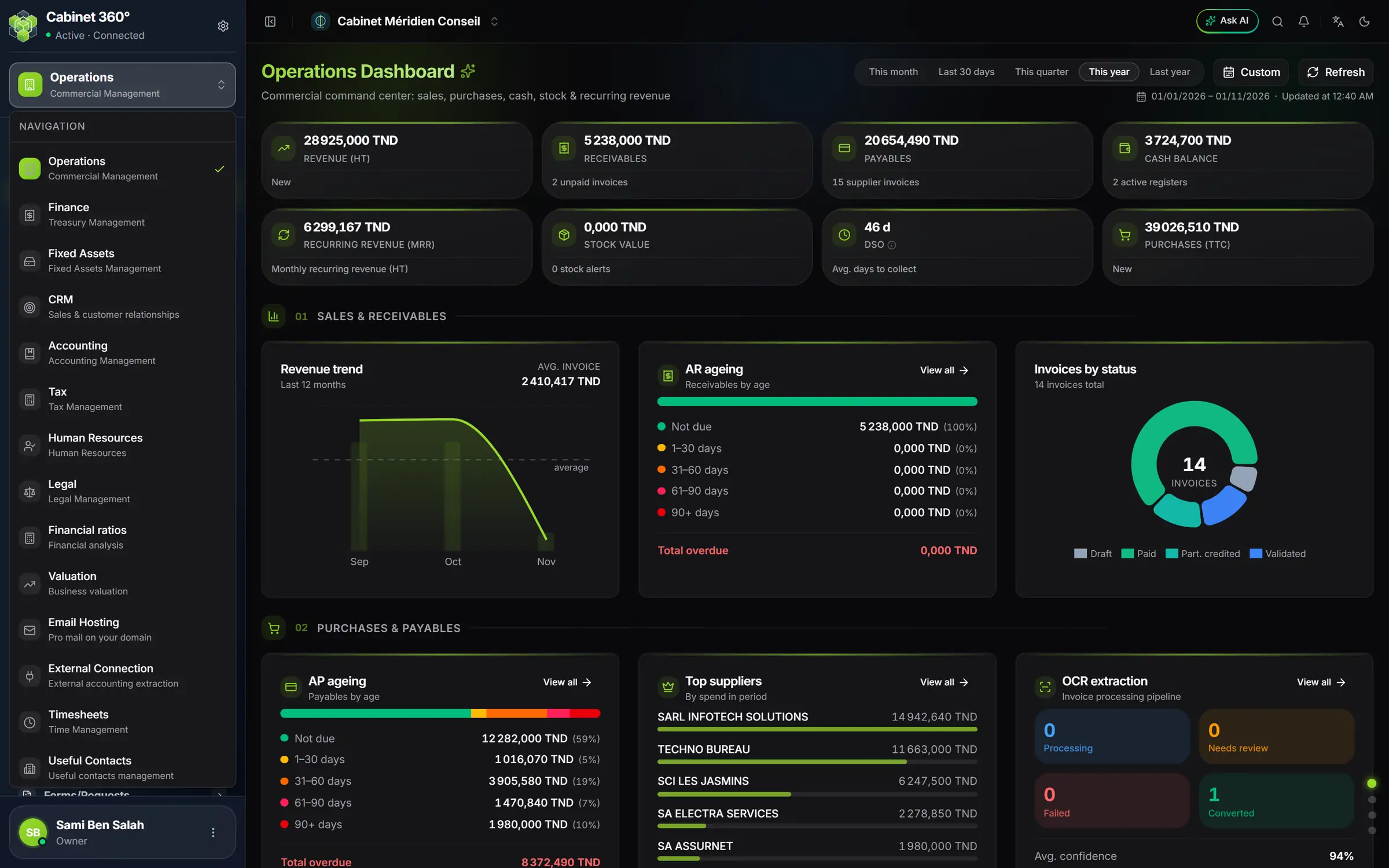
- 1. The module selector: click the card at the top of the left bar to open the list.
- 2. Email Hosting, "Pro mail on your domain": click to enter the space.
- At the top of the left bar, click the card of the open module.
- In the list, click Email Hosting.
- The left bar now shows the module's menu.
The menu has three entries, in this order:
- Overview: your domains, mailboxes, storage and subscription limits (chapter 2).
- Domains: add a domain, verify it, open its page with its mailboxes, aliases, DNS records and log (chapters 3 to 9).
- Mailboxes: every mailbox of every domain in a single list, and deleted mailboxes to restore (chapter 10).
Further down, under the Tools heading, My Subscriptions gives the end of the module's paid period and the packs that add mailboxes or domains (chapters 11 and 12). Only the owner and administrators see this entry.
Who can do what
The Email Hosting screens have four rights. The firm's owner and administrators have all of them. For other members, their role decides (team settings, see the Firm settings book):
- a member who holds custom roles gets the rights those roles tick, and only those;
- with no custom role, a Member has Read, Create and Update, and a Manager (supervision) has them all, Delete included.
| Right | What it allows |
|---|---|
| Read | See the Overview, domains, mailboxes, aliases and DNS records. |
| Create | Add a domain, verify it, sync it, suspend and reactivate it; create mailboxes and aliases; open the webmail; retry a mailbox that was not created; see the Log tab. |
| Update | Save changes to a mailbox or an alias. |
| Delete | Delete a domain, a mailbox or an alias; restore a domain or a mailbox; reveal and reset a mailbox password. |
When an action is refused
Today, when the server refuses an action (a limit reached, a deletion that cannot be done), the message on the screen only says what failed, for example "Failed to create mailbox", without the reason. So at each place this book gives the possible causes and what to do.
Words on the screen
- Domain: the name after the @, for example meridien-conseil.tn.
- Mailbox: an address with its password and size, where mail arrives and from which it leaves.
- Alias: an address with no mailbox, which forwards mail to one or more addresses.
- Quota: the size reserved for a mailbox, in MB (1 GB = 1 000 MB).
- The mail server: the IntegraSys machine that keeps your messages. The screen calls it by that name, for example "Synced with the mail server".