
Before you start
- The domain must be Verified: otherwise the New mailbox button does not appear (chapter 3).
- You need the Create right.
- Your subscription limits the number of mailboxes and the storage; the domain's plan also limits its own mailboxes (chapter 11).
Creating a mailbox
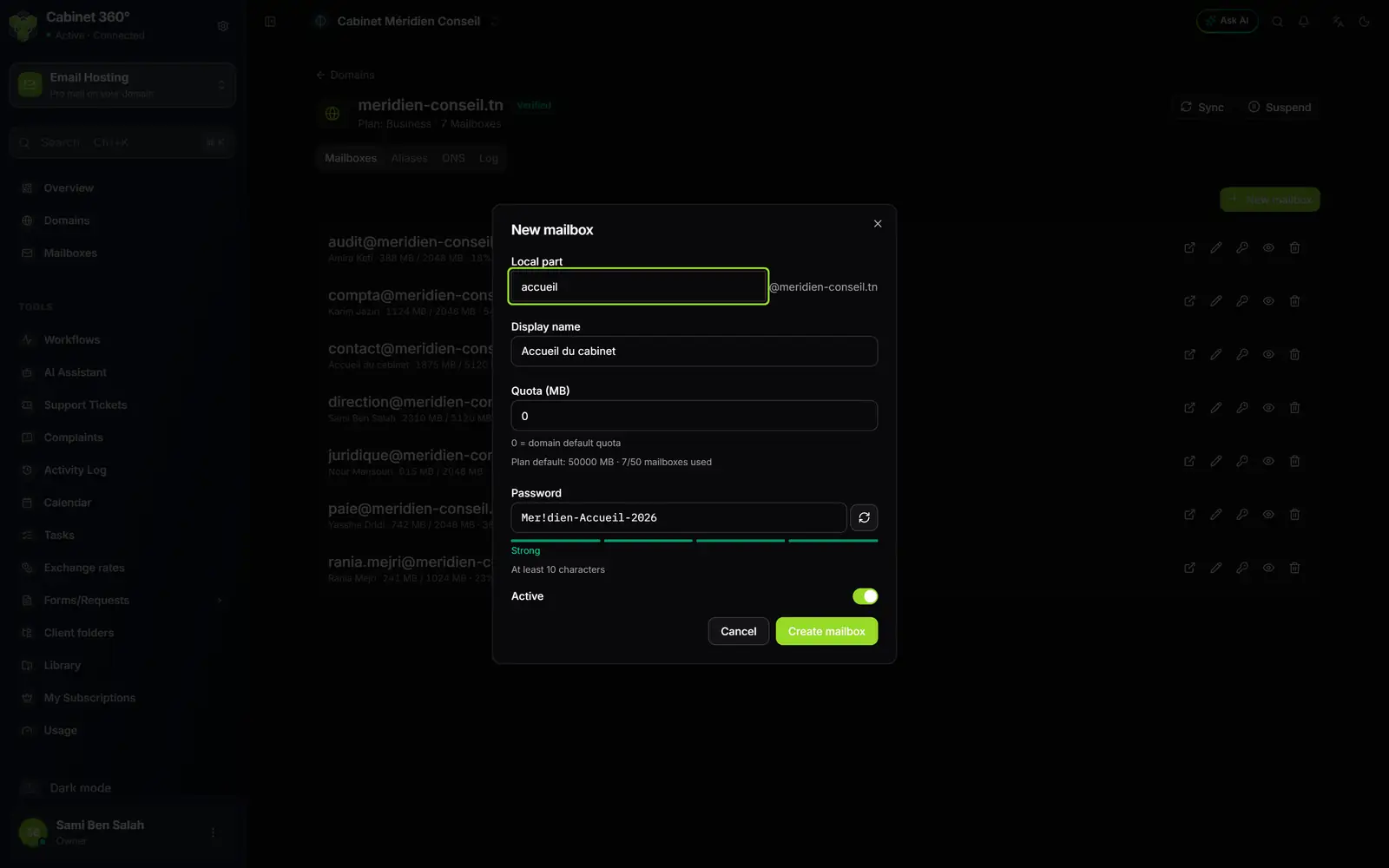
- 1. Local part: what comes before the @. The domain is already written on the right.
- 2. Display name: optional, it shows under the address.
- 3. Quota (MB): 0 gives the default size of the domain's plan, recalled below.
- 4. Password: at least 10 characters. The arrows generate one; the gauge shows its strength.
- 5. Active: always leave it on when creating.
- 6. Create mailbox saves it and creates it on the mail server.
- Open the domain, Mailboxes tab, then click New mailbox.
- In Local part, type the start of the address, for example accueil. Lowercase letters, digits, dots, hyphens and underscores only, with no dot, hyphen or underscore at the start or the end. Capitals are turned into lowercase.
- In Display name, type the name of the person or the service, for example Accueil du cabinet.
- In Quota (MB), leave 0 or give a size, for example 2000 for 2 GB.
- Type a Password, or click the arrows to the right of the field to generate one.
- Keep Active on and click Create mailbox.
The line under the quota
Under the Quota (MB) field, the screen recalls "0 = domain default quota", then a line such as "Plan default: 50000 MB · 7/50 mailboxes used": the default size of the domain's plan, and how many of its mailboxes are already taken.
The password
The password must have at least 10 characters: below that, Create mailbox stays greyed out. It shows in clear while you type: write it down before closing.
The gauge under the field shows its strength: "Too short — use at least 10 characters" under 10 characters, then Fair, Good and Strong. Good needs at least 12 characters and three kinds of characters among lowercase, uppercase, digits and symbols; Strong needs at least 16 with three kinds.
The arrows generate a 16-character password, without the characters that look alike (0 and O, 1, l and I).
After the click
- "Mailbox created": done, the mailbox carries the Active badge.
- "Mailbox saved, but not created on the mail server", with the reason below: the mailbox exists in IntegraSys, not yet on the server. See "A failed mailbox" below.
Then give the person their full address and password (chapter 7).
A mailbox line
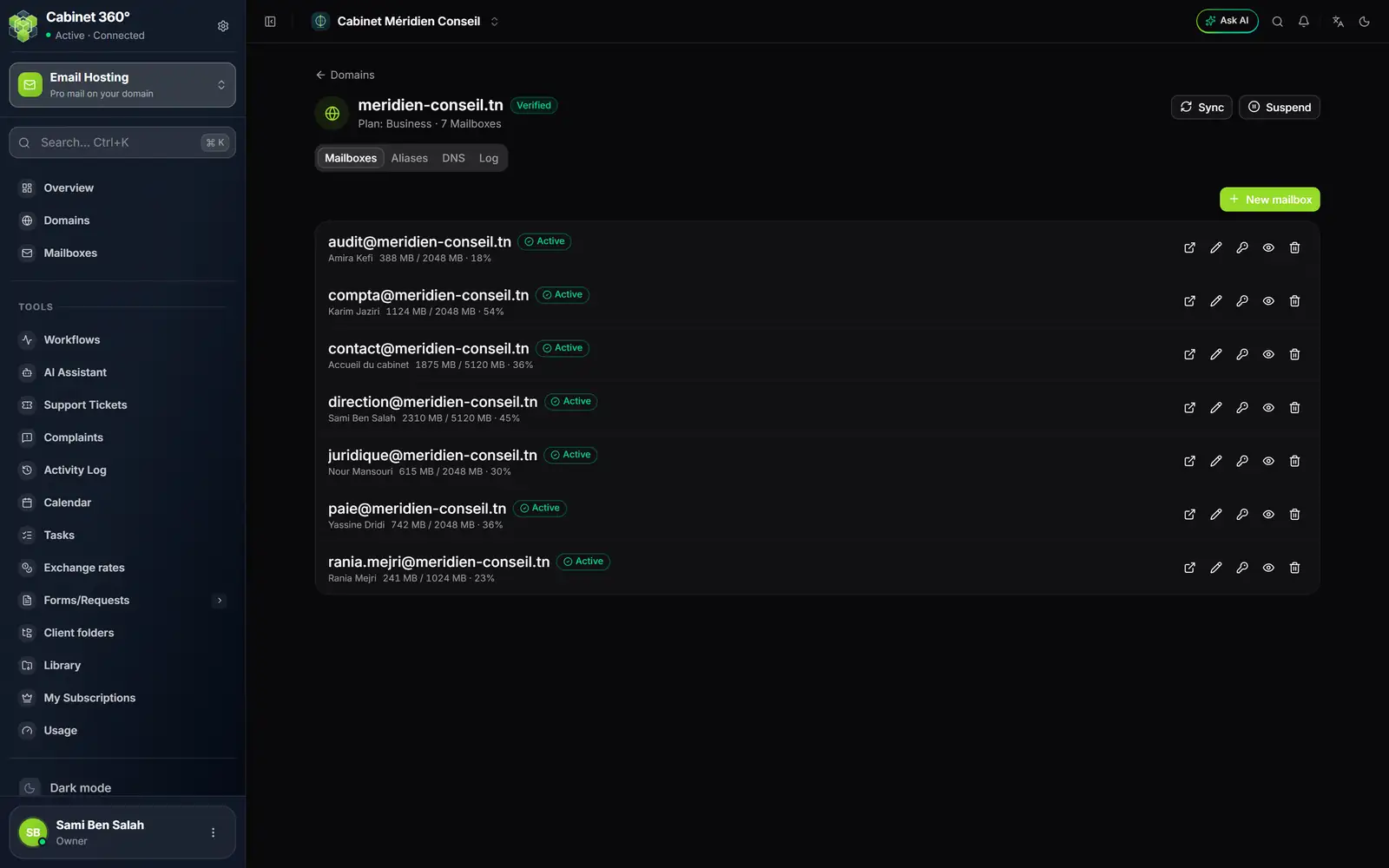
- 1. The mailbox's badge: Active, Suspended, Provisioning… or Failed.
- 2. The display name, then the space used, the quota and the percentage.
- 3. The icons: webmail, edit, reset and reveal the password, delete.
| Badge | What it means |
|---|---|
| Active | The mailbox receives and sends mail. |
| Suspended | It is deactivated: no more mail, but nothing is deleted. |
| Provisioning… | It is saved, not yet created on the mail server. |
| Failed | Creating it on the server failed. Hover over the badge to read the reason. |
The icons, from left to right:
| Icon | What it does | Right |
|---|---|---|
| Open webmail | Opens the mailbox in the webmail, in a new tab. Greyed out until the mailbox is created on the server. | Create |
| Retry provisioning | Creates the mailbox on the server again. Only on a mailbox not yet created. | Create |
| Edit (pencil) | Changes the name, the quota or the active state. | Create to see it, Update to save |
| Reset password (key) | Sets a new password (chapter 6). | Delete |
| Reveal password (eye) | Shows the saved password. | Delete |
| Delete (bin) | Suspends the mailbox, then erases it after 30 days (chapter 10). | Delete |
The space used is read from the server once an hour.
Editing a mailbox
The pencil opens the Edit window with three fields: Display name, Quota (MB) and Active. Click Save: "Mailbox updated".
- The address does not change. To rename a mailbox, create the new one, then delete the old one.
- The password is not changed here, but with the key (chapter 6).
- Raising the quota is refused if the subscription's storage is not enough. Lowering it is always accepted.
- Turning Active off suspends the mailbox: it no longer receives or sends, its messages stay. It no longer counts in your mailboxes or your storage. Turning it back on first checks that the limits still have room.
A failed mailbox
A Provisioning… or Failed mailbox does not exist yet on the mail server: it receives nothing, and its webmail icon is greyed out.
- A Failed mailbox is created again by IntegraSys by itself every half hour, with the password saved at creation. A mailbox left Provisioning… with no error is not: retry it by hand.
- To retry, click the Retry provisioning icon on its line. The message "Provisioning retried" shows even if the attempt fails: look at the badge; if it stays Failed, it did not succeed.
- The Overview flags these mailboxes with the red banner "Mailboxes not set up".
If the failure lasts, contact the IntegraSys team with the text of the reason.
When creation is refused
The message then says "Failed to create mailbox", without the reason ("Update failed" for a quota raised with Edit). The possible causes:
| What blocks | How to see it | What to do |
|---|---|---|
| The domain has reached its plan's number of mailboxes. | The line "Plan default: …" under the quota, for example "10/10 mailboxes used". | Delete or deactivate a mailbox of the domain, or add a mailbox pack. |
| Your subscription's number of mailboxes. | Subscription usage, on the Overview: "Mailboxes", "10 of 10". | Free a mailbox, or add a mailbox pack (chapter 11). |
| Your subscription's storage. | The same card: "Storage (GB)". | Give a smaller quota, lower another mailbox's quota, or add a pack. |