
Opening the wizard
Click Add a domain, top right. The button shows only with the Create right.
Step 1: Domain
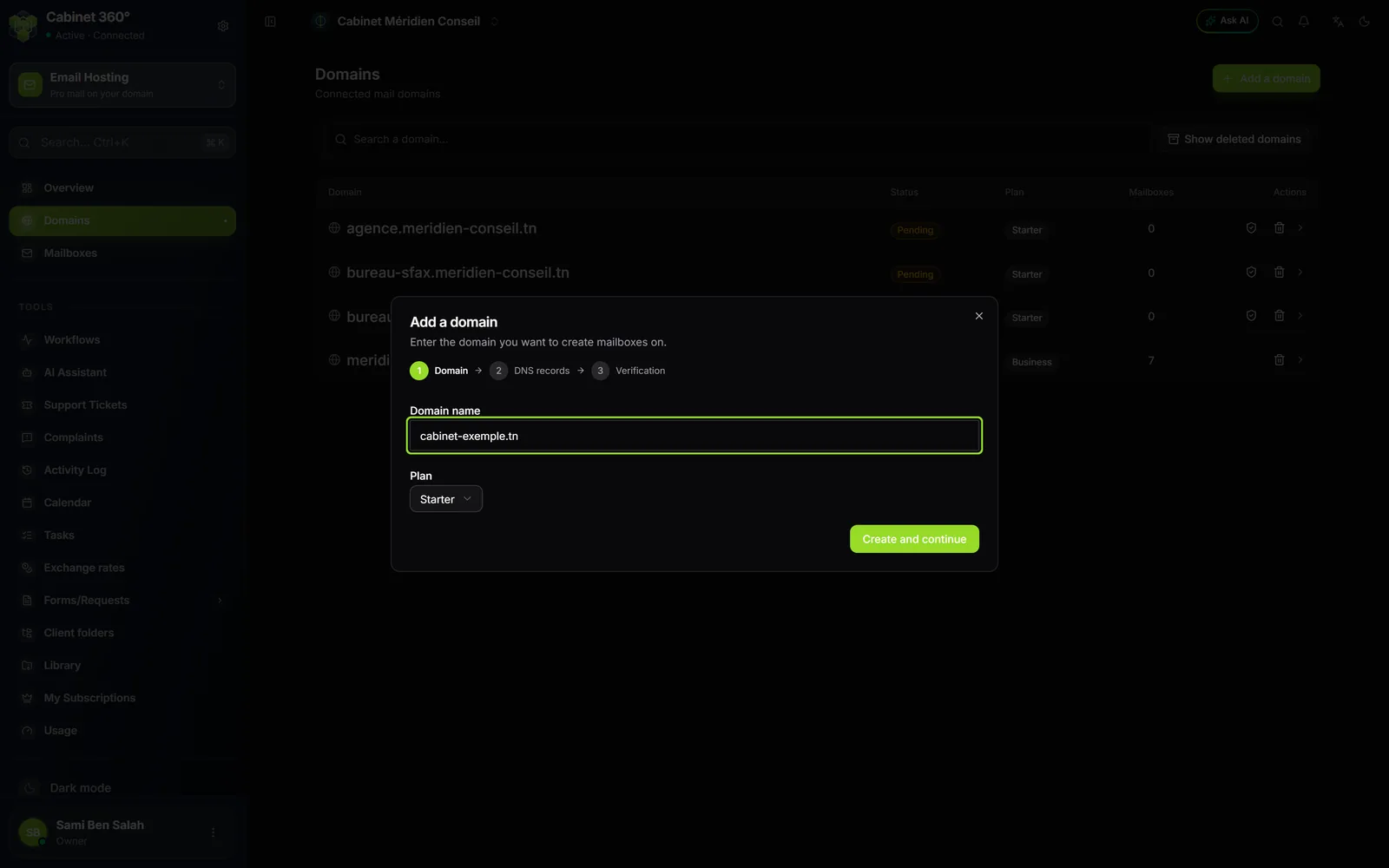
- In Domain name, type the domain without "www" or "@", for example meridien-conseil.tn. A badly formed name shows "Enter a valid domain name (e.g. example.com)."
- In Plan, choose Starter, Business or Pro.
- Click Create and continue. The domain is created at that moment, the message "Domain added" appears, and the wizard moves to step 2.
The domain's plan
The plan sets two things for this domain: the size a mailbox gets when you leave its quota at 0, and how many mailboxes the domain can hold.
| Plan | Default mailbox size | Mailboxes at most on the domain (without packs) |
|---|---|---|
| Starter | 5 000 MB | 10 |
| Business | 50 000 MB | 50 |
| Pro | 100 000 MB | 250 |
A mailbox pack you buy adds its mailboxes to this ceiling, on every domain (chapter 11). The plan is chosen here, once and for all: no screen changes it afterwards.
The number of domains is also limited by your subscription. Beyond it, creation is refused: "Failed to add domain" (chapter 11).
Step 2: DNS records
The wizard shows one card per record. Each gives its purpose, a required or recommended badge, its type (TXT, MX, CNAME or SRV), then the Host and the Value, each with a copy icon.
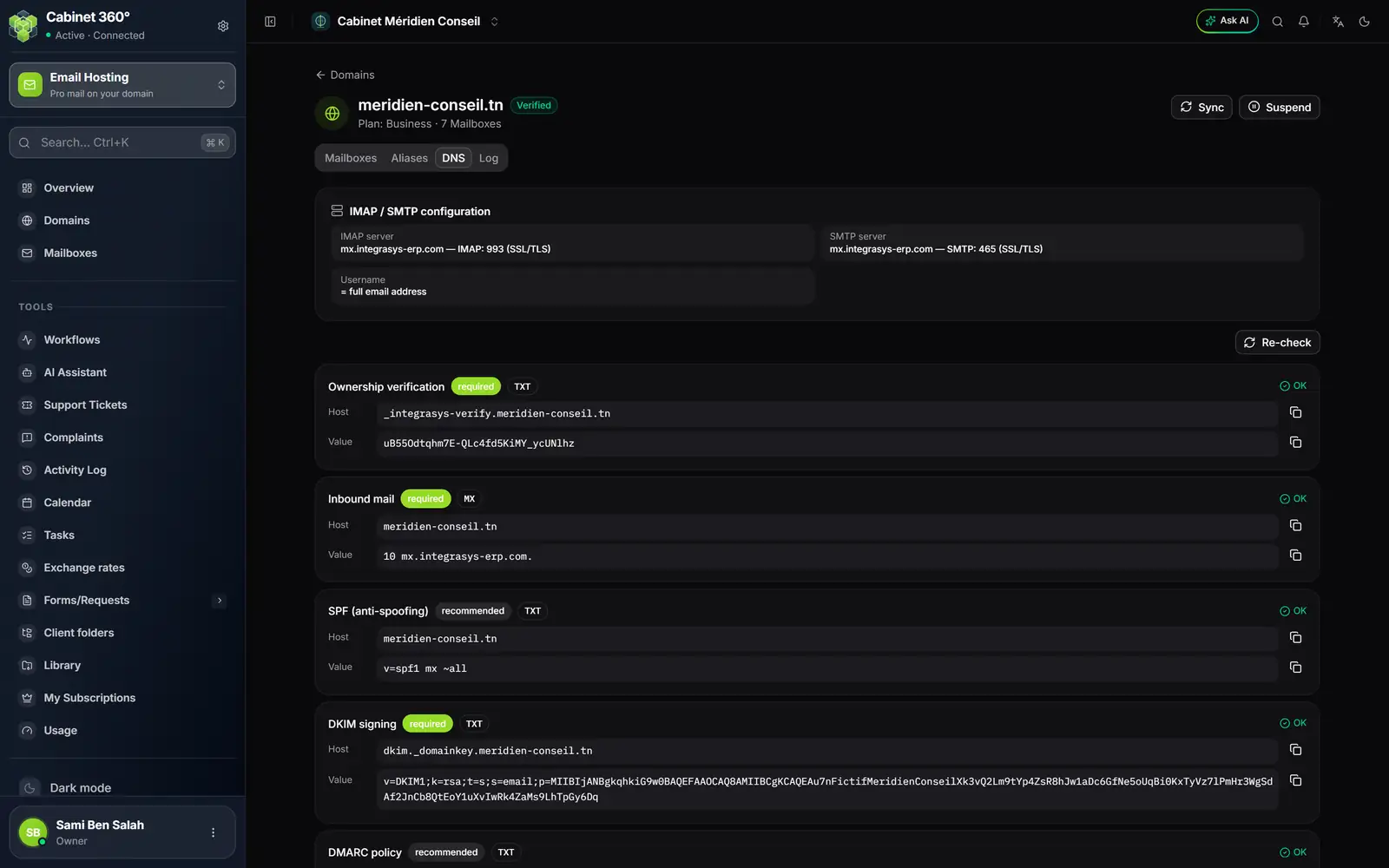
- 1. Purpose, badge and type: here "Ownership verification", required, TXT.
- 2. Host and Value: copy them exactly at the registrar. The icon on the right copies.
- 3. The record's state, read back from DNS: here "OK".
- 4. recommended: useful, but does not hold up verification.
The three required records decide verification. The seven recommended ones protect your domain and make mail apps easier to set up: publish them too when you can.
| Card | Type | Host | What it is for |
|---|---|---|---|
| Ownership verification (required) | TXT | _integrasys-verify.your-domain | Proves the domain is yours. |
| Inbound mail (required) | MX | your-domain | Tells the world where to deliver your mail. |
| DKIM signing (required) | TXT | dkim._domainkey.your-domain | Signs your messages so they are not taken for spam. |
| SPF (anti-spoofing) | TXT | your-domain | Says which servers may send in your name. |
| DMARC policy | TXT | _dmarc.your-domain | Says what to do with a message that pretends to be you. |
| Outlook autodiscover | CNAME | autodiscover.your-domain | Outlook finds its settings on its own. |
| Thunderbird/Apple autoconfig | CNAME | autoconfig.your-domain | Thunderbird and Apple Mail find their settings on their own. |
| Auto-config IMAP (SRV) | SRV | _imaps._tcp.your-domain | Receiving, for phones and mail apps. |
| Auto-config SMTP (SRV) | SRV | _submissions._tcp.your-domain | Sending, for phones and mail apps. |
| Auto-config Outlook (SRV) | SRV | _autodiscover._tcp.your-domain | Outlook, by another route. |
The last three cards keep their French names on an English screen. Each card's value is specific to your domain: copy it from the screen, never from this book.
At your registrar
The fold-out How to add these records at your registrar, under the cards, recalls the traps:
- the "Host" or "Name" field: some registrars want only the subdomain (for example "mail"), others the full name. If adding fails, try again without the domain name at the end;
- TXT values are pasted exactly. Some registrars add the quotes themselves: do not double them;
- after adding, propagation takes from a few minutes to a few hours;
- still "Missing" after 48 hours: the host was probably mistyped.
Back returns to step 1: the domain is greyed out there, with "The domain … is created. For another name, close this window and delete it from the domains list.", and the button reads Continue. The wizard does not create it a second time.
Click Continue once the records are published.
Step 3: Verification
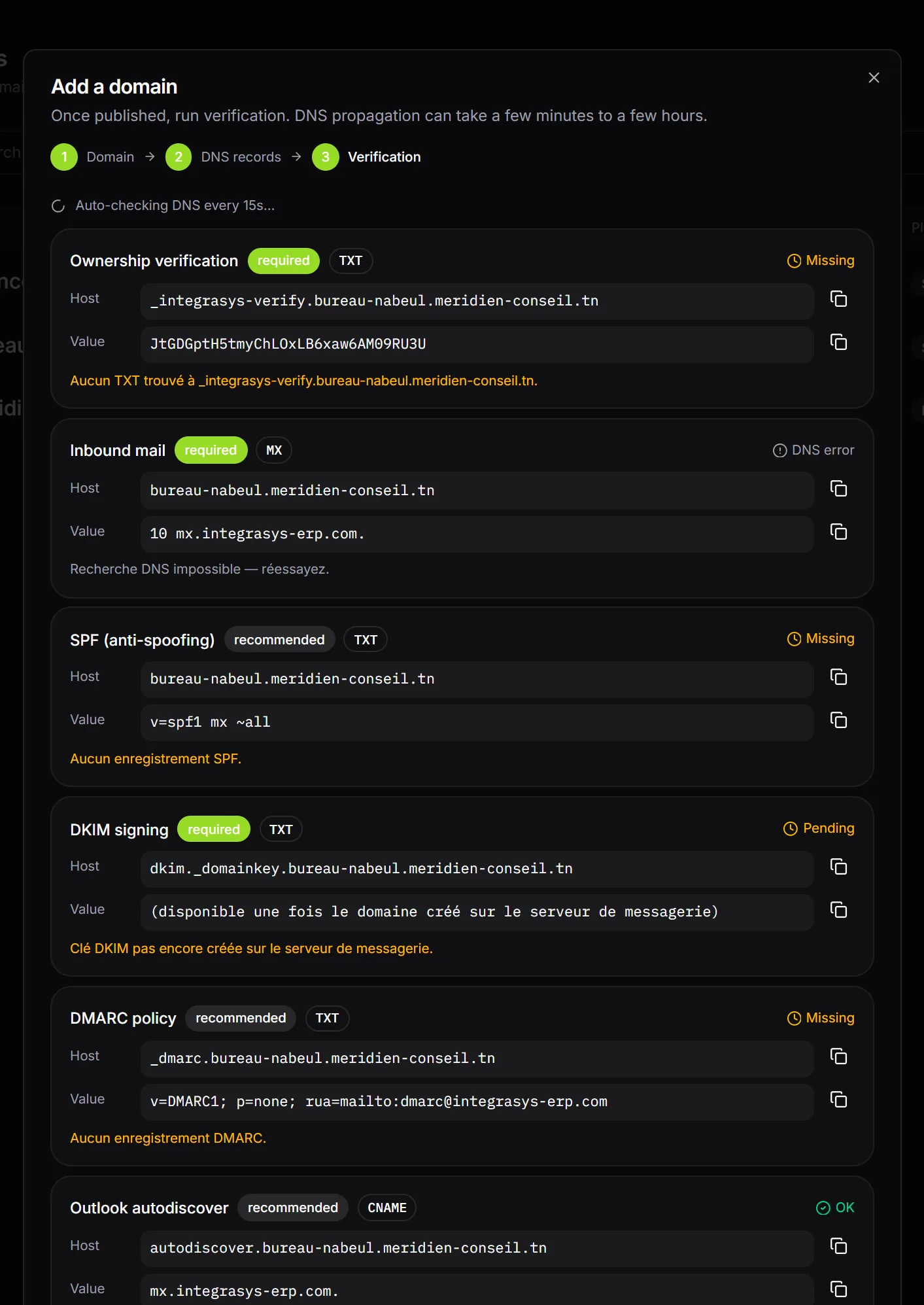
The wizard asks for the records' state every 15 seconds; DNS itself is read at most once a minute. It shows each card's state:
| State | What it means |
|---|---|
| OK | The record is published with the right value. |
| Missing | Not found yet: not yet published, or not yet propagated. |
| Wrong value | It exists, but with another value. For MX, CNAME and SRV, the message under the card gives the value found; for a TXT, it only says it does not match. |
| DNS error | The lookup did not succeed. It will be tried again. |
| Pending | Nothing to compare yet: for the DKIM card, the key is not yet created on the mail server. |
As soon as the three required cards are OK, the domain verifies itself: the message "Domain verified — you can now create mailboxes" appears and the Finish button opens the domain's page. Verify now runs the check without waiting; the cards may keep their old state for up to a minute.
Does your domain already receive mail elsewhere? The MX decides where mail arrives: only replace the old one when you switch over, and keep a single SPF per domain.