
Other disbursements
The salary transfer, dividends, CNSS contributions, the VAT return, rent, electricity: everything that does not settle a supplier invoice is entered here. Each disbursement carries an expense type (chapter 1), which says which ledger account it is posted to.
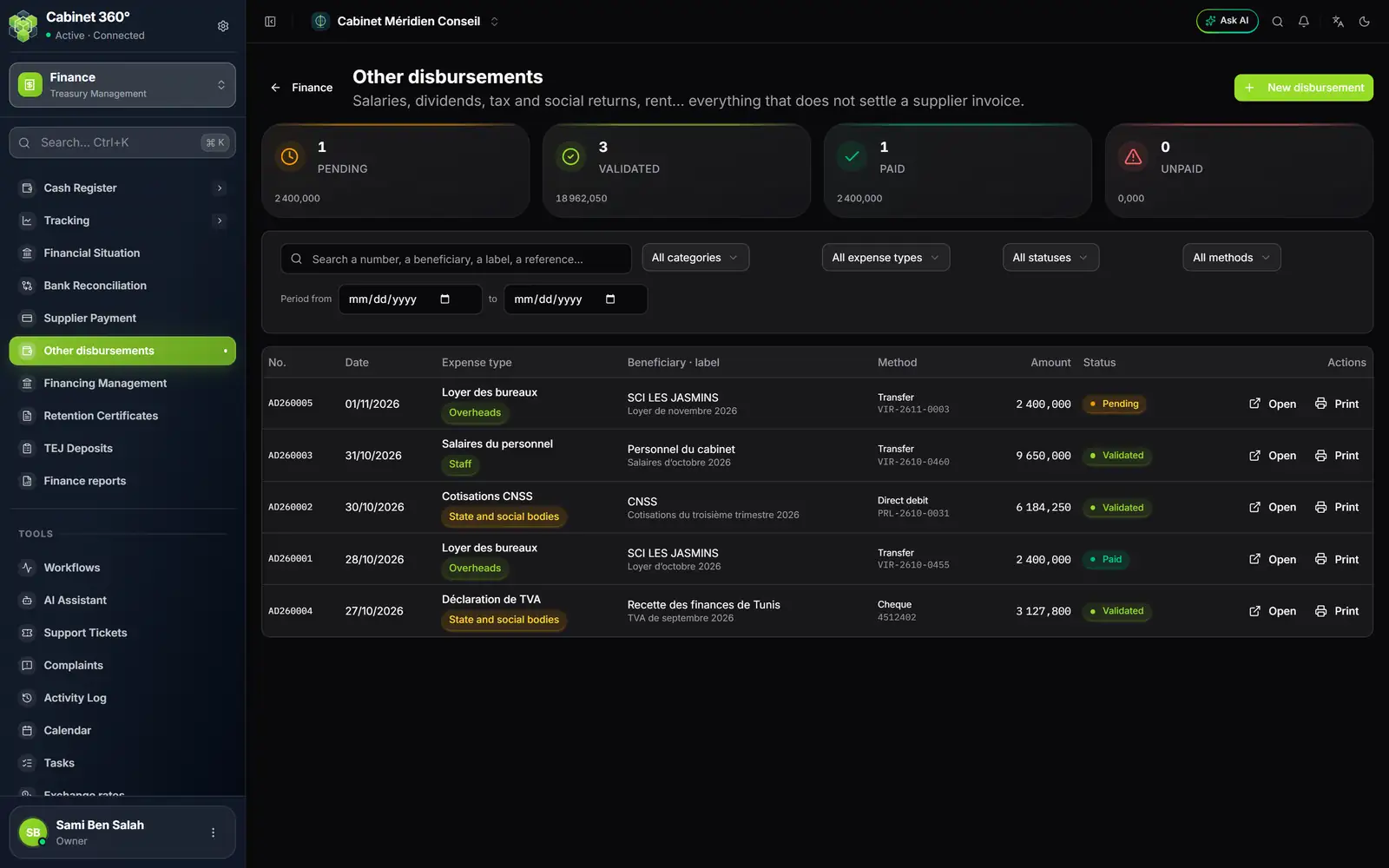
- 1. The counters: pending, validated, paid, unpaid, in number and in amount.
- 2. The filters: search, category, expense type, status, method, period.
- 3. The expense type and its category: "Salaires du personnel", Staff; "Cotisations CNSS", State and social bodies.
- 4. The method: transfer, direct debit or cheque, with its reference.
- 5. Open, Print: the disbursement's record and its disbursement order.
- Click New disbursement.
- In the block The disbursement, choose the Expense type (type a few letters; the + creates one, Create and select). Its category and its account are shown under the list ("Account: 425").
- Enter the Date: the No. (AD260001…) is suggested by the yearly series and is fixed when you save.
- Enter the Beneficiary ("Firm staff", "CNSS", "Tax office") and the Label ("October 2026 salaries"); the Reference (period, return number) is optional.
- In Payment details, fill in the line: Method (Transfer, Cheque, Bill of exchange or Direct debit), Document no. (required for all four methods), the firm's Bank, Amount and, for a cheque or a bill of exchange, the Due date.
- Click Save (pending), Print (it is saved, then the disbursement order prints) or Validate (it is saved and issued).
A few rules:
- One line, one disbursement. Add line creates several disbursements, each with its own number; they are created all together or not at all, and a refused line is named ("Line 2: …"). Salaries are entered on a single line, for the total of the grouped transfer handed to the bank; the detail per employee stays in the payroll.
- No cash, no withholding: the gross amount equals the net amount.
- Not yet in the treasury: the financial situation and the bank reconciliation do not count other disbursements yet (chapter 10). They are followed in Tracking › Disbursements.
- The expense type must have a ledger account: a type without an account, or deactivated, is refused by name. On validation, the disbursement keeps the account that its expense type carried that day.
- The cycle is that of the payment order: pending (editable, deletable), validated, then Paid or Unpaid in Tracking › Disbursements, origin "Other disbursement". A refused transfer or direct debit is not declared unpaid: you cancel the disbursement from its record (Cancel the disbursement, with a reason) and enter a new one. A paid disbursement cannot be cancelled.
The printed disbursement order follows the payment order's template: logo or name at the top left, "ORDRE DE DÉCAISSEMENT" (disbursement order) and its number, a Décaissement frame (expense type, category, account, beneficiary, label, reference) and a Règlement frame (method, number, dates, account with RIB), the amount in figures and in words, and the signature boxes.
Withholding certificates
A withholding certificate is not entered: it is created automatically, validated, when a payment that carries a withholding is issued:
- on validation of a payment order with withholding (chapter 8);
- on payment at the cash register of an invoice that declares its withholding (chapter 6).
It takes the supplier, the nature of operation and the rate of the order, the base (amount excluding tax plus VAT, without the stamp duty), and the amount excluding tax and the VAT of the settled part of the invoice, in dinars.
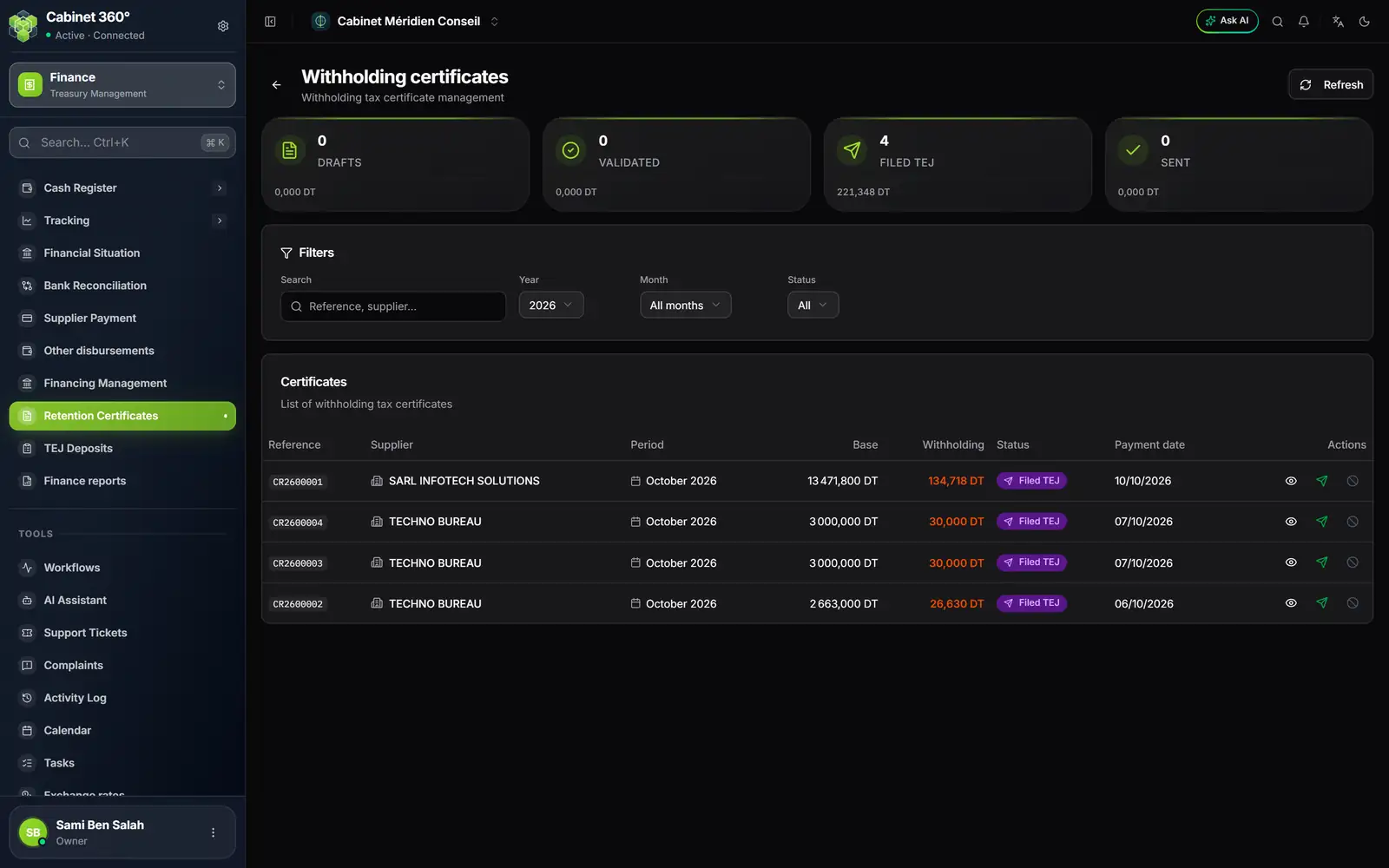
- 1. The year's counters: drafts, validated, filed TEJ, sent, in number and in withholding amount.
- 2. The filters: search, year, month, status.
- 3. Base and Withholding: the tax base and the amount withheld.
- 4. Status: here "Filed TEJ".
- 5. Actions: view the detail, mark as sent to the supplier, cancel.
A certificate's statuses: Draft, Validated (ready for the TEJ deposit), Filed TEJ, Sent (handed to the supplier), Acknowledged, Rectified, Cancelled. Cancelling the payment order cancels its certificate, unless the certificate has already been filed with TEJ, sent or acknowledged.
The month's TEJ deposit
The TEJ deposit groups a month's certificates for e-filing: you create it, IntegraSys generates the XML file, you upload it to the TEJ portal, then you mark the deposit as submitted.
- Click New deposit and choose the Month and the year. The month's Available certificates (validated, not yet in a deposit) are shown, all ticked: you usually declare the whole month. Untick the ones to keep for later.
- Click Create deposit. It stays greyed out as long as no certificate is ticked: an empty deposit would produce no file.
- On the deposit's line, choose Generate XML file. IntegraSys first checks each certificate (a missing nature of operation, for example) and says what is blocking, or "Ready for XML generation".
- Download XML, then upload the file to the TEJ portal.
- Come back to the deposit: Mark as submitted (with the TEJ Reference if you have it), then, depending on the answer, Mark as accepted or Mark as rejected.
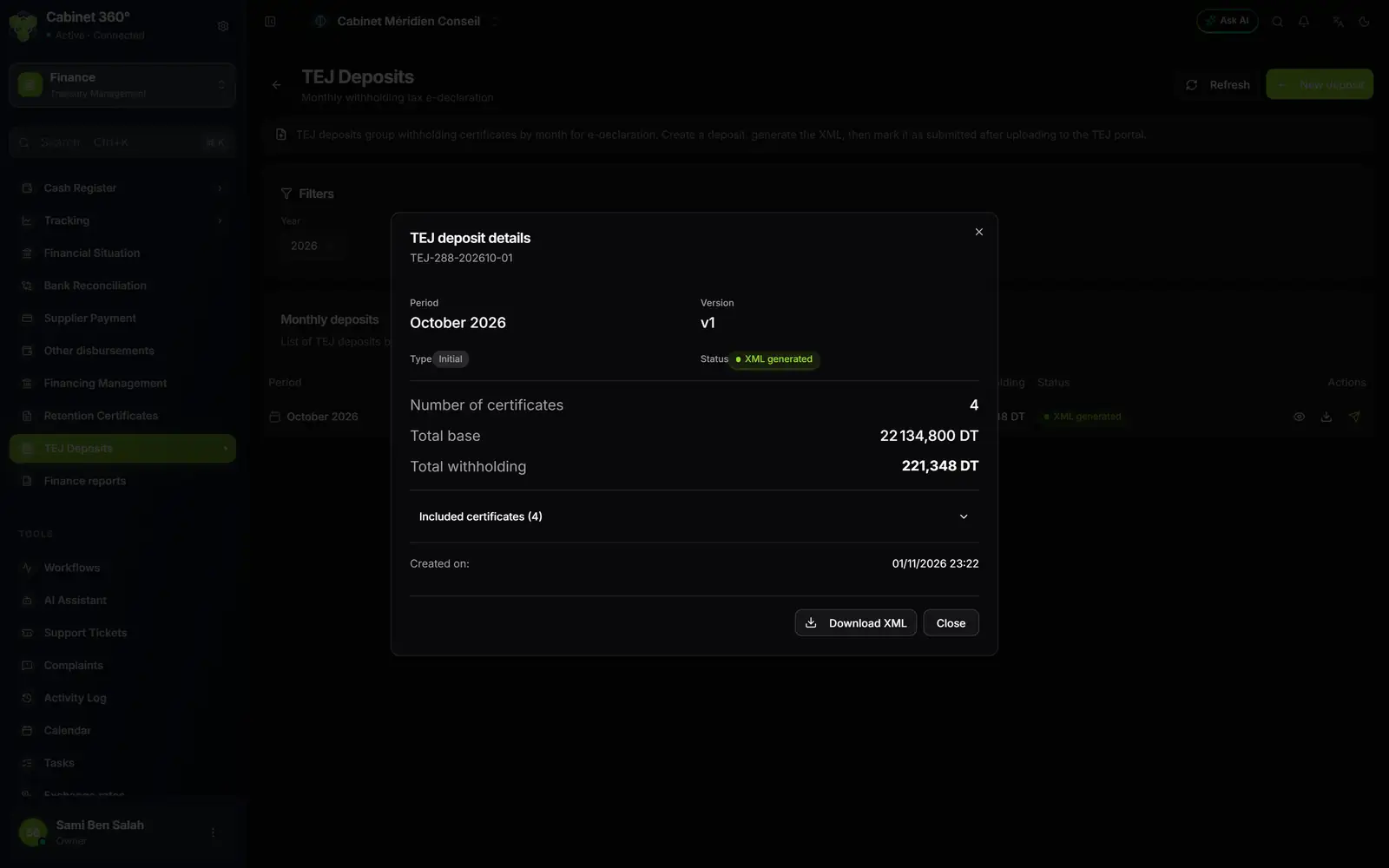
- 1. Period and Version: the month declared, and the version (v1 for the initial deposit).
- 2. Type: Initial, or Rectification for a second deposit for the same month.
- 3. Status: draft, XML generated, submitted, accepted, rejected.
- 4. The totals: number of certificates, total base, total withholding.
- 5. Download XML: the file to upload to the TEJ portal.