
Create your first cash register
As long as no cash register exists, the page shows « No cash register configured » and a Create a cash register button. Its window asks for three fields only:
- Enter the Name (for example « Caisse principale ») and the Code (for example « CAISSE-01 »). The code is repeated in the number of the cash journal.
- Add a Description if you wish.
- Click Create. The message « Cash register created successfully » appears. This first cash register collects all three types of documents: quotes, pre-invoices and invoices.
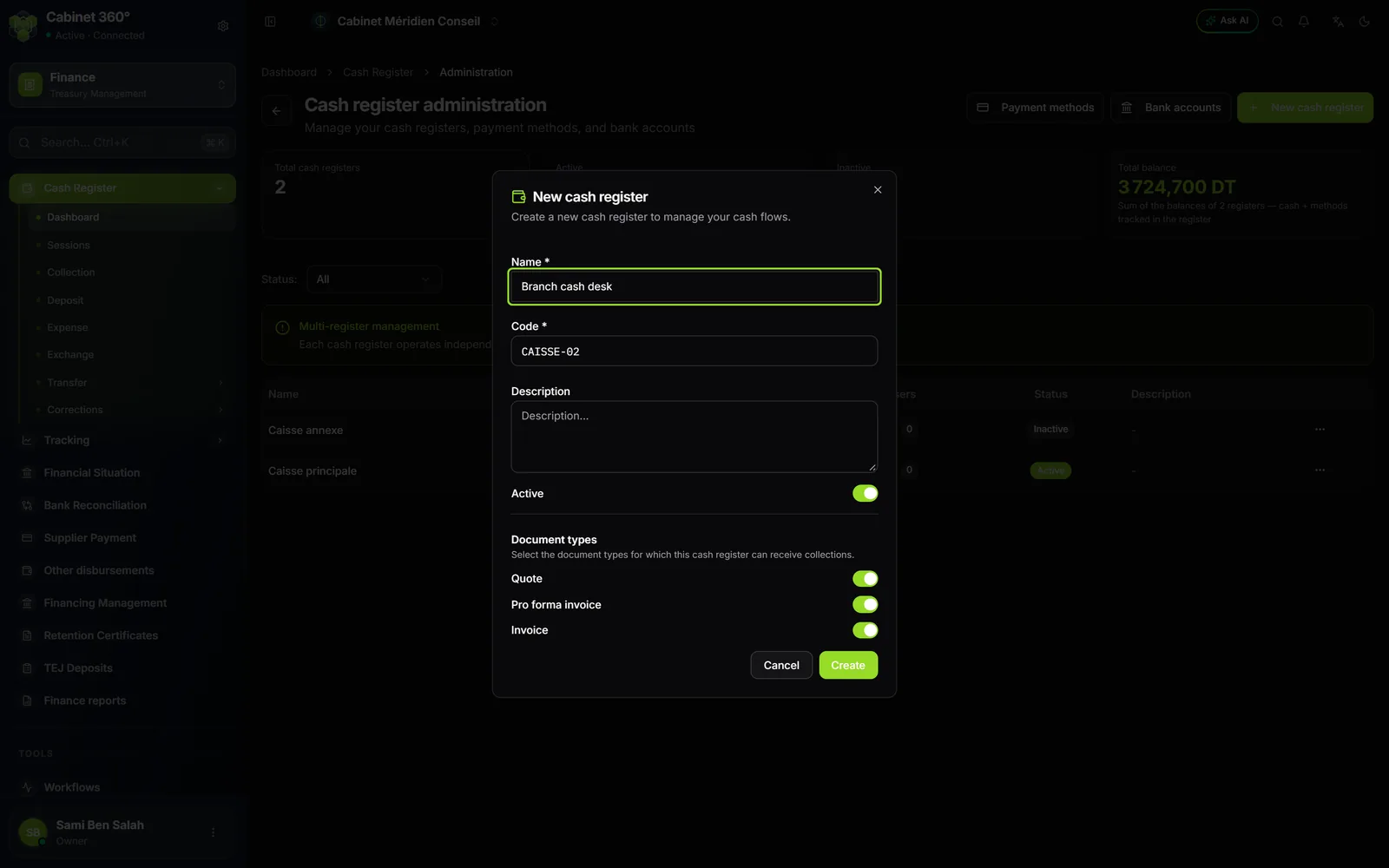
The next cash registers are created from Manage cash registers, button New cash register. That window adds the Active switch and, under Document types, three switches turned on by default: Quote, Pro forma invoice, Invoice. Turn off what the cash register must not collect; Edit lets you change them later.
Manage the cash registers
The Manage cash registers button, at the top of the dashboard, opens the Cash register administration page. It carries three labels (Total cash registers, Active, Inactive), the Total balance and the list of cash registers: Name, Code, Description, Balance, Users, Status.
The menu of each row offers View, Edit, Manage users and Delete. At the top, two buttons lead to the settings shared by all cash registers: Payment methods and Bank accounts (chapter 1).
- Each cash register works on its own, with its own folios and its own movements. A firm can have one cash register at the head office and one at the branch.
- Delete destroys nothing: the cash register becomes Inactive. An inactive cash register no longer makes any operation and disappears from the dashboard; View, in Manage cash registers, still opens its page, which says « This cash register is inactive ». To reactivate it, open Edit and switch on Active.
- The Total balance is the sum of the balances of the cash registers of the chosen filter (All, Active, Inactive).
Who sees which cash registers
Assigning cashiers is optional. The rule fits in two sentences:
- As long as no cash register has an assigned user, every member who has the Cash register rights sees them all.
- As soon as one of the firm's cash registers has an assigned user, everyone sees only the cash registers they are assigned to, the owner included.
The three roles of a cash register
| Role | What it allows on its cash register |
|---|---|
| Manager | Everything: open and close a folio, enter, accept a transfer, cancel a movement, assign the other users. |
| Operator | Open and close a folio, collect, deposit, spend, accept or reject a transfer. Cancels nothing. |
| Viewer | View the movements and the folios, export. |
These roles add to the rights of the firm's role: an operator must also have the Cash register rights to enter anything.
Assign a cashier
The Cash register users page lists all the firm's assignments: User, Email, Cash Register, Role, Assigned on, Assigned by. Filter by cash register with Filter by cash register.
- Click Assign user.
- Choose the Cash register, the User and the Role. Only the firm's active staff members are offered, never a client portal account.
- Click Assign.
The menu of a row offers Change role and Remove. For a single cash register, Manage cash registers, the cash register's menu, Manage users (or the number in the Users column) opens the « Users of … » window, limited to that cash register.
Who can assign? The owner and the administrators of the firm, on every cash register. The Manager of a cash register, for the other users of their cash register, never for themselves. The others see the list without being able to change it.
The cash register dashboard
The dashboard opens on one cash register. At the top right: an update indicator (« Live » when the figures arrive in real time, « 60 s » when the page reloads every minute), Sessions, Audit log and Manage cash registers.

- 1. The first folio banner: as long as folio no. 1 is open, it offers to enter the opening inventory (chapter 3).
- 2. Register balance: the cash plus each method tracked in the register.
- 3. Espèces, Chèque, Effet: one card per method, under the name recorded for it, with the number of items still to deposit.
- 4. The written sum: the line says how the balance is made up, figures included.
- 5. Folio 1 — collected during the folio: what came in since the opening, deposited or not.
- 6. Tax counters: VAT collected and fiscal stamp of the month's invoices.
- 7. To deposit at the bank: the cheques and bills of exchange in the register closest to their due date, with Deposit.
The register balance
The Register balance is the sum of the Cash and of each method tracked in the register, one by one. By default: the cash, cheques and bills of exchange still in the drawer. On the screen above: 616,700 + 1 408,000 + 1 700,000 = 3 724,700 DT.
- Cash is the cash coming in minus the cash going out.
- A cheque or a bill of exchange counts as long as it is in the register; it leaves when you deposit it, hand it to the bank, exchange it or transfer it.
- Transfers, cards and Flouci payments are not part of the balance: the money is already at the bank. The sentence under the cards recalls it.
The folio row
Below, Folio … — collected during the folio is only about the open folio: Cash collected, Cheques received, Bills received, Other methods, Total collected and the number of Payments. These cards count what came in, whether already deposited or not. A click on a card opens the list of items (chapter 4).
The work cards
- Transfers to receive: the transfers sent by another cash register, to Accept or Reject. An open folio is needed to accept.
- Upcoming due dates: the instruments deposited at the bank that fall due within seven days.
- Tax counters: the VAT collected and the Fiscal stamp of all the firm's invoices issued in the chosen month or year (all cash registers together, paid or not), credit notes deducted.
- To deposit at the bank: the four cheques or bills of exchange in the register closest to their due date, each with the number of days to go (« expired » once the due date has passed) and its Deposit button; the others are counted (« +n more ») and the Total includes them all. Deposit moves the item to the « deposited » status on the bank account you choose (the slip reference offered in the window is not saved yet).
- Activity by cashier: for the four most active, the number of movements and the net (money in minus money out) of the day.
- Handover note: a word for the next cashier (« client X must call back about cheque no. 847 »). It is saved on the server and can be read on every computer.
Further down, the card of the open folio carries three buttons, Details, Cash journal and Close; then come the Handover note and the cash register's last 20 Sessions, with View all (chapter 3).