
The Deposits page
Choose the cash register. The Deposits page (« Bank deposits from the cash register ») shows the open folio and four figures: Available cash, Cheques to deposit, Bills to deposit and Total deposited. Below, the folio's Deposits list.
The cheques and bills of exchange offered are all those still in the cash register, including those received during an earlier folio or declared in the opening inventory.
New deposit
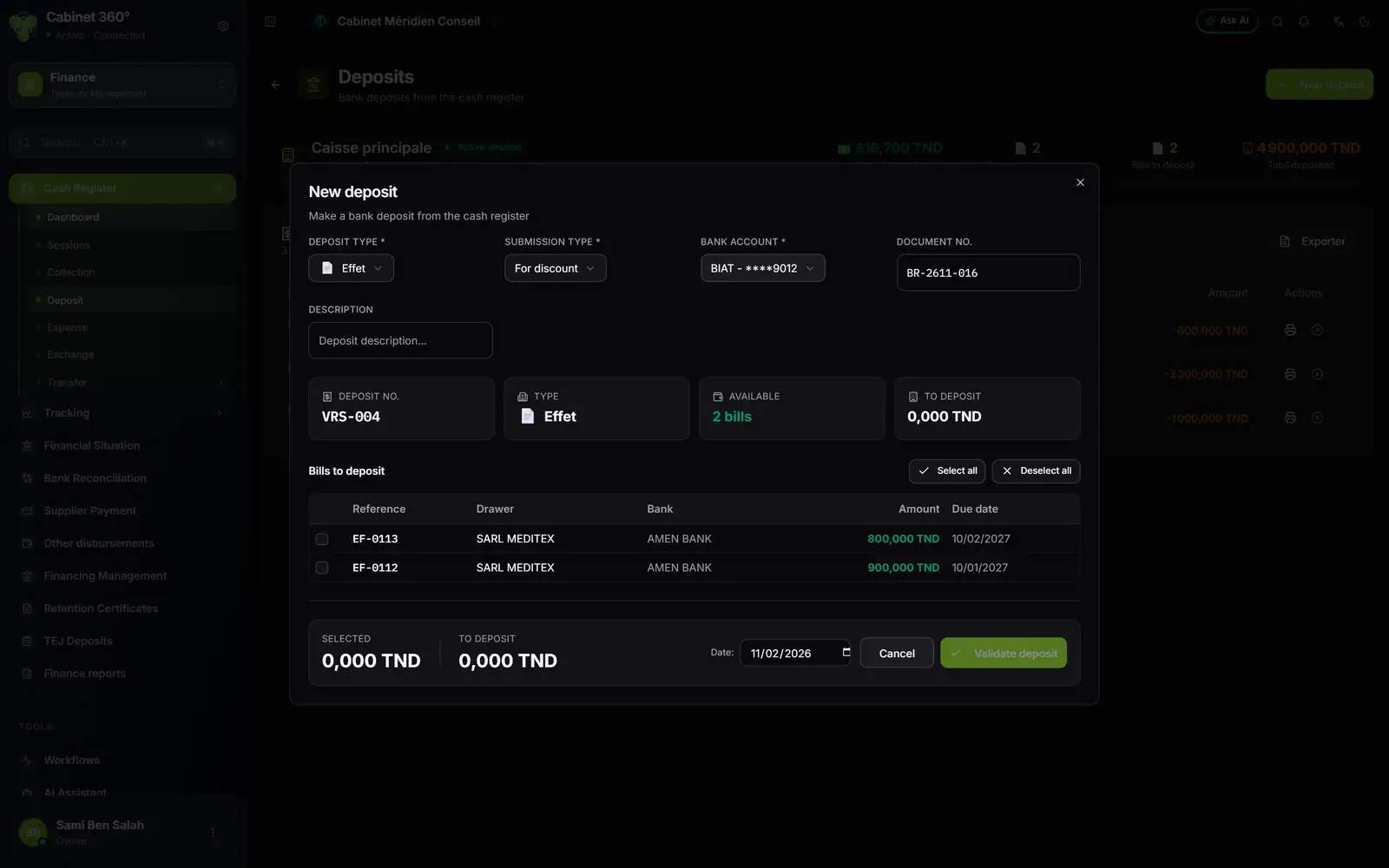
- 1. Deposit Type: cash, cheque or bill of exchange.
- 2. Submission Type: asked for bills of exchange only, for discount or for collection.
- 3. Bank Account: the firm's account that receives the deposit.
- 4. Document No.: the number of the bank's slip, printed on the deposit slip.
- 5. Bills to deposit: tick the items to deposit; Select all takes them all.
- 6. Validate deposit: the deposit leaves the cash register and enters the tracking.
- Click New deposit.
- Choose the Deposit Type: Cash, Cheque or Bill of exchange.
- Choose the Bank Account. If there is none, Import from Company takes the accounts of the firm's profile; otherwise, declare them in Manage cash registers › Bank accounts (chapter 1).
- For bills of exchange, choose the Submission Type: For collection (the bank waits for the due date to credit) or For discount (the bank advances the amount before the due date). It is mandatory: without it, the deposit is refused. A cheque is not discounted: the field does not appear for cheques or for cash.
- Enter the Document No. if you have it (the number of the slip given by the bank, 50 characters at most). For cash, add a Description; a deposit of cheques or bills of exchange gets « Submission of 2 checks to bank » by default.
- For cash: under Deposit details, enter one line per slip (Slip No., Amount); Exact amount takes all the available cash, when there is only one line. For cheques or bills of exchange: tick the items in the list (Reference, Drawer, Bank, Amount, Due date).
- Check at the bottom Selected (cheques, bills of exchange) or Available cash (cash), and To deposit; then the Date, and click Validate deposit.
The message « Deposit recorded successfully » gives the Deposit No. (VRS-001, VRS-002…: one single series for the firm) and offers Print receipt.
The printed deposit slip
Print receipt opens, in the browser's print window, the Deposit Slip:
- at the top, the firm (logo, contact details), the Deposit No. and the date;
- the Document No., the deposit type, the bank and the RIB of the account, the kind of deposit and its purpose (« Submission of 2 checks to bank »);
- the table of the items handed in: Mode, Ref No., Drawer, Bank, Due Date, Amount; for cash, one line per slip;
- the TOTAL AMOUNT, the number of items, « Amount in words: … » and two signature boxes: Company Stamp & Signature, Bank Stamp & Signature.
A slip is reprinted from the Deposits list: the print button of its row opens the deposit's window again, then Print receipt.
Deposit a single item from the dashboard
The cash register dashboard carries the To deposit at the bank card (chapter 2). Its Deposit button, at the end of each row, sends a single item to the bank without going through a deposit: choose the Bank account and, if you have it, the Deposit reference (slip) (this field is not saved yet). The instrument moves to the « deposited » status; you will then mark it cleared or rejected in the tracking.
Cancel a deposit
In the Deposits list, the cancel button of a row opens Cancel deposit. Enter a Cancellation reason (optional) if you wish, then Confirm cancellation: a reversal is recorded, the cash comes back into the cash register and the cheques or bills of exchange become « to deposit » again. The deposit stays in the list, marked Cancelled.
What next?
A deposit is not yet money on the account. It enters Deposit tracking with the In progress status, until you see it on the bank's statement (chapter 7).