
The cycle of an order
A payment order carries a yearly number (OP260001, OP260002…) and goes through four statuses:
| Status | What it means | What you can do |
|---|---|---|
| Pending | Entered, not yet issued: the invoice is not settled yet. | Edit it, delete it, validate it, cancel it. |
| Validated | Issued: the purchase invoice is settled and the withholding certificate is created. | Print it, cancel it. Mark it in the tracking. |
| Paid | The bank has debited it. | Reprint it. It cannot be cancelled (a credit note corrects it); in the tracking, it can still be declared unpaid (cheque, bill of exchange) or put back in progress. |
| Unpaid | The bank rejected the cheque or the bill of exchange. | Either settle it with an "Unpaid settlement" order (it keeps its status and can no longer be cancelled); or cancel it: the invoice gets its balance back, to be settled by a new order. |
Cancelling a validated order gives the invoice back exactly the amount it had settled and cancels its withholding certificate. If that certificate has already been filed with TEJ, or sent to the supplier, the cancellation is refused: a "Filed TEJ" certificate must first be cancelled from the certificates screen.
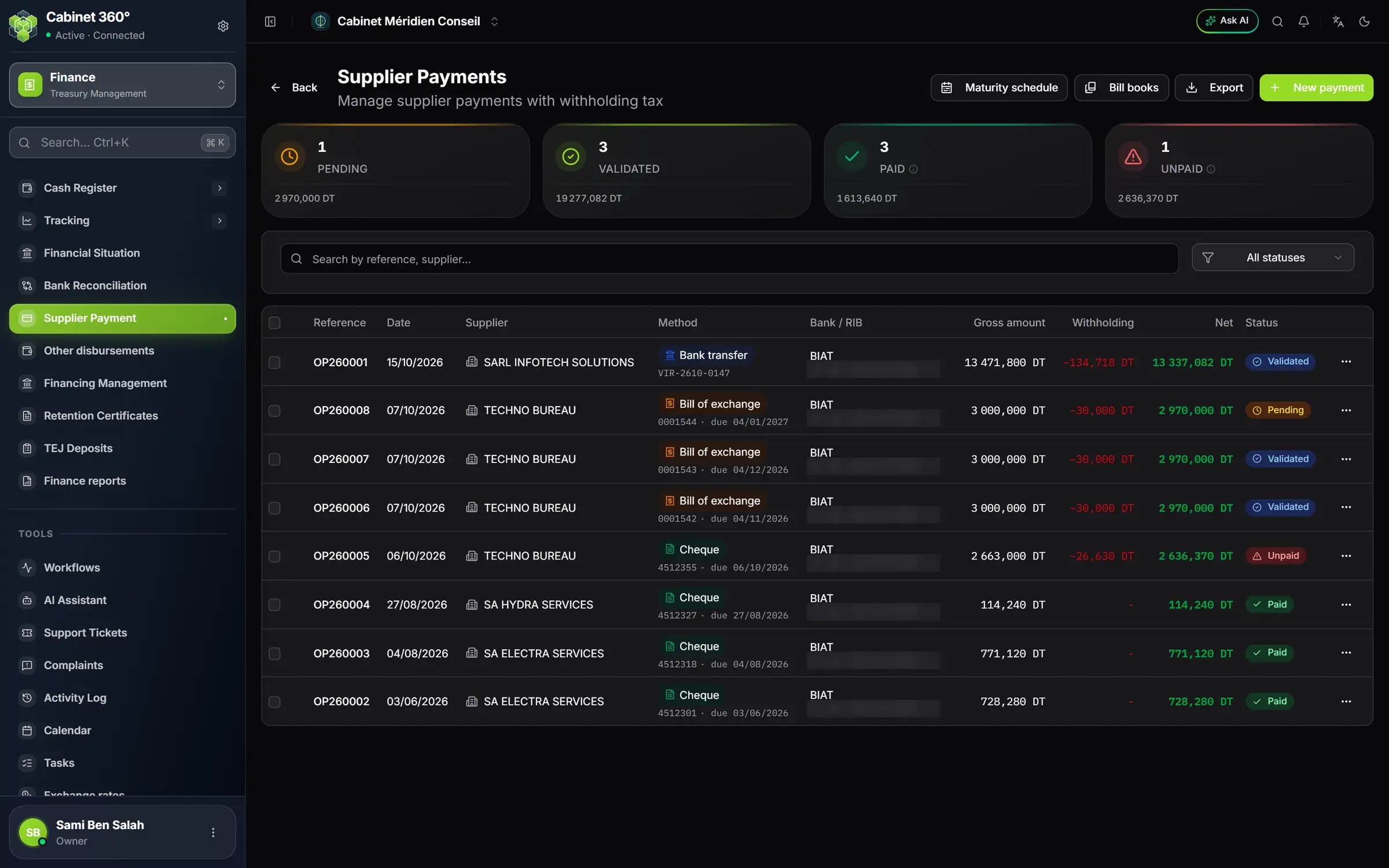
- 1. Maturity schedule, Bill books, Export: the page's tools.
- 2. New payment: the only button that opens the entry form.
- 3. The four counters: pending, validated, paid, unpaid, in number and in amount.
- 4. Method: transfer, bill of exchange or cheque, with the piece number and the due date.
- 5. Gross amount, Withholding, Net: what the order settles and what the supplier receives.
- 6. Status: pending, validated, paid, unpaid.
A line opens its record with one click. The ⋯ menu offers Details, Edit, Validate, Cancel, Print payment order, Send by email and Delete, depending on the status. Tick several pending orders to Validate or Delete them together.
Entering an order
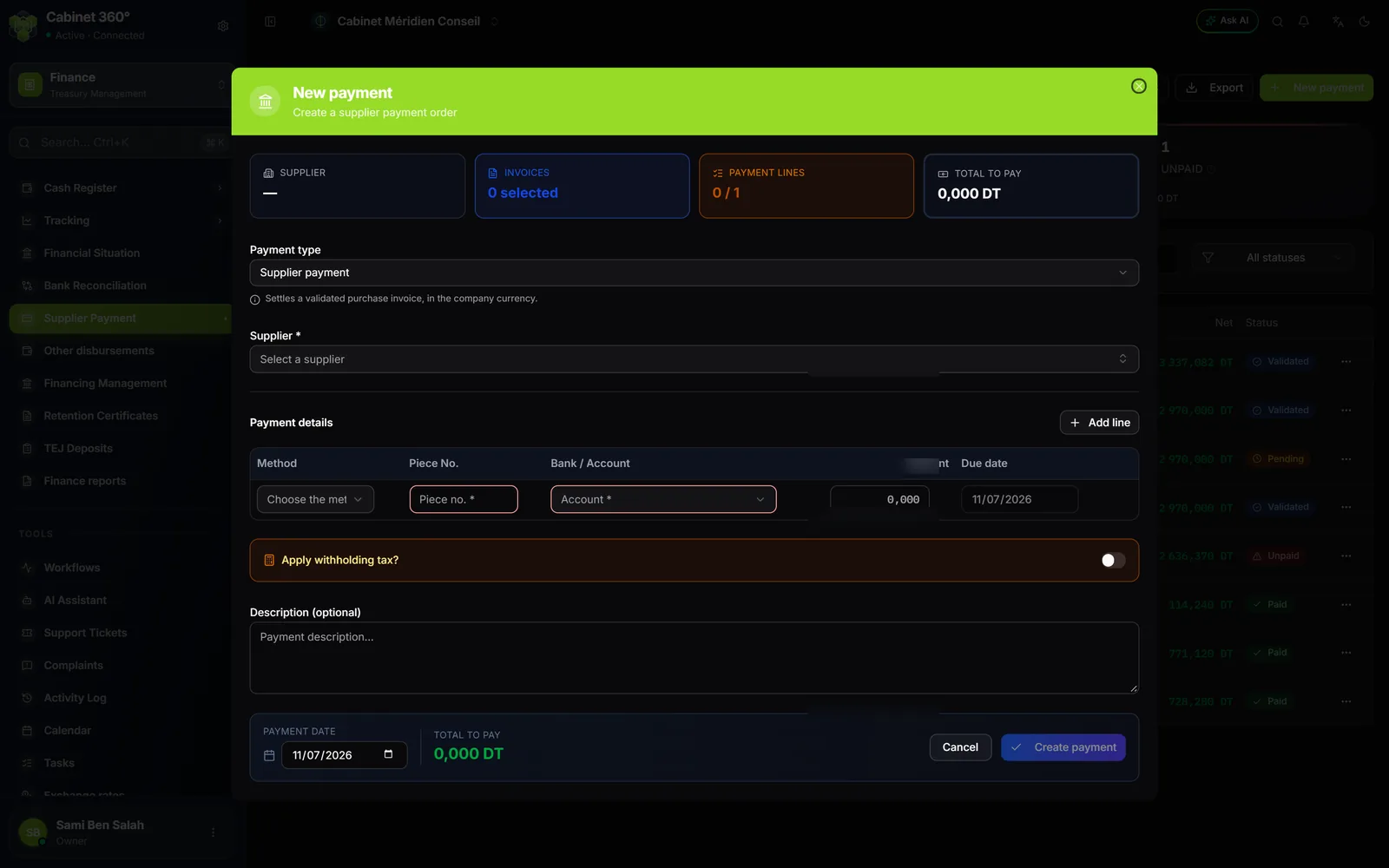
- Click New payment.
- Choose the Payment type, then the Supplier.
- Choose what the order settles: the invoice (only one per order; Settle takes its balance), the unpaid items, the purchase order or the disbursement block.
- Under Payment details, fill in the line: Method, Piece No., Bank / Account, Amount and, for a cheque or a bill of exchange, the Due date. Each line added with Add line becomes a separate order, with its own number.
- If needed, turn on Apply withholding tax?.
- Check the Payment date and the Total to pay, then click Create payment.
- To issue it, open the line's ⋯ menu, Validate, then Confirm.
A purchase invoice that is not validated stays visible in the list, greyed out and marked To validate: validate it first in the Purchases module (Operations workspace).
The five payment types
| Type | What it settles | Withholding |
|---|---|---|
| Supplier payment | A validated purchase invoice, in dinars. | Yes |
| Foreign payment | An invoice in a foreign currency: choose the Currency, check the Exchange rate (suggested, editable); the equivalent in dinars is shown. Only suppliers whose record carries a foreign currency are offered. | Yes |
| Unpaid settlement | The supplier's Bounced cheques, Unpaid bills and Unpaid credit instalments, which you tick: the order amount is their total. One line only, by cheque, transfer or bill of exchange. | No |
| Supplier advance | A validated purchase order, not yet received: the advance is recorded on the order, and the goods receipt then the invoice deduct it. Advance the rest takes everything still to be advanced. | Yes |
| Disbursement | An expense advanced for a client: the block Client, Reference, Description, Document no., Voucher no.. As soon as the order is saved, the disbursement and its validated pre-invoice are created; they follow its changes, and deleting the order cancels them (refused if the pre-invoice has been invoiced or paid). No cash. | No |
Methods and bank details
An order is paid by Transfer, Cheque, Bill of exchange or Bank card. The firm's account is always required; the rest depends on the method:
| Method | Firm's account | Supplier | Piece No. | Due date |
|---|---|---|---|---|
| Transfer | bank + 20-digit RIB | at least one complete account (bank + RIB, or IBAN if it is foreign) | transfer reference | no |
| Bill of exchange | bank + branch + 20-digit RIB | nothing | number of the bill form | yes, required to print the bill |
| Cheque | the account | nothing | cheque number | yes |
| Bank card | the account | nothing | card payment reference, required | no |
If an account is incomplete, the screen writes what is missing under the line or under the supplier, with a Complete the account or Complete the supplier record link that opens in a new tab. Create payment stays greyed out until then; when you come back to the tab, the entry form reads the accounts again.
Withholding tax
Turn on Apply withholding tax?, then choose the Nature of operation (for example "Achats (supérieurs à 1000 DT)", purchases above 1000 DT, shown with its code): it suggests a Withholding rate. Check it for this beneficiary (individual or company, resident or not); a rate chosen by hand is never replaced. If the list is empty, Set up the default natures fills it.
The line's Amount is then the gross; the box shows the Gross amount, the Withholding and the Net amount paid to the supplier.
- Settle sets the gross that settles the invoice. Example: balance of 8 093,000 DT, 1% withholding: gross 8 093,000, withholding 80,930, net 8 012,070 DT.
- The withholding is computed on the amount excluding tax plus the VAT: the stamp duty is not included. An invoice of 1 000,000 excluding tax, 190,000 of VAT and 1,000 of stamp duty gives, at 1%, a withholding of 11,900 and a net of 1 179,100 DT.
- On validation, the withholding certificate is created, validated, with the nature, the amount excluding tax and the VAT of the settled part of the invoice (in dinars for a foreign payment). It waits for the month's TEJ deposit (chapter 9).
The schedule of cheques and bills
The Maturity schedule button, at the top of the page, opens the Schedule of outstanding cheques and bills: by month, by bank and by due date, to choose the method, the due date and the account of the next payments.
- Two tabs: By month and bank and Detail by due date. Filters: Bank, Due from … to ….
- It counts the Validated orders and those Pending validation, and each total gives the share of each. Transfers and paid, unpaid or cancelled orders are not included.
- A due date that has passed is marked due: the order has not been marked in the tracking yet, or is still waiting for its validation.
Printing the payment order (OP)
On an order, Print payment order (the list's ⋯ menu, or its record) opens the print window on the payment order, in A4, black and shades of grey:
- At the top left, the firm's logo, or failing that its name; in the centre, ORDRE DE PAIEMENT (payment order), its number and its date (and "ANNULÉ" or "IMPAYÉ", cancelled or unpaid, when it no longer settles anything).
- Two frames: Bénéficiaire (payee) and Règlement (payment: method, number, due date, the firm's account with bank, branch and RIB, execution date).
- The Règlement grid: method, piece number, payee, bank, RIB, due date, amount.
- The Imputation grid (allocation): document number, date, supplier invoice, invoice date, amount paid — the invoices or the unpaid items that the order settles.
- The totals on the right: Brut (gross), Retenue (withholding, with its rate), Écart (difference), Net à payer (net to pay).
- "Arrêté le présent ordre de paiement à la somme de …" (the amount in words), then three signature boxes: Direction financière (finance department), Direction générale (general management), Acquit du bénéficiaire (payee's receipt).
An order that settles many lines runs onto several pages: "À reporter" (carried forward) at the bottom, "Report" (brought forward) at the top of the next one, and the reminder "ORDRE DE PAIEMENT N° … (suite)". The signature boxes never stand alone on a page.
Printing the bill of exchange
The bill is filled in on the numbered form that your bank gives you. You first need a bill book calibrated for the order's account.
- On the payments page, click Bill books, then New book.
- Enter the Name, the Bank (the firm's account), the First form and the Last form, then measure a form with a ruler: Measured width (mm) and Measured height (mm). Save.
- Download the Calibration sheet, print it at 100% and compare it with a blank form; run a test on a photocopy.
- Reopen the book, tick Calibration verified, then save: the line shows ✓ Calibrated.
Then enter the order with the Bill of exchange method (the Piece No. is the form number; the Due date, prefilled with the current day, is essential to print the bill) and validate it. Tick it in the list and click Print bill (or use its record). The PDF is downloaded: print it at 100%, with the bank's form in the tray.
- The bill enters the portfolio of bills of exchange: the firm is the drawee, the supplier the drawer. The order drives it: validated, paid, unpaid or cancelled, the bill follows.
- A bill already printed asks for confirmation (Reprint the bill?): a numbered form can only be used once.
- When it is greyed out, the button says why: pending order, another method, no due date, foreign currency (a bill of exchange is drawn in dinars), or missing right.
Printing the transfer
Tick one or more validated or paid orders paid by transfer, then Print transfer. One Ordre de virement (transfer order) sheet comes out per order, to hand to the bank: place and date, bank and branch of the account to debit, amount in words, account to debit, beneficiary, and the "Cachet et signature autorisée" box (authorised stamp and signature). If the supplier has several RIBs, the Beneficiary RIB window asks which one to credit.
Carrying over outstanding payments
On the day you move to IntegraSys, some cheques and bills of exchange issued by the old software have not been debited yet. Carry them over in one go:
- Enter the Migration date: only payments issued on or before that date, and not yet debited, are carried over.
- Download the Excel template (sheets Légende, Règlements, Exemple, Listes, Contrôle) and fill it in: method, supplier (by its code), firm's account (by its RIB), piece number, issue date, due date, net amount, currency and status ("En circulation" or "Impayé", that is outstanding or unpaid).
- Choose the file and On error: Skip the line (the good lines go through) or Cancel everything.
- Preview (no save): check the totals by account and by method against your bank statements.
- Import N payments.
Each line becomes a Validated (or Unpaid) order, which keeps your original number and then lives like the others: disbursement tracking, financial situation, unpaid settlement. The carry-over creates no accounting entry, no cash movement and no certificate, and does not touch the balance due of the invoices.