Choosing a template
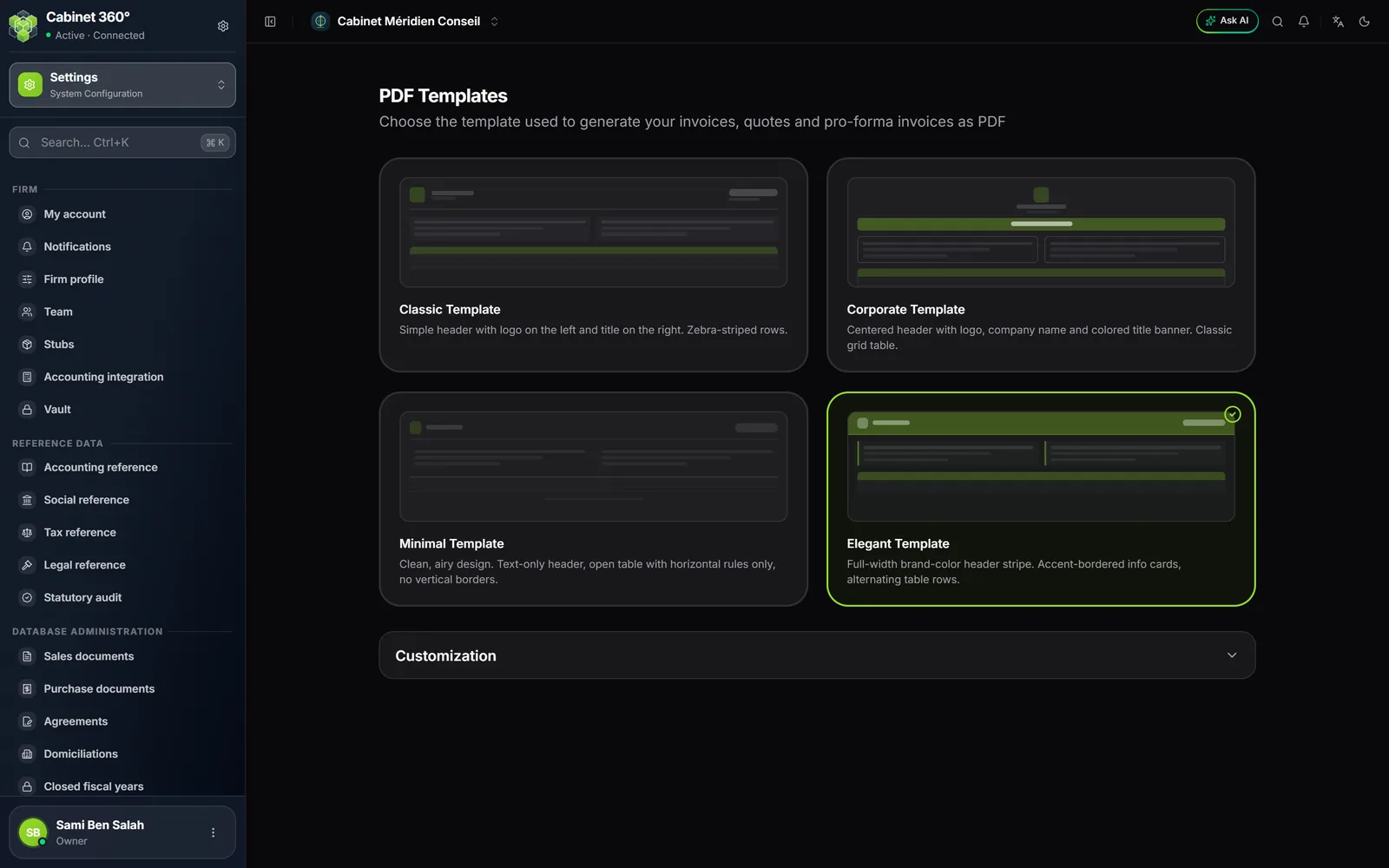
The PDF Templates screen shows four templates. The one in use carries a tick. The chosen template is used for all the firm's invoices, quotes, credit notes and pre-invoices, including the invoices your clients download from their portal.
| Template | What it looks like |
|---|---|
| Classic Template | Simple header, logo on the left and title on the right, alternating rows |
| Corporate Template | Centred header with logo and name, coloured title band, classic grid |
| Minimal Template | Clean and airy, text-only header, horizontal lines without vertical borders |
| Elegant Template | Full-width header band in the firm's colour, cards with a side accent, alternating rows |
- Click the template of your choice. The tick moves to it, and the Cancel and Save buttons appear at the bottom of the page.
- Open Customization to adjust it (see below).
- Click Save. The message « Saved — The PDF template has been updated » confirms. Cancel drops the template choice and the unsaved settings.
- Open an invoice and print it to see the result.
Customizing the template
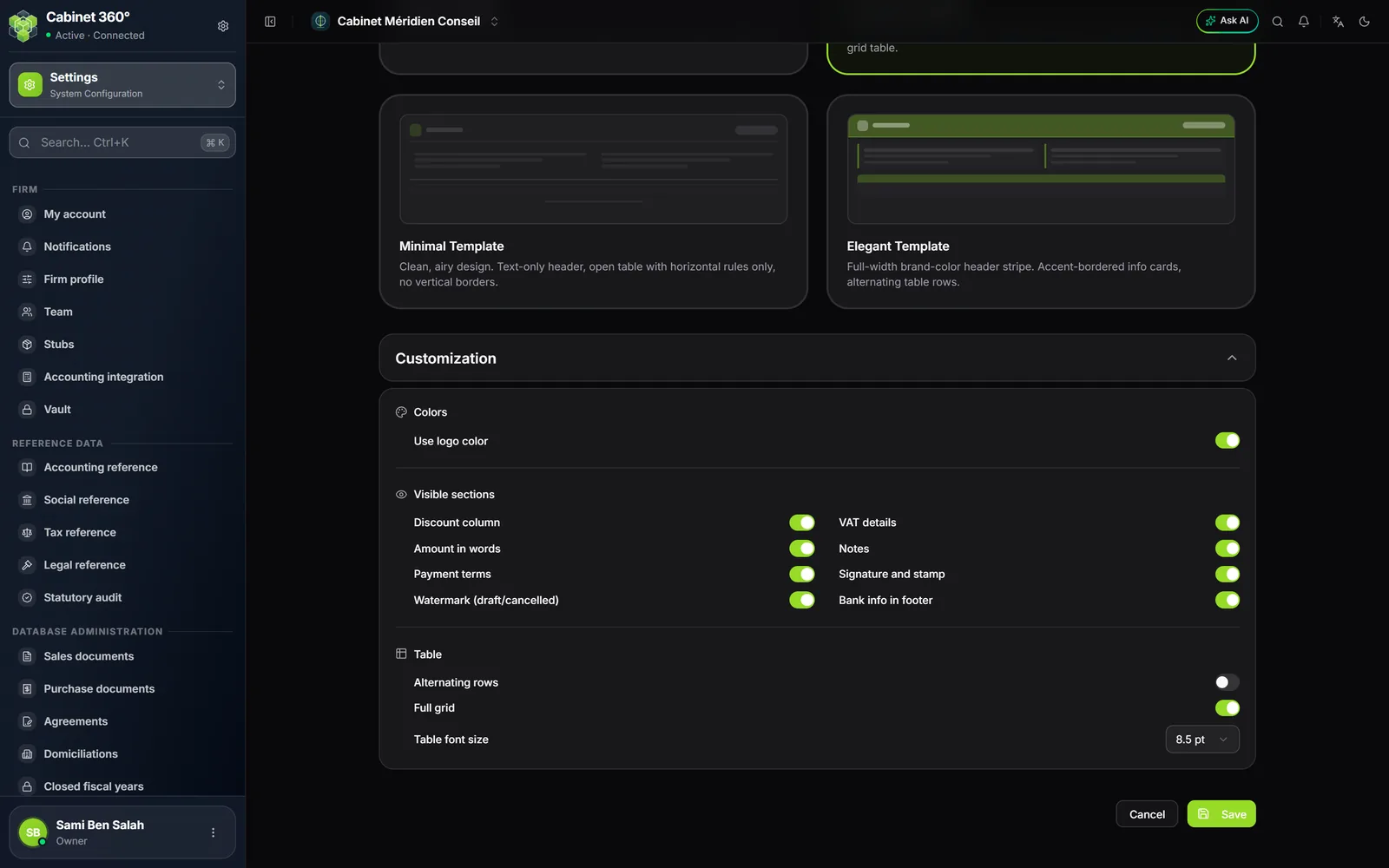
Customization opens three groups of settings.
Colors
Use logo color takes the colours of your logo. Turn it off to choose a Primary color yourself.
Without a logo and without a chosen colour, the document comes out in a plain, black-and-white layout.
Visible sections
| Section | What it prints |
|---|---|
| Discount column | The discount of each line |
| VAT details | The VAT breakdown by rate |
| Amount in words | The net amount due written out in words |
| Notes | The document's notes |
| Payment terms | The payment conditions |
| Signature and stamp | The image from the firm profile, on every page |
| Watermark (draft/cancelled) | A mention across a draft or cancelled document |
| Bank info in footer | The bank, branch and RIB of the « PDF default » account (never on a credit note) |
Table
Alternating rows colours every other line. Full grid draws all the borders. Table font size goes from 7 to 11 pt.
What changes, and when
The PDF follows the template in use at the moment you print it. An old invoice printed again therefore takes the new template. Files already downloaded or sent do not change.
The stamp or the RIB does not show? Check two things: the section (Signature and stamp, Bank info in footer) is turned on here, and the stamp image or the bank account is saved in the firm profile. On a credit note, the RIB is never printed: that is intended.
The other templates in the menu
The Templates section of the Settings menu also holds:
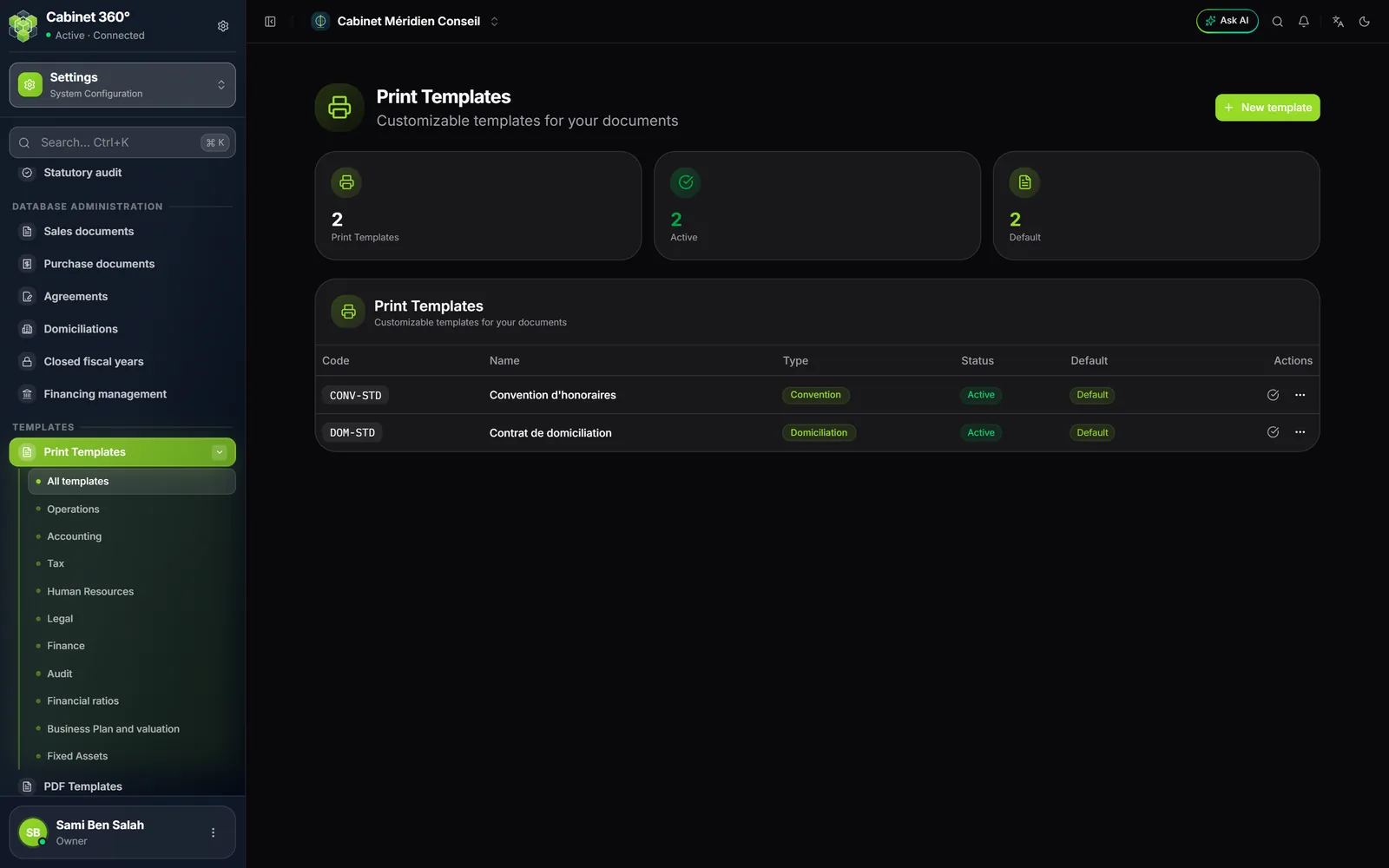
- Print Templates: standard texts, with variables, for your modules' documents, for example: agreements, domiciliations, staff contracts and certificates, minutes, convocations, statutes, share transfers, powers of attorney. One sub-menu per subscribed module, and All templates. The platform's templates arrive as copies, which you can adapt and then bring back to the platform's version. These rights are given through a role's Print Templates screen. Each module's book explains its templates.
- Forms and requests: your request and form templates, used by the Tax module's Forms & requests screen, and the Documents card: the footer of your documents and the standard text of the representation letter.
Your invoices, quotes, credit notes and pre-invoices, for their part, follow the PDF template of this chapter.