
Three tabs, one screen
The Team screen has three tabs: Users (the members who sign in), Roles (what each one can do, in the next chapter) and Agents (the colleagues' records). It opens on Users.
An agent is the record of a colleague of the firm: their name, initials, position, e-mail address. Files and time spent are assigned to an agent.
A member is an account that signs in to the firm. You become a member through an invitation, made from the agent record.
So an agent can exist without an account (an intern whose time you track, for example). A member normally has a record; if it could not be linked to their account, their line shows « Agent record not linked ».
Creating an agent record
- Open Settings › Team, Agents tab.
- Click New agent.
- Fill in the First name, Last name and Initials, which are required, and the Email: without an address the record is saved, but the colleague cannot be invited. This address will be their sign-in name. Initials are unique within the firm.
- Click Create. The message « Agent created successfully » appears.
Inviting a colleague
- Open the Users tab and click Invite a member.
- In Agent, type a few letters of their name and choose them. Only active agents who do not yet have access to the firm are offered.
- In Roles (multiple allowed), tick their role or roles. If their agent record carries an active role, it is already ticked.
- Check the address shown at the bottom of the window: that is where the invitation goes.
- Click Send the invitation. The message « Invitation sent » appears, with the roles given.
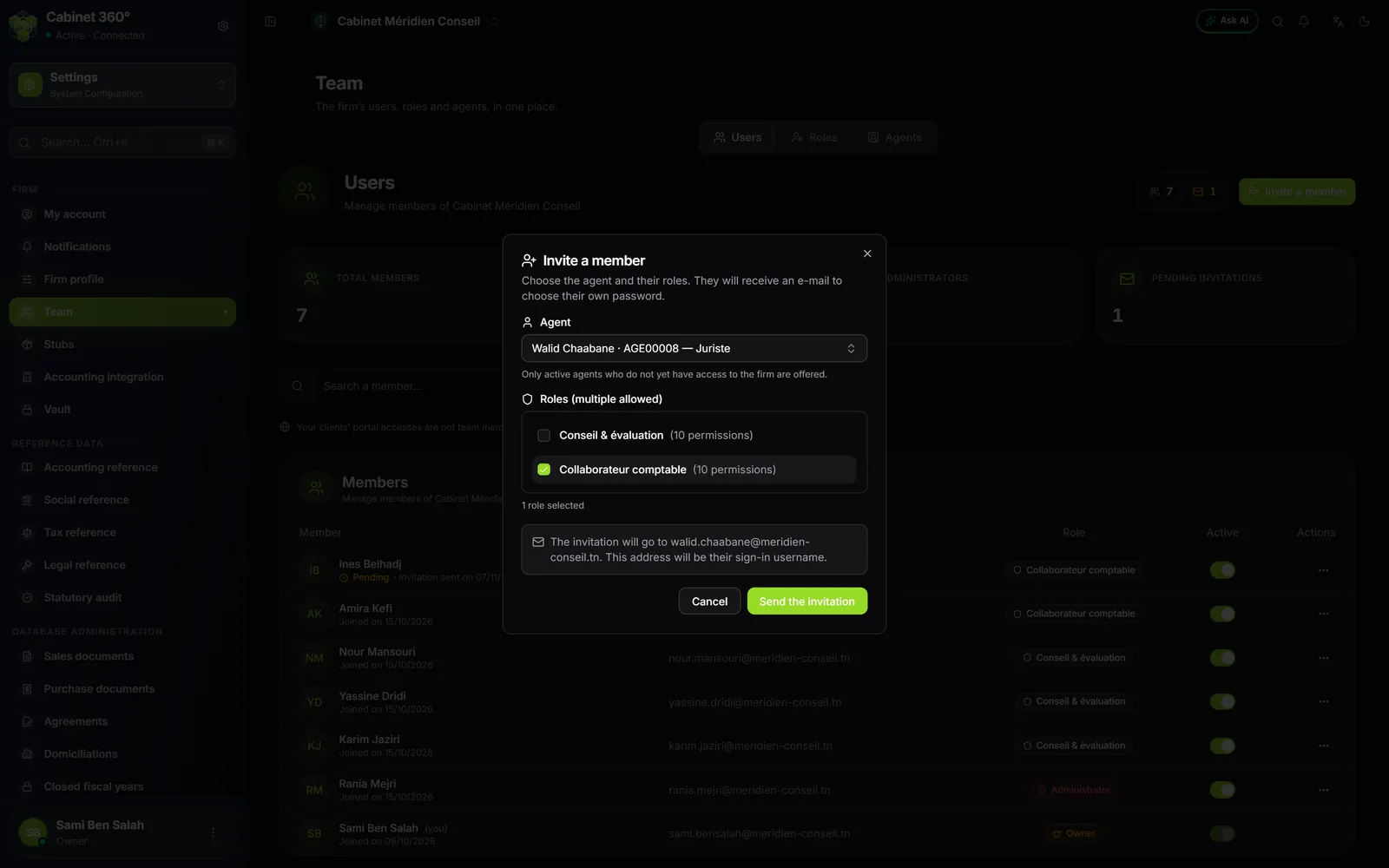
An agent without an e-mail address appears greyed out in the list, with the reason: « no e-mail address (complete their record) ». Complete their record in the Agents tab, then come back.
What the colleague receives
They receive an e-mail, in French, titled « Rejoignez l'équipe de … sur IntegraSys ». They click Choisir mon mot de passe, type their password twice (at least 8 characters, with an upper-case letter, a lower-case letter, a digit and a special character; not too common, not too close to their name or address), then click Save my password. They can then sign in. You never know their password.
The link is valid for 3 days and works only once.
Following the invitation
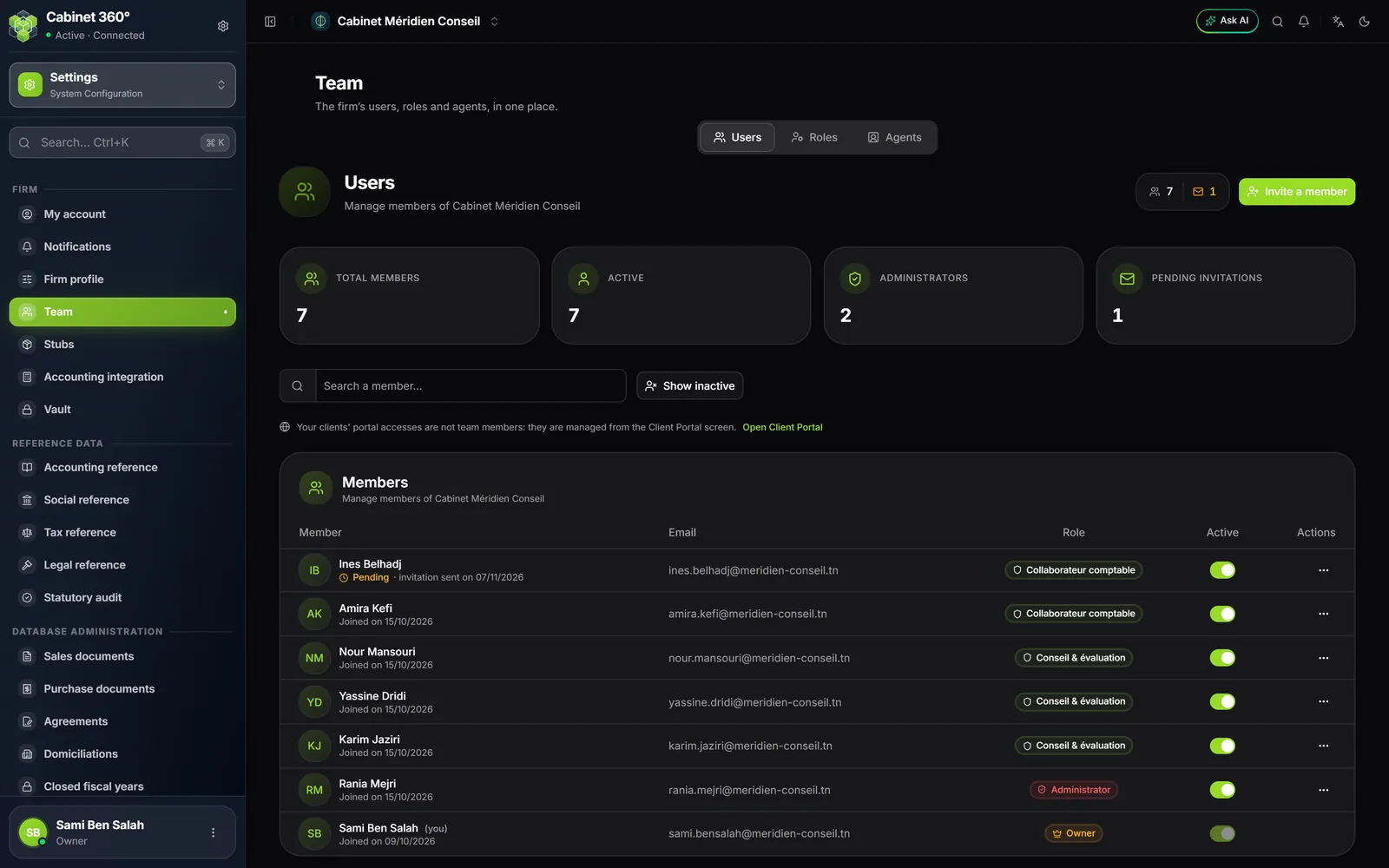
In the Members list, the invited colleague is marked Pending, with the date of the invitation. The Pending invitations counter goes up by one. Once they have chosen their password, Pending gives way to the date they joined the team (« Joined on … »).
To protect sending, IntegraSys limits invitation e-mails: 30 per hour for one person inviting, 100 per hour for a firm. A resend counts too.
A colleague who already has an IntegraSys account
They already work for another firm? Invite them the same way. They keep their account and password.
- If their e-mail address is already verified, they join your firm at once: « Member added ». They receive an e-mail telling them.
- Otherwise, they receive an e-mail with a « Rejoindre » button followed by your firm's name, and confirm with their account's password. Their line is marked Invitation pending until then.
They then switch from one firm to the other through the company menu, at the top of the screen.
The team's seats
Each firm has a number of seats for its team: 10 at the start. Each active member takes one, including an invited colleague who has not yet chosen their password. Client portal access does not take one.
Once the limit is reached, a new invitation or reactivating a member is refused, and the message gives the limit. Current members keep their access.
To free a seat, turn off the Active switch of a member who no longer needs it. To get more, buy a collaborators pack in My Subscriptions when IntegraSys offers one (see My Subscriptions), or ask the IntegraSys team to raise your limit.
The base roles
Each member has a base role. Three exist today:
| Base role | What it can do |
|---|---|
| Owner | Everything. The person who created the firm. The firm always keeps at least one active owner. |
| Administrator | Everything, like the owner: the firm profile, the members, the roles, the subscription. |
| Member | What their roles open to them (next chapter). |
Two older roles remain on the members who held them: Manager (supervision) and Viewer. The manager invites, resends an invitation and removes members who are neither owner nor administrator; they give no role. The viewer views. They keep these roles until you choose Member or Administrator for them.
Appointing an administrator
- Users tab, open ⋯ at the end of the colleague's line, then Edit.
- In Base role, choose Administrator.
- Click Save. The message « Member updated » confirms.
Member brings them back to their roles' rights. Only an owner edits an owner, and nobody changes their own base role.
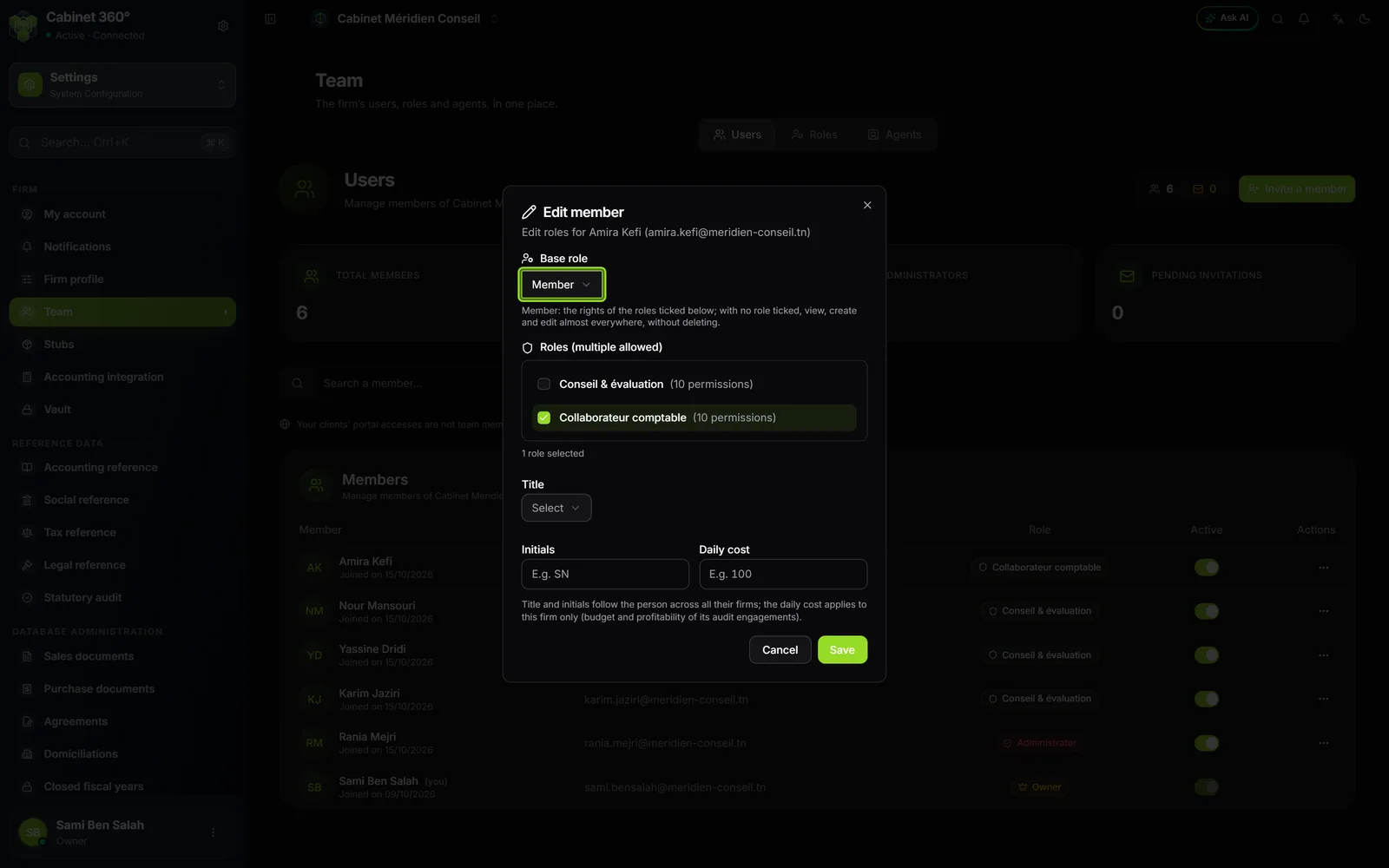
The same window holds the member's Title (Staff associate, Engagement lead or Manager), Initials and Daily cost. The daily cost applies only to your firm: it is used for the budget and profitability of your audit engagements. The title and initials follow the person in all their firms.
Cutting access
- For a while: turn off the Active switch on their line. They can no longer sign in to your firm, and their seat is freed. Turn it back on when they return: Show inactive brings their line back.
- For good: ⋯ › Remove, then confirm « Remove this member? ». A colleague who had already joined the team receives an e-mail telling them.
On an owner's line, the switch is greyed out and Remove is missing; your own line offers nothing: nobody cuts their own access.
Deleting an agent record
First cut the colleague's access. As long as they can sign in, Delete stays greyed out in the Agents tab and says why. Then: ⋯ › Delete.
Deletion is final. A record deleted by mistake? Write to support: only the IntegraSys team can restore it.