
The principle
The owner and administrators have every right: roles are for the other members.
A role is a list of screens, arranged as in the menu: a module, its sections, their sub-sections. A section without sub-sections is itself a screen. On each ticked screen, the role gives View, plus, if you tick them, Create, Edit or Delete.
With a role set by screen (the layout offered by default), the colleague's menu shows only the screens their roles open. The same goes in a client's file (accounting, HR, tax…) and in the quick search (Ctrl K).
Creating a role
- Open the Roles tab, then click New role.
- Type a short Code and a Title, for example COMPTA and Accounting assistant. The Description is optional.
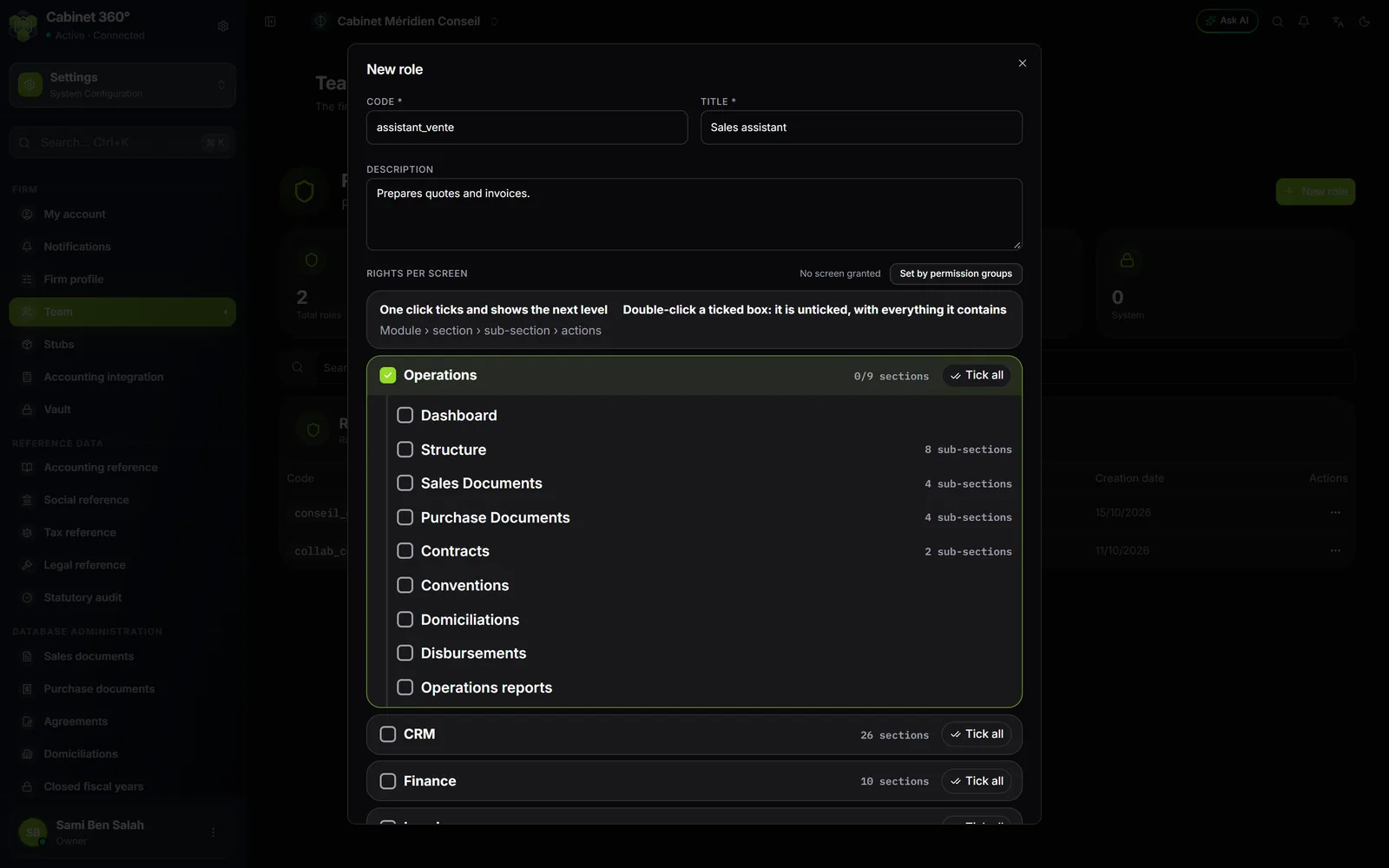
- In Rights per screen, click a module, for example Operations: it is ticked and shows its sections.
- Click a section to see its sub-sections, then a screen to see its actions. Tick the actions you want.
- Click Create. The message « Role created successfully » appears.
Moving around the tree
- One click on a box ticks it and shows the next level.
- A double click on a ticked box (or the Delete key) unticks it, with everything inside it.
- Tick all, at the end of a module's line, gives the whole module at once: all its sections, all its screens, all their actions. The button becomes All ticked.
- The mention view-only screen marks a screen that only reads: it has View only.
What the actions give
| Action | What it allows |
|---|---|
| View | Opening the screen and reading. Always included when the screen is ticked. |
| Create | Adding a record or a document on this screen. |
| Edit | Changing what exists. |
| Delete | Removing a record or a document. |
A few screens need special care:
- In Operations, Sales Documents › Quotes and Sales Documents › Pre-invoices are enough to work on quotes and pre-invoices. Converting them into an invoice also needs Create on Sales Documents › Invoices.
- In Accounting, the RNE financial-statement filing screen offers a separate action, Submit: without it, a colleague prepares and validates a filing, but does not mark it as submitted to the RNE.
- In the Settings module, Firm section, the Team entry has three screens. Users and Roles can only be viewed: inviting a member, creating or editing a role stay with the owner and administrators. Users › View shows the list of members, their addresses and their rights: tick it only for those who need to see it.
- Agents offers Create, Edit and Delete: a colleague can keep the agent records without being able to change roles or members. Edit also gives Deactivate and Activate on a record.
Giving a role
- Open the Users tab.
- Click ⋯ at the end of the colleague's line, then Edit.
- Leave Base role on Member.
- Tick the role in Roles (multiple allowed).
- Click Save. The message « Member updated » confirms.
A colleague with several roles combines the rights of their active roles. Their menu updates when they come back to the IntegraSys tab; if they stayed on the page, they reload it.
Changing a role's rights
Roles tab, ⋯ › Rights per screen (other members open it read-only). Tick or untick, then click Save in the bottom bar. If rights are removed, IntegraSys lists them first: confirm with Remove and save. Cancel puts the tree back as it was when the page opened.
The change applies to every member who holds this role.
Deactivating, duplicating, deleting
- Deactivate: ⋯ › Deactivate. If members hold this role, IntegraSys names them first. Deactivated, the role gives them nothing more, and those with no other active role have no rights at all. Confirm with Deactivate anyway. ⋯ › Activate brings it back.
- Duplicate makes a copy that you set separately. Handy for a role close to an existing one.
- Delete: a role held by members cannot be deleted. First take it away from each of them (Users tab, ⋯ › Edit), then delete it. To cut its rights at once, deactivate it.
A role marked System can be read but not changed. Duplicate it to make a role of your own.
Rights reserved to the firm's managers
Some rights are reserved: the owner and administrators have them by default, other members only get them through a role that gives them explicitly. The main ones:
| Right | What it opens | Where to tick it |
|---|---|---|
| Dashboards | The Operations dashboard and the Workflows figures: revenue, receivables, cash, anomalies | Operations › Dashboard, or Tools › Workflows: View |
| Reveal passwords | Showing, copying or exporting a password from the Vault, after confirming with one's own password | Settings › Firm › Vault: the Reveal and export passwords action |
| Activity Log | Sign-ins, actions, exports and security alerts of the whole firm | Tools › Activity Log: View |
| Client portal | Creating your clients' portal access, deactivating it, deleting it | Settings › Exchanges & data › Client Portal and its actions |
Others are reserved too: Accounting integration, the AI Assistant, connecting an outside AI agent, automations, data sharing, customer notifications and several CRM rights.
Without the Dashboards right, the Operations home page says which right is missing, and the module's other screens stay in the menu.
A method that works
- Start from the firm's jobs, not from people: « Accounting assistant », « Legal assistant », « Billing officer ».
- For each job, tick only the modules of its work, with View everywhere and Create / Edit where it enters data.
- Keep Delete for the managers.
- Give the role, then ask the colleague what is missing: safer than opening everything at once.