
Opening the profile
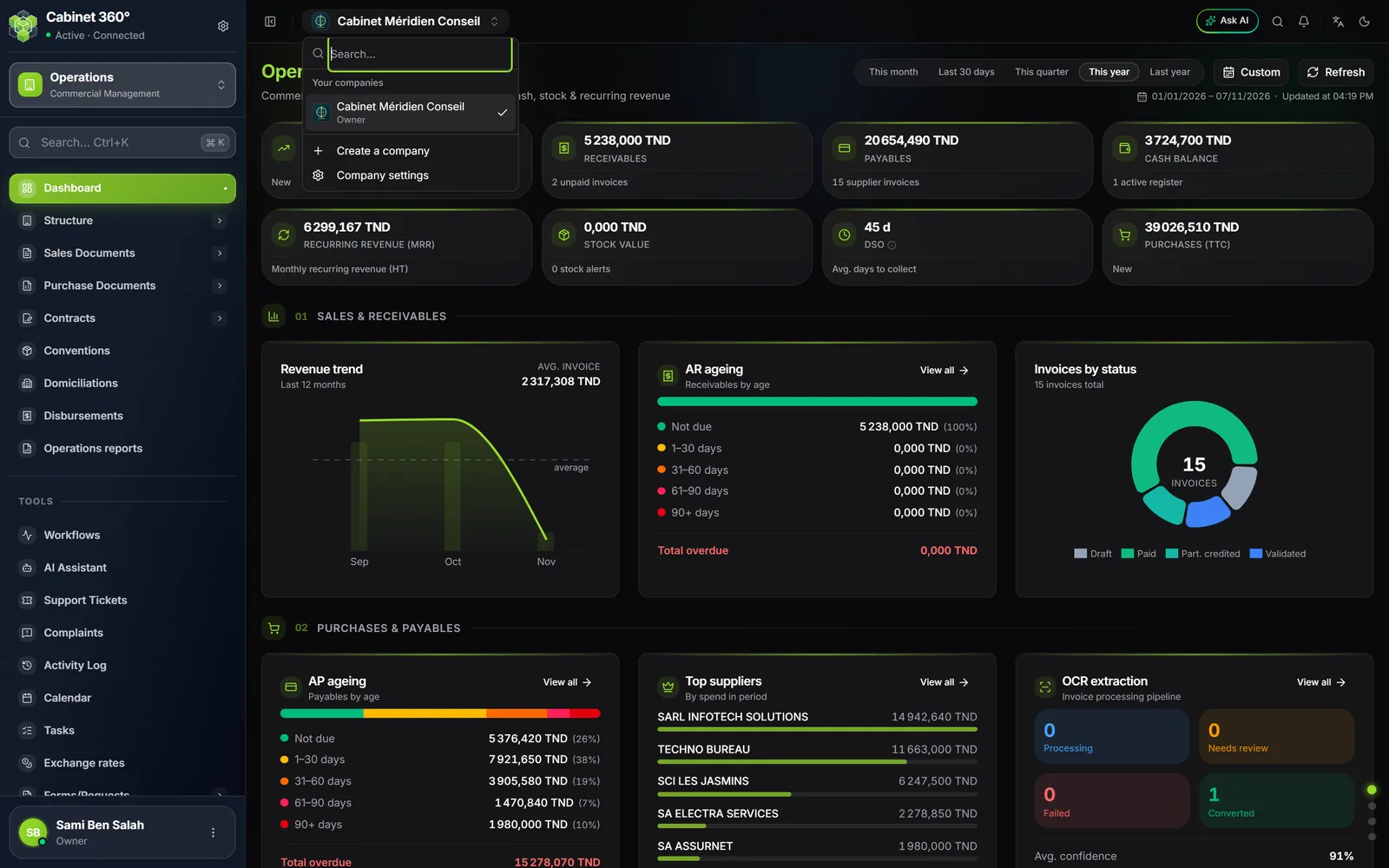
You can also click the firm's name at the top of the screen, then Company settings: the same profile opens.
A page you read, one line at a time
The profile reads like a document. On the left, a menu of eight sections. On the right, each piece of information on its own line: its label, its value, and Edit at the end. An empty line shows « Not provided ».
At the top, the header shows the logo, the firm's name and « Record … % complete ». Below, a link says how many sections are left to fill in: click it to go down to the first one. When everything is filled in, it says « Every section is filled in ».
In the section menu, a green dot marks a complete section, an orange dot a section to complete.
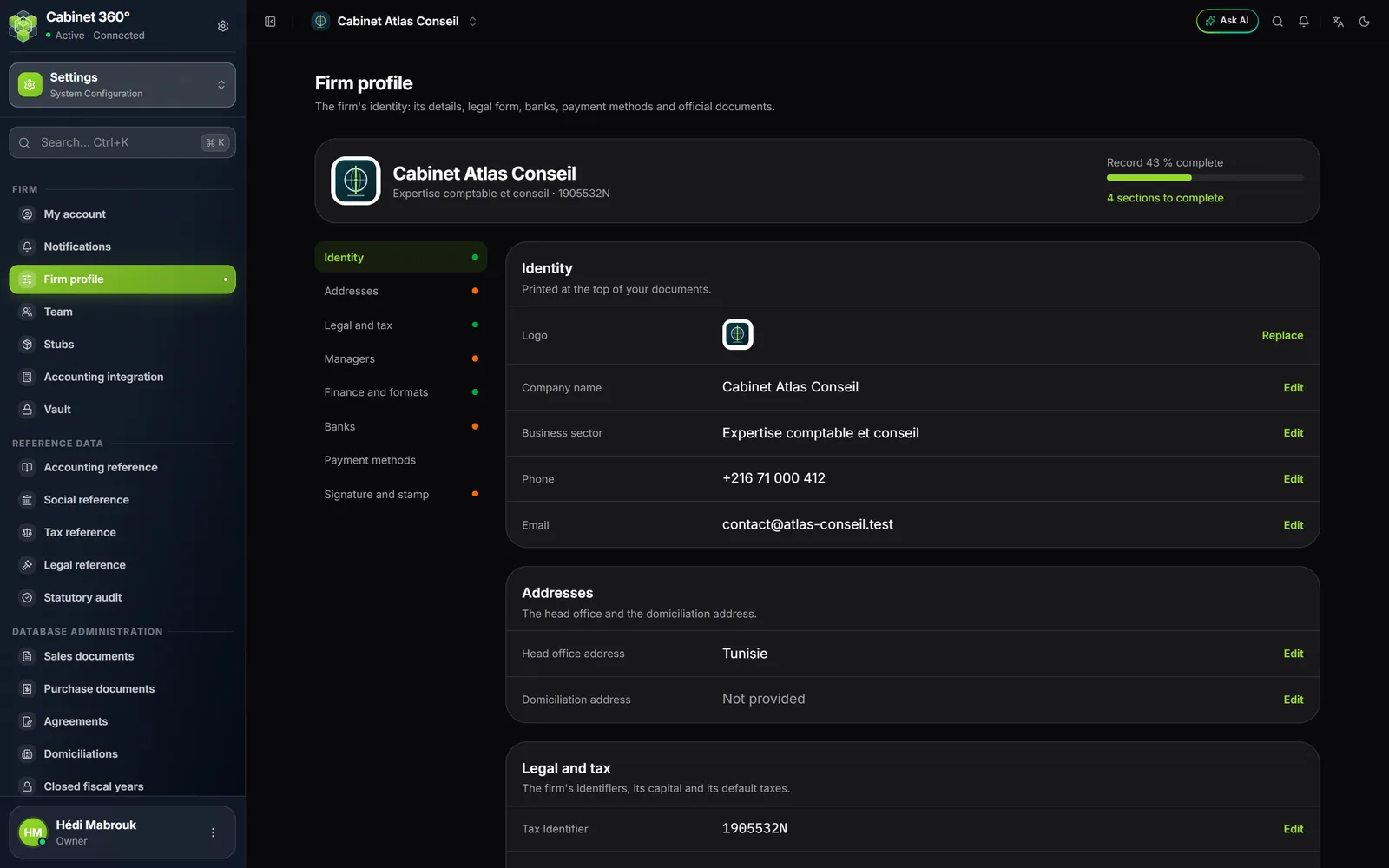
- Click Edit at the end of a line: its entry opens in place.
- Change the value.
- Click Save, on the same line. The message « Saved » confirms it and the line closes. Cancel brings back the saved value.
Only one line opens at a time: the other Edit buttons wait, with the reminder « Save or cancel the open line first. »
How the percentage is worked out
Seven sections count, each for one seventh; Payment methods does not count. A section is complete when:
| Section | Complete when… |
|---|---|
| Identity | the name is filled in, with a phone number or an email |
| Addresses | the city and the address of the head office are filled in |
| Legal and tax | the tax ID is filled in |
| Managers | at least one director has a name |
| Finance and formats | the currency is chosen (TND by default) |
| Banks | at least one account has its bank and its RIB |
| Signature and stamp | an image is uploaded |
Identity
| Line | What you enter |
|---|---|
| Logo | JPG, PNG, WebP or GIF, 2 MB at most. Add, then Choose an image; Replace or Remove later. |
| Company name | Required: « Company name is required ». It is printed at the top of your documents. |
| Business sector | Free text. |
| Phone, Email | The email must be valid. |
Addresses
The Head office address has five fields: country (Tunisia by default), city, delegation, postcode and full address. In reading mode, it shows on one line.
The Domiciliation address has the same fields. If it is the same as the head office, tick Same address as the head office: the fields take the head office address, read-only, and follow it each time it changes. Unticked, the box empties the fields, ready to fill in.
Legal and tax
| Line | What you enter |
|---|---|
| Tax Identifier | Seven digits then the control letter, for example 1234567R. |
| CNSS Number | The firm's employer number. |
| Share Capital | An amount in the profile's currency, never negative. |
| Collective Agreement | The one that applies to your employees. |
| Applicable VAT | A rate from the list. |
| Tax stamp | An amount, usually 1,000 DT. |
While you type the tax ID, the screen checks it: « Incomplete tax ID (7 digits + 1 letter) » while a character is missing, « Invalid fiscal ID: the check letter does not match » if the letter does not go with the digits, and « Valid tax ID » when everything is right. The server also accepts the full form, for example 1234567R/A/M/000.
The Applicable VAT is chosen from a list: the rates IntegraSys opens to sales. Only 0, 7, 13 and 19 % are Tunisian rates; if the list offers others, do not choose them. A rate the platform has since withdrawn stays on the profile that carries it, marked as disabled.
The Tax stamp is refused below 0 and above 100 DT.
Managers
Add a director opens a line: title, first name, Last name (required), position (set to « gérant » by default), type of ID (CIN, passport, residence permit, other), number and date of issue.
The bin asks « Delete this item? »; the removal only happens when the line is saved. A director without a last name is not saved.
Finance and formats
The Currency line gives the currency, its sub-unit and its number of decimals: TND, millimes, 3 decimals by default. When editing, thirteen currencies are offered; choosing one also sets its sub-unit and its number of decimals.
The Number format line sets the decimal separator (comma or point) and the thousands separator (space, point, comma or none). The Format preview shows the result on an example, for example 1 234 567,890 TND.
Banks
Add an account opens a line: Bank name, Branch / Office, RIB / IBAN and Account currency (the profile's by default).
The RIB is typed in digits: the screen counts them (« 12/20 digits ») and groups them by four. Once the 20 digits are there, it checks the key: valid, or for example « Invalid RIB key (expected: 78) ». An account without a bank or without a RIB is not saved.
The account printed on your documents
Only one account is printed on your PDFs, and none on a credit note. When editing, its button says PDF default; the others say Set as default. In reading mode, the chosen account carries the mention « printed on PDFs ».
Credit lines and fees
Once the profile is saved, each account carries two boxes, saved separately:
- Management credit lines: the facilities the bank grants you (overdraft, commercial discount, foreign-currency financing, advances on contracts, secured bonds, guarantees on contracts). Each entry starts from an effective date. The cash register and the cash position read the overdraft of the period that covers their date.
- Fees: account-keeping fees, from monthly to yearly, and the bank's commissions excluding VAT by payment method, on receipts and on payments. For bank cards, it is a rate.
Only the owner and administrators enter them.
Payment methods
Manage opens, in place, the list of the cash register's payment methods. At the start: cash, cheque, bill of exchange, transfer, bank card, Flouci and direct debit. For each: its label, active or not, and what it requires when entered (a reference, a bank, a due date). Add a method creates one. The round Reset to default button recreates the starting list only when it is empty: it does not restore a changed or deactivated method.
Each change is saved at once. These settings follow the cash register's rights, not the profile's: the Finance & Cash book explains them.
Signature and stamp
Upload the image of your signature and stamp: JPG, PNG, WebP or GIF, 2 MB at most. A PNG with a transparent background of about 400 × 200 px gives the best result.
What the profile prints
Your invoices, quotes, credit notes and pre-invoices as PDF read the profile each time they are printed. It gives them:
- the firm's logo and name;
- the tax ID (« MF »), the head office address, the phone and the email;
- the bank and RIB of the « PDF default » account, if the template shows bank details, never on a credit note;
- the signature and stamp, on every page, if the template shows them.
Where they go depends on the template chosen (chapter 6). With the Classic Template, the footer has three columns:
| Footer | What comes from the profile |
|---|---|
| Left | The name, the tax ID and the share capital |
| Centre | The head office address, the postcode and city, the phone, the email |
| Right | The bank, branch and RIB of the « PDF default » account |
The share capital is printed only with this template.
The domiciliation address is not printed on these documents.
The layout template and what it shows are set elsewhere: see Your documents as PDF.