
Six steps, in this order
A new firm is ready when these six things are done. Each step has its chapter.
| Step | What you do | Where | Chapter |
|---|---|---|---|
| 1 | Fill in the firm profile: name, logo, tax ID, banks, stamp | Settings › Firm profile | The firm profile |
| 2 | Create the twelve mandatory sequences | Settings › Stubs | Sequences |
| 3 | Choose your PDF template | Settings › PDF Templates | Your documents as PDF |
| 4 | Create the agent records and the roles, then invite the team | Settings › Team | The team, Roles and rights |
| 5 | Check your modules and their end dates | Tools › My Subscriptions | My Subscriptions |
| 6 | Set your language, theme and security | Settings › My account | My account |
The order matters: the profile and the sequences come before any document, and the roles before the invitations. A colleague invited without a role gets broad rights; it is better for the role to be waiting.
Where to find Settings
The left menu shows one module at a time. The button at the top of the menu shows the open module, for example Operations. Click it: the list of modules opens. Settings is always offered, last of the modules.
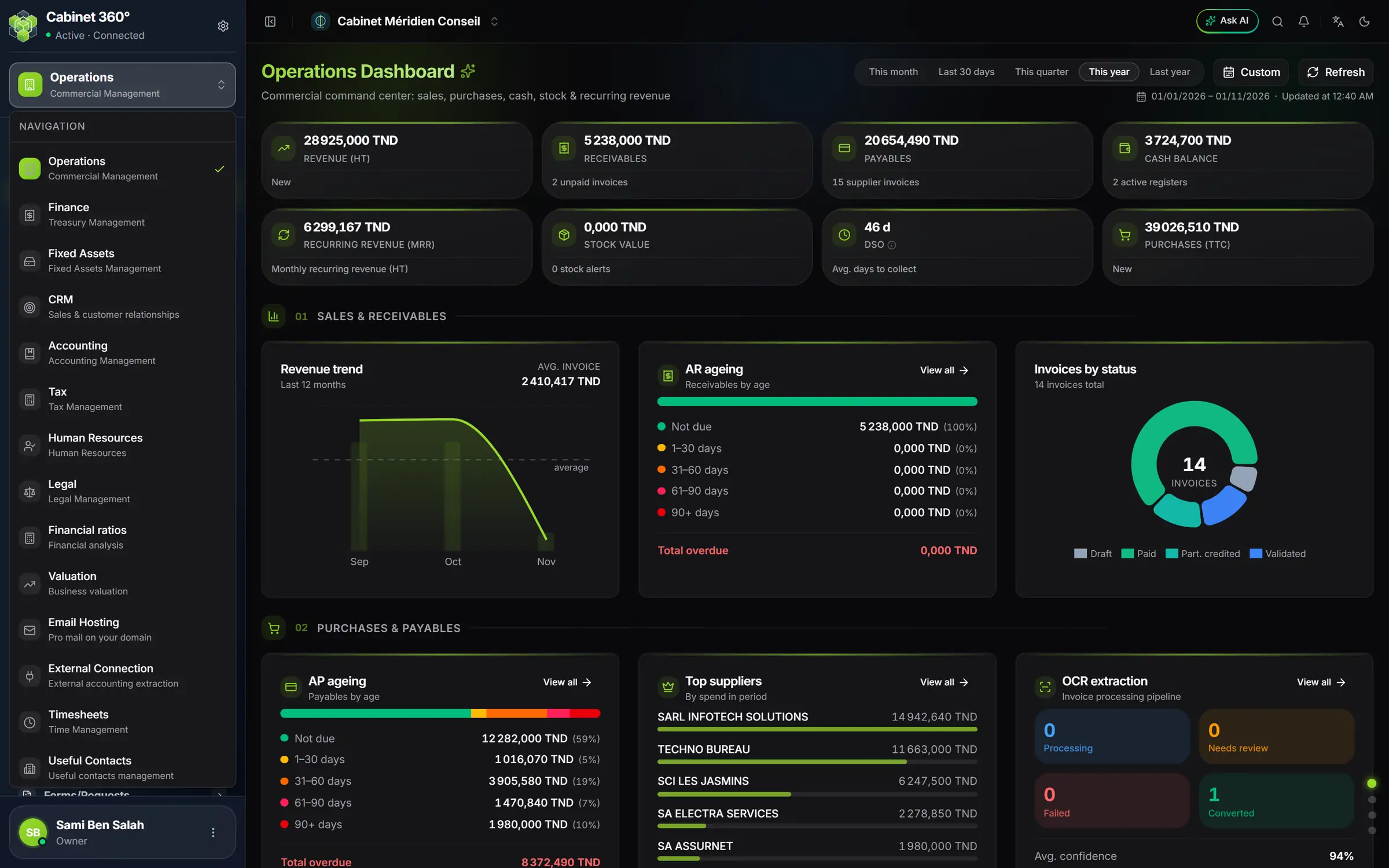
- 1. The open module: click to change module. Settings is the last in the list.
- 2. The modules in your subscription, in the firm's order. Each has its own menu.
- 3. The company menu: switch firm, create one, open its settings.
- 4. Language and theme, on the right of the top bar.
- 5. Your name and your role in this firm; the three dots open a menu: Profile (your account) and Logout.
The top bar shows your firm's name. Click it: Your companies lists the firms you are a member of. The same menu offers Create a company and Company settings, which opens the firm profile.
The Settings menu, section by section
The Settings menu groups its screens into sections, in the order a firm sets itself up. This book covers the Firm section and the PDF Templates. The other screens serve one module: that module's book explains them.
Firm
| Entry | What it is for | Where to read about it |
|---|---|---|
| My account | Your own settings: profile, password, two-factor authentication, language, theme | Chapter 8 |
| Notifications | The notifications you receive, in one list | Chapter 8 |
| Firm profile | The firm's identity, printed on its documents | Chapter 2 |
| Team | Agents, members and roles | Chapters 4 and 5 |
| Stubs | The numbering of documents | Chapter 3 |
| Accounting integration | The link between the firm's operations (sales, purchases, receipts…) and its accounts and journals | Accounting book |
| Vault | The firm's logins and passwords, kept safe | Below |
The Vault keeps the logins of the firm's online services, for example those of the administration's portals: the service name, its address, the login, the password and a note. Showing or copying a password is a separate right that only the owner and administrators have by default (see Roles and rights).
Reference data
The accounting, social, tax and legal references, and the statutory audit one. These are the product's base lists (chart of accounts, rates, legal forms…), kept mostly by IntegraSys; a few also take the firm's own lines, such as its payroll items or its proxies. Each module book explains the ones it uses.
Database administration
Lists « for corrections », across all files: sales and purchase documents, agreements, domiciliations, closed fiscal years, financing. Everyone reads there what their rights allow; only the owner and administrators correct there, and always through the document's own record, with its rules.
Templates
PDF Templates sets the layout of your invoices, quotes and pre-invoices (chapter 6). Print Templates and Forms and requests hold the standard texts of your documents by module: each module's book explains them.
Exchanges & data
Client Portal opens your clients' online space to them (Client portal book). Customer notifications, Data sharing and Data Import are for exchanging with your clients and bringing your data in from Excel or CSV files.
And in Tools
The Tools group, at the bottom of each module's menu (except Settings), holds My Subscriptions and Usage: your modules, their end dates, their storage (chapter 7).
Who can set what
Whoever creates the firm is its owner. With the administrators the owner appoints, they have every right: the firm profile, the sequences, the templates, the team and the roles, the subscription.
Other members see what their roles open to them. A screen your rights do not allow does not appear in your menu. A module the firm has not taken does not appear either.