
What is a sequence?
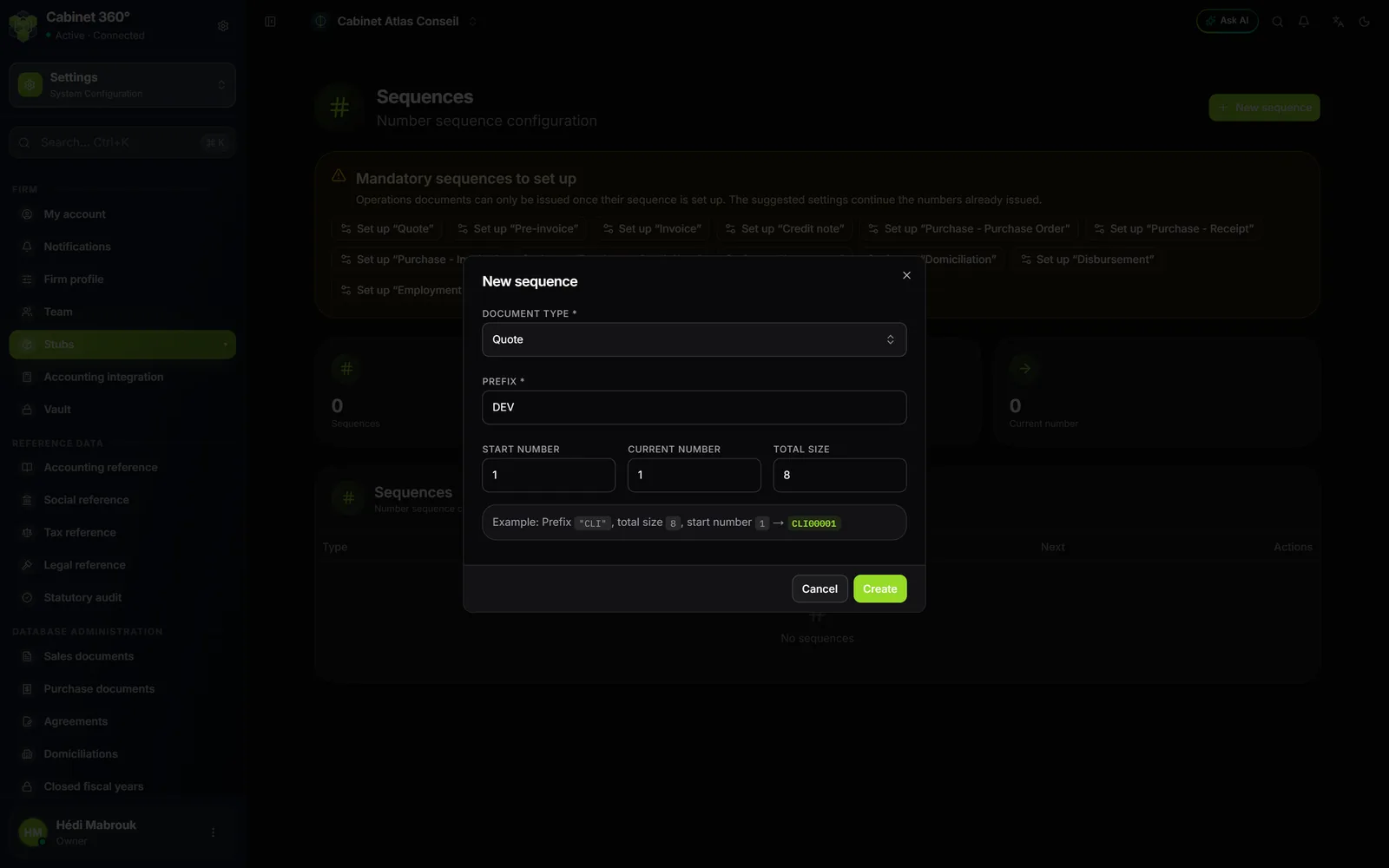
A sequence is the series that numbers one type of document. It has four settings: a Prefix (the letters in front of the number, for example FAC), a Start number, a Current number (the one the next document will carry) and a Total size (the number of characters, prefix included).
With the prefix FAC, a total size of 8 and a current number of 1, the next invoice carries the number FAC00001, then FAC00002, and so on. IntegraSys adds the zeros needed to reach the size.
Each type of document has its own sequence: your quotes, your invoices and your credit notes do not share the same series.
The menu entry is called Stubs; the screen it opens is titled Sequences.
The twelve mandatory sequences
In a new firm, Operations documents, and the Human Resources employment contract, cannot be issued until their sequence exists. Twelve sequences are mandatory:
| Documents | Sequences |
|---|---|
| Sales | Quote, Pre-invoice, Invoice, Credit note |
| Purchases | Purchase - Purchase Order, Purchase - Receipt, Purchase - Invoice, Purchase - Credit Note |
| The firm's contracts | Agreement, Domiciliation, Disbursement |
| Human resources | Employment contract |
All the other sequences (clients, suppliers, legal documents, payment orders, tickets…) are created on their own, with suggested settings, by the first document that needs them. You can change them afterwards on the same screen.
Setting up the mandatory sequences
At the top of the Sequences screen, an orange box, Mandatory sequences to set up, lists the missing ones. Each has its button: Set up “Quote”, Set up “Invoice”…
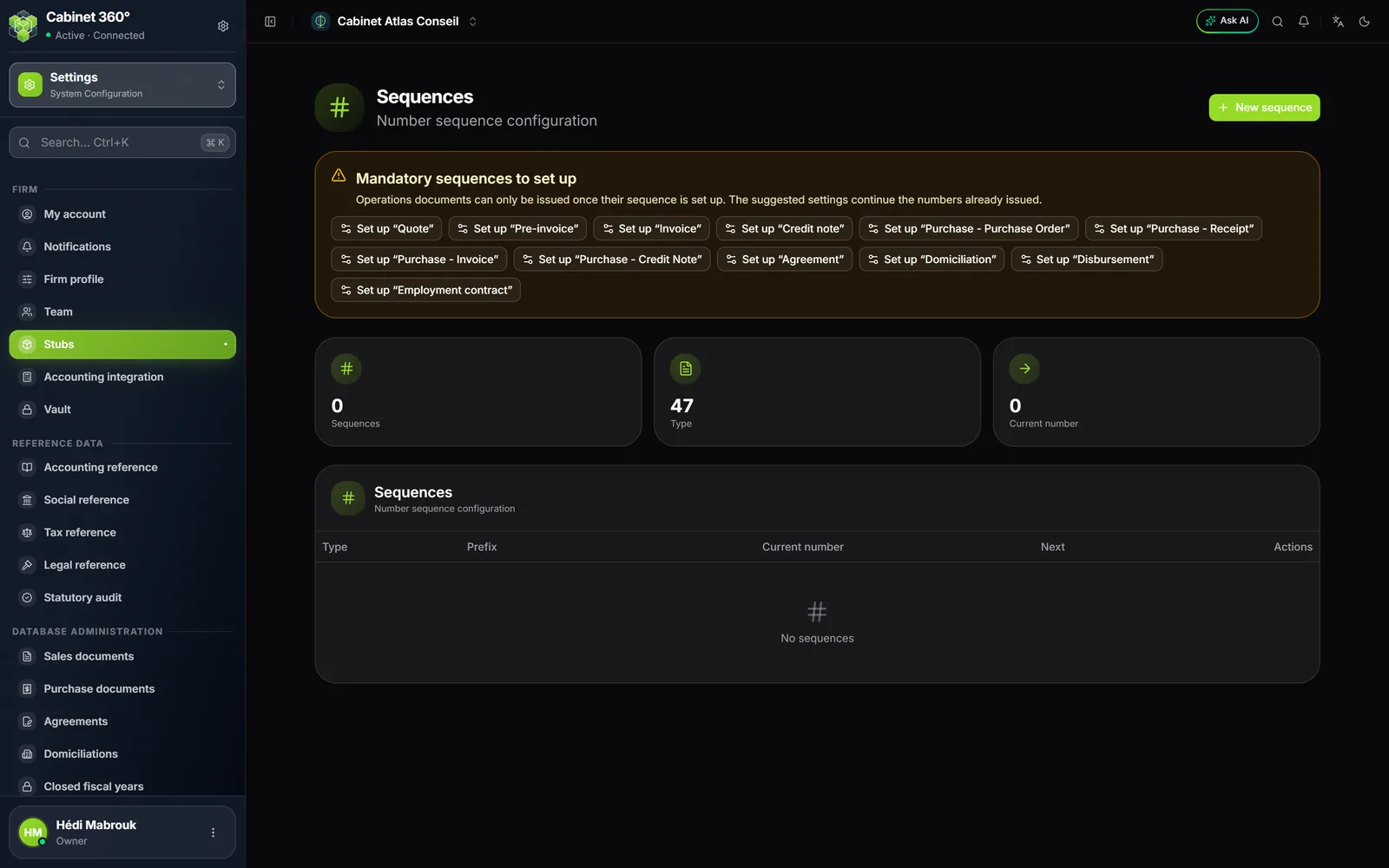
- Open Settings › Stubs.
- In the orange box, click the first button, for example Set up “Quote”. The New sequence window opens, already filled in.
- Keep the suggested settings or adjust them (see below).
- Click Create. The message « Sequence created » appears. The sequence enters the table, marked Mandatory, and its button leaves the box.
- Repeat with each remaining button. When all twelve exist, the box disappears.
The suggested settings
IntegraSys suggests settings that follow the formats of the numbers it already issued:
| Sequence | Prefix | Size | First document |
|---|---|---|---|
| Quote | DEV | 8 | DEV00001 |
| Invoice | FAC | 8 | FAC00001 |
| Credit note | AVO | 8 | AVO00001 |
| Pre-invoice | PFAC | 9 | PFAC00001 |
| Purchase - Purchase Order | BC | 7 | BC00001 |
| Purchase - Receipt | BR | 7 | BR00001 |
| Purchase - Invoice | FA | 7 | FA00001 |
| Purchase - Credit Note | AV | 7 | AV00001 |
| Agreement | CONV | 9 | CONV00001 |
| Domiciliation | DOM | 8 | DOM00001 |
| Disbursement | DEB | 8 | DEB00001 |
| Employment contract | CT | 7 | CT00001 |
You can change the prefix and the size: INV on 10 gives INV0000001. Choose a format that leaves room: with FAC on 8, the series goes up to FAC99999.
Carrying on the numbering of your old software
You invoiced with other software and your last invoice was number 245? Put 246 in Current number: the first invoice issued in IntegraSys will continue your series.
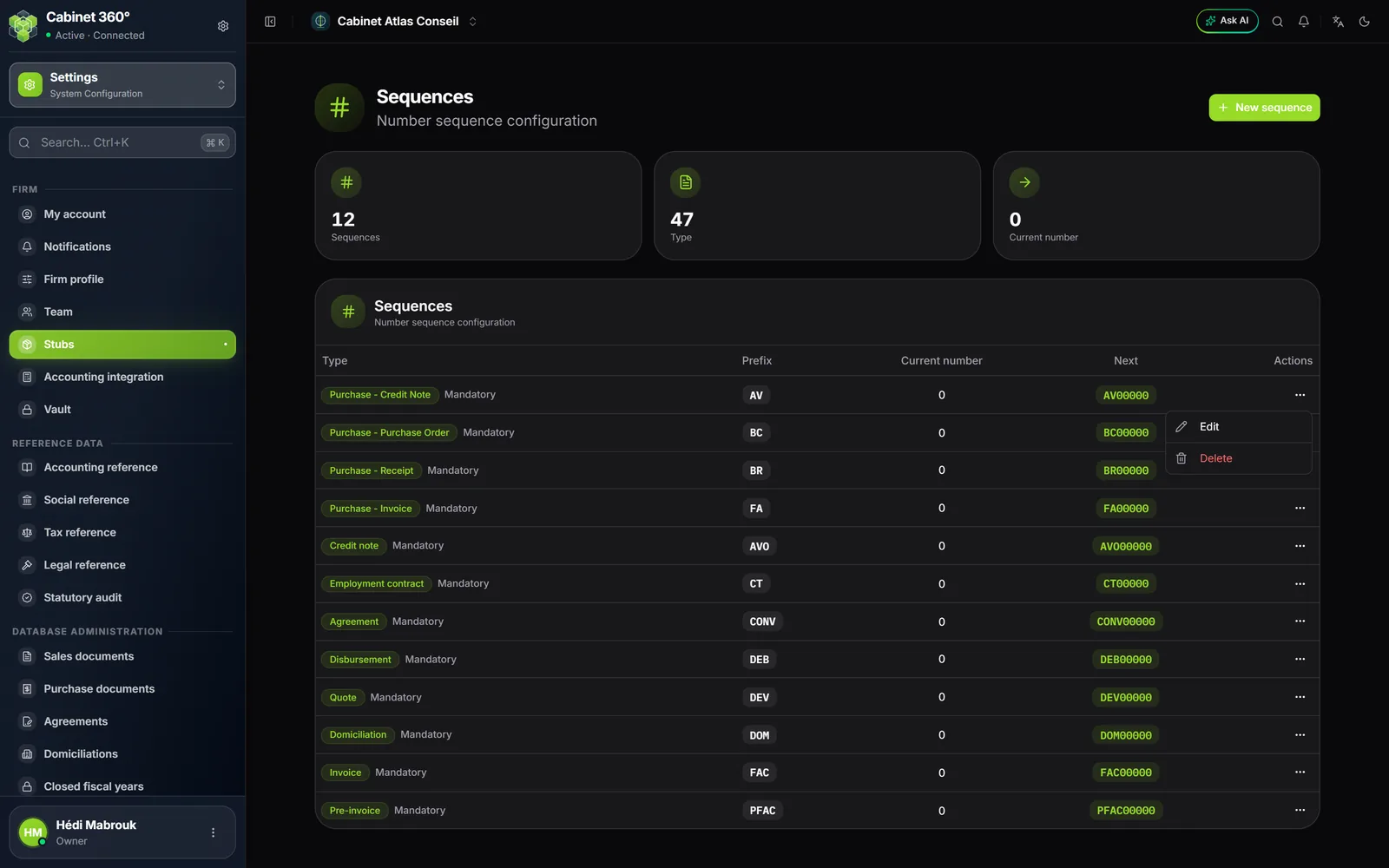
For a sequence already created, open the ⋯ button at the end of its row, then Edit. Change the current number, then click Save. The Next column of the table shows the planned number; if it is already taken, the document gets the next free one.
An invoice gets its number when validated
An invoice or a credit note saved as a draft does not have a number yet. The number, and today's date, are given when you validate it. A deleted draft therefore leaves no gap in your series.
The sequence is still required from the draft on: without it, the document is not saved.
When a sequence is missing in a document
If you open a document whose sequence does not exist, the form warns you before you type: « Reminder: the “Invoice” sequence is not set up ». It explains that the document cannot be saved until its sequence is set up.
- Click Set up the “Invoice” sequence in the reminder.
- The Sequences screen opens on the New sequence window, already filled in.
- Click Create. The message « Sequence created: back to the document. » appears and IntegraSys takes you back to your document.
The same reminder appears wherever an Operations document is born: conversions of quotes and pre-invoices, generation of an agreement's or a domiciliation's pre-invoices, disbursements, purchase documents, contracts.
Yearly series
Some sequences carry the year in their prefix and restart at 1 each year. The table says so under their prefix: « Yearly numbering: prefix + two-digit year; the counter restarts at 1 with the first document of each year. »
| Documents | First number of 2026 |
|---|---|
| Minutes of Meeting | PV260001 |
| Legal statutes, assembly convocations, share transfers, company forms, precision acts | STAT260001, CONV260001, CESS260001, FORM260001, PREC260001 |
| Supplier payment order | OP260001 |
| Other disbursements | AD260001 |
| Withholding tax certificate | CR2600001 |
| Group insurance statement | BORD260001 |
| Leave request, leave permit | DC260001, TC260001 |
| Business plan | BP26001 |
The first minutes of 2027 will carry PV270001. For a payment order or a certificate, the year is the document's date: an order dated 28/12/2026 and entered on 03/01/2027 takes a 2026 number.
Operations documents (quotes, invoices, credit notes, purchases, agreements…) do not restart at 1: their series carries on from one year to the next.
Editing or deleting a sequence
The ⋯ button of a row offers Edit and Delete. Deleting asks for confirmation: « Are you sure you want to delete the sequence …? This action cannot be undone. »
Who can set the sequences?
The owner and the firm's administrators have this right by default. Another colleague gets it through a role that opens the Stubs screen to them (see Roles and rights per screen).
A colleague who issues an invoice does not need this right: they see the reminder, but it is a manager who creates the sequence.