
The review screen
Open an extraction from the list (the eye View details, or a click on the file name). The screen puts the image of the invoice on the left and what the AI read there on the right.
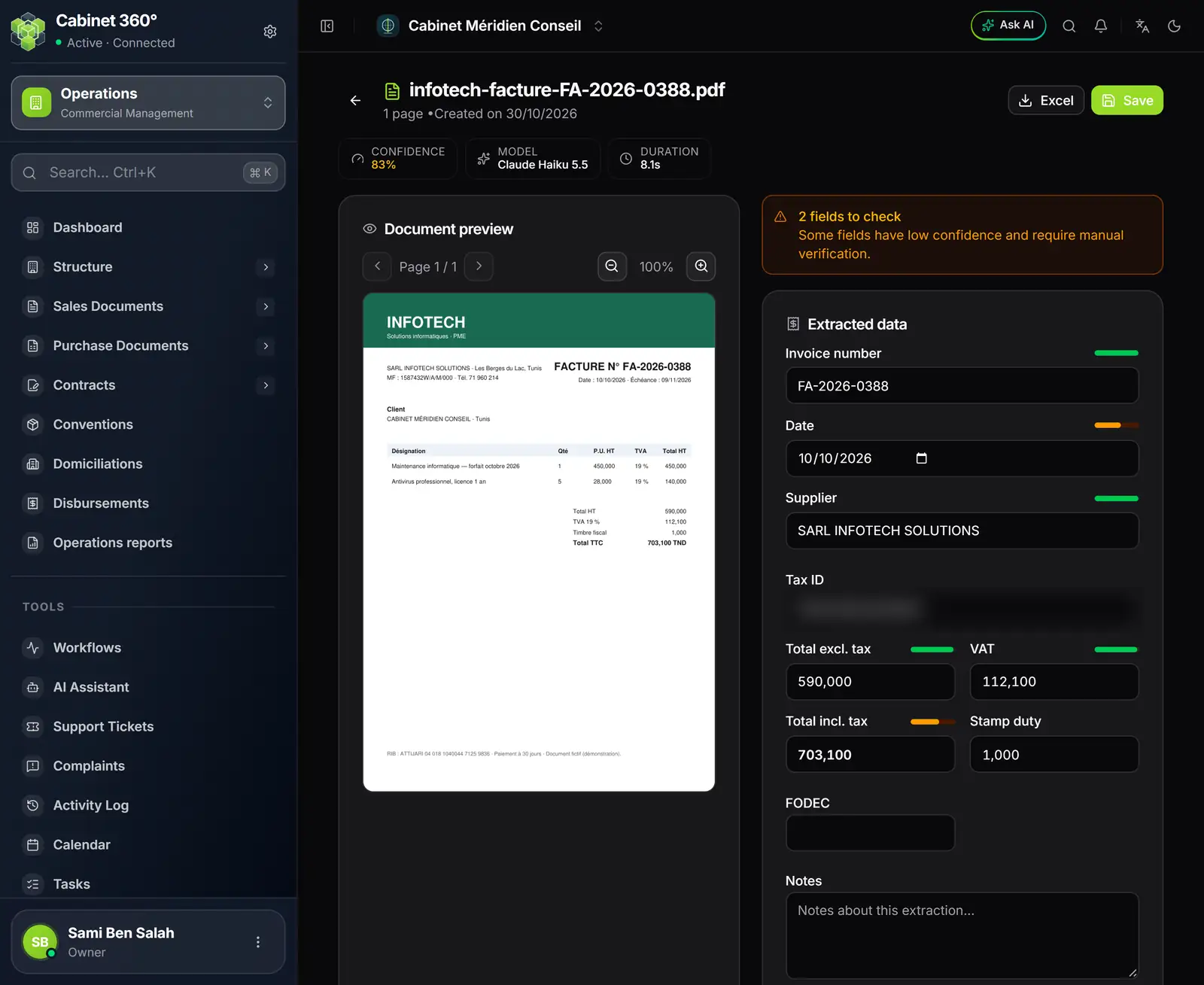
- 1. Confidence, model, duration: the overall score of the extraction, the AI model that made it and the time it took.
- 2. Save keeps your corrections; Excel downloads the extraction as a workbook.
- 3. Document preview: page by page, with a zoom.
- 4. The alert counts the low-confidence fields.
- 5. The confidence bar of each field: green, the field is sure; orange, look at it.
| Area | What it holds |
|---|---|
| Document preview | The image of the invoice. The arrows change page, the magnifier zooms from 50 to 200 %. |
| Extracted data | Invoice number, Date, Supplier, Tax ID, Total excl. tax, VAT, Total incl. tax, Stamp duty, FODEC and your Notes. |
| Extracted items | The invoice's lines, one per item. |
| Create purchase document | The step to the purchase invoice (chapter 11). |
Reading the signals
The extraction tells you where to look:
- the alert at the top right: « 2 fields to check — Some fields have low confidence and require manual verification. »;
- a bar next to the number, the date, the supplier, the total excl. tax, the VAT and the total incl. tax: green when the AI is sure, orange when it is not;
- « Found while reading »: what the AI noticed while reading, for example totals that do not add up (« Totaux incohérents… » (totals do not match…) when excl. tax + VAT + stamp + FODEC do not give the printed total incl. tax).
The tax ID, the FODEC and the lines have no bar: always review them. The alert can also count the tax ID without any bar pointing to it.
Correcting the header
Click in a field and type the right value. Amounts are written with three decimals, as on your invoices:
590,000. The date is chosen in the field's calendar.
The FODEC deserves a look: an Operations purchase invoice does not carry a FODEC. If the extraction finds one, the conversion will be refused (chapter 11). If it was read by mistake, set it to zero; if it is real, enter this invoice by hand in purchases.
Correcting the lines
Each line of Extracted items carries:
| Field | Role |
|---|---|
| Catalog article (optional) | Links the line to an article: its description, its code, its purchase price and its rate replace those read. Left empty, the line keeps what was read. |
| Description and Reference | The label and the reference read on the invoice. |
| Qty, Unit price excl. tax, Discount % | Quantity, unit price excluding tax, discount. |
| VAT % | The line's rate, among those open to purchases. |
| Total excl. tax | Calculated by the screen, to the millime. |
Add line creates an empty one; a line's bin removes it. Under the table, Lines total excl. tax must match the header's Total excl. tax: otherwise a line is missing or a quantity is wrong.
Saving
- Correct the header and the lines.
- Click Save: the message « Data saved successfully » appears.
- The extraction moves to the status Vérifié.
An invoice in a currency other than TND, EUR or USD cannot be saved (« Could not save »): enter it by hand in purchases.
If you close the tab or reload the page with unsaved corrections, the browser asks for confirmation. The back arrow and the menu, however, leave without warning: save first.
A failed extraction
An Échoué extraction shows a red band « Extraction failed » and the reason. The most frequent ones:
| Message | What to do |
|---|---|
| « Document illisible ou non reconnu. Vérifiez la qualité du scan. » (unreadable or unrecognised document; check the scan quality) | Scan again, more sharply, and upload again. |
| « Aucune donnée n'a pu être lue dans ce document… » (no data could be read in this document…) | Blank page or unreadable scan: check the file. |
| « Document trop long : l'extraction a été tronquée… » (document too long: the extraction was cut short…) | Split the file: one invoice per PDF. |
| « Service d'extraction momentanément indisponible… » (extraction service temporarily unavailable…) | Run it again in a few minutes. |
| « Crédits IA épuisés : cette pièce n'a pas été lue… » (AI credits used up: this document was not read…) | The document is kept: run it again when credits are topped up (chapter 2). |
| « La politique IA du cabinet refuse l'envoi de ce document… » (the firm's AI policy refuses to send this document…) | Document analysis is cut off for the firm (chapter 2). |
To run it again, click Retry. A window warns: « A new read replaces the lines and the fields read. The saved corrections of the header and of the lines will be lost. » Confirm with Run again: the extraction starts again and the message « Extraction restarted » appears.