
Where the extractor is
The extractor reads your suppliers' invoices and turns them into Operations purchase invoices. It no longer has its own entry in the menu: it opens from the purchase invoice list.
At the top of this list, two buttons concern it:
| Button | What it does |
|---|---|
| Import PDF | Opens the upload window straight away. A single file uploaded takes you to its extraction; several take you to the list of extractions. |
| Extractor (OCR) | Opens the Extractor page: every extraction, to be checked or already converted. |
Each button appears only to whoever has the right it asks for: Import PDF asks to be able to create in the extractor, Extractor (OCR) to be able to view it (chapter 2). Having the right on purchases is not enough.
Uploading invoices
- On the Extractor page, click Import PDF (top right).
- Drag your files into the frame, or click in the frame to choose them.
- Check the list of files chosen: remove one with its cross, or empty everything with Clear all.
- Click Extract 3 files (the button counts your files; for a single one, it says Extract with AI).
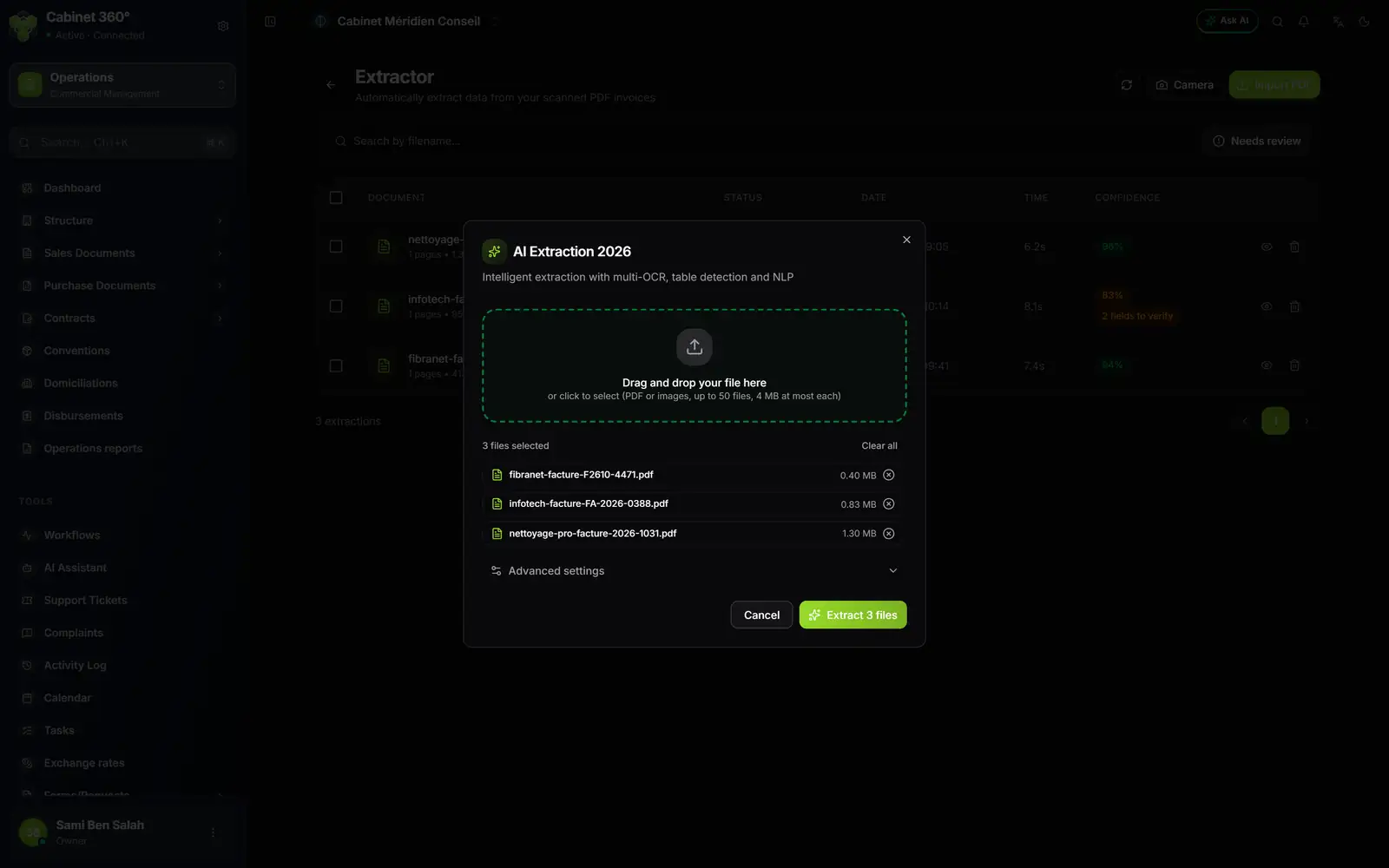
- 1. The drop zone: PDF or images, up to 50 files, 4 MB at most each.
- 2. The files selected, with their size. The cross removes one.
- 3. Advanced settings: leave them as they are.
- 4. Extract 3 files starts the extractions.
What the window accepts:
- the formats PDF, JPG, PNG and WEBP;
- up to 50 files at a time (beyond that, the extra files are set aside without a message), 4 MB at most each, 30 pages at most per file;
- one invoice per file. An invoice of several pages is uploaded as a single PDF;
- no password-protected PDF: it is refused on sending.
After sending, a message sums up the batch: how many files left, how many were duplicates, how many were rejected. A file already uploaded (the same file, byte for byte) is recognised and not read again: uploaded on its own, it is flagged by « Document already imported »; in a batch, it is counted among the duplicates. So you do not pay twice for the same invoice. A file whose reading had failed, on the other hand, is read again.
Taking a photo of the invoice
On a phone, the Extractor page carries at the top the Refresh icon, the Camera icon and the Import PDF button.
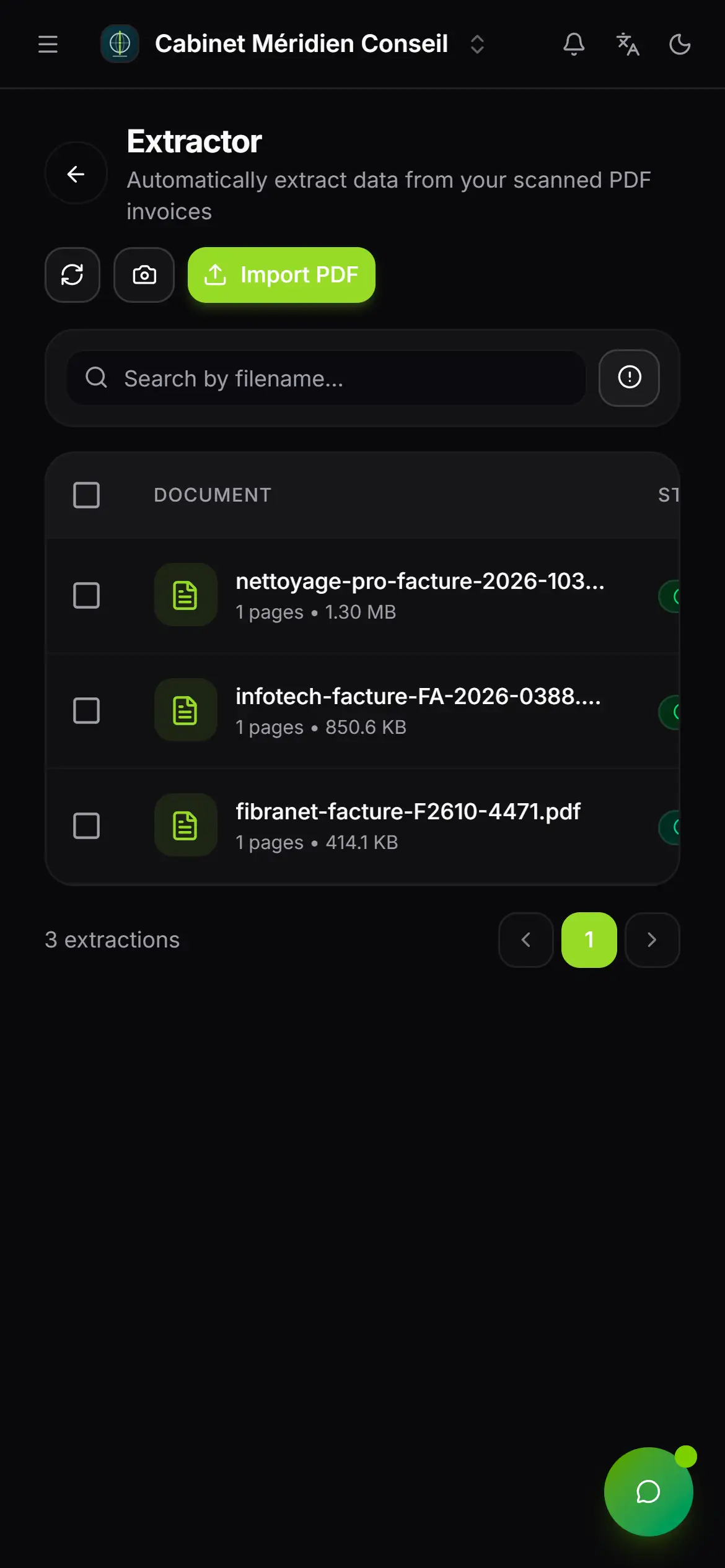
- 1. Camera: opens the « Scan with the camera » window.
- 2. Import PDF: the same upload window as on a computer.
- 3. Needs review: keeps only the low-confidence extractions.
Tap Camera: the « Scan with the camera » window opens. Two cases:
- the camera's image shows in the window: frame the invoice, tap Capture (once per page), then Send;
- the window shows « Camera access denied. » (the case on the live site today): tap Open the camera. The phone's camera opens; the photo taken goes straight to reading.
Each photo is a separate extraction. For an invoice of several pages, rather scan it into a single PDF (most phones do this from their camera or files app), then upload that PDF.
The list of extractions
The Extractor page lists everything uploaded, from the most recent to the oldest.
| Column | What it shows |
|---|---|
| Document | The file name, its number of pages and its size. |
| Status | Where the extraction stands (next table). |
| Date | The day of the upload. |
| Time | The duration of the reading, in seconds. |
| Confidence | A score out of 100: green from 85 %, orange from 70 to 84 %, red below; and, if there are any, « 2 fields to verify ». |
The statuses, in the order an invoice goes through them:
| Status | What happens |
|---|---|
| En cours (in progress) | The AI is reading the invoice, usually in less than a minute. |
| Complété (completed) | The reading is finished: your turn to check. |
| Vérifié (verified) | You have saved your corrections. |
| Converti (converted) | The purchase invoice has been created. |
| Échoué (failed) | The reading did not succeed: open it to see why, then run it again (chapter 10). |
You do not need to reload the page: the list updates by itself when an extraction finishes. The Refresh button reads it again on demand.
The list shows 10 extractions per page. To find an invoice, type part of the file name in Search by filename.... The Needs review button keeps only the extractions with the status Complété (not yet saved) whose confidence is below 75 %, or without a score.
Each row has two icons: View details (the eye) opens the extraction, Delete (the bin) removes it. Tick several rows of the page to delete them together. A converted extraction is not deleted in a group: if the selection contains one, nothing is deleted.
An extraction still Échoué 30 days after it was uploaded is erased by itself.