
Before the first click
The purchase invoice takes its number from the Purchase - Invoice numbering sequence. As long as this sequence is not set up, the creation button stays greyed out and a reminder says so: « Reminder: the “Purchase - Invoice” sequence is not set up ». The link Set up the “Purchase - Invoice” sequence takes you there (the book Firm setup describes the numbering sequences).
The « Create purchase document » panel
It is on the review screen, under the extracted data.
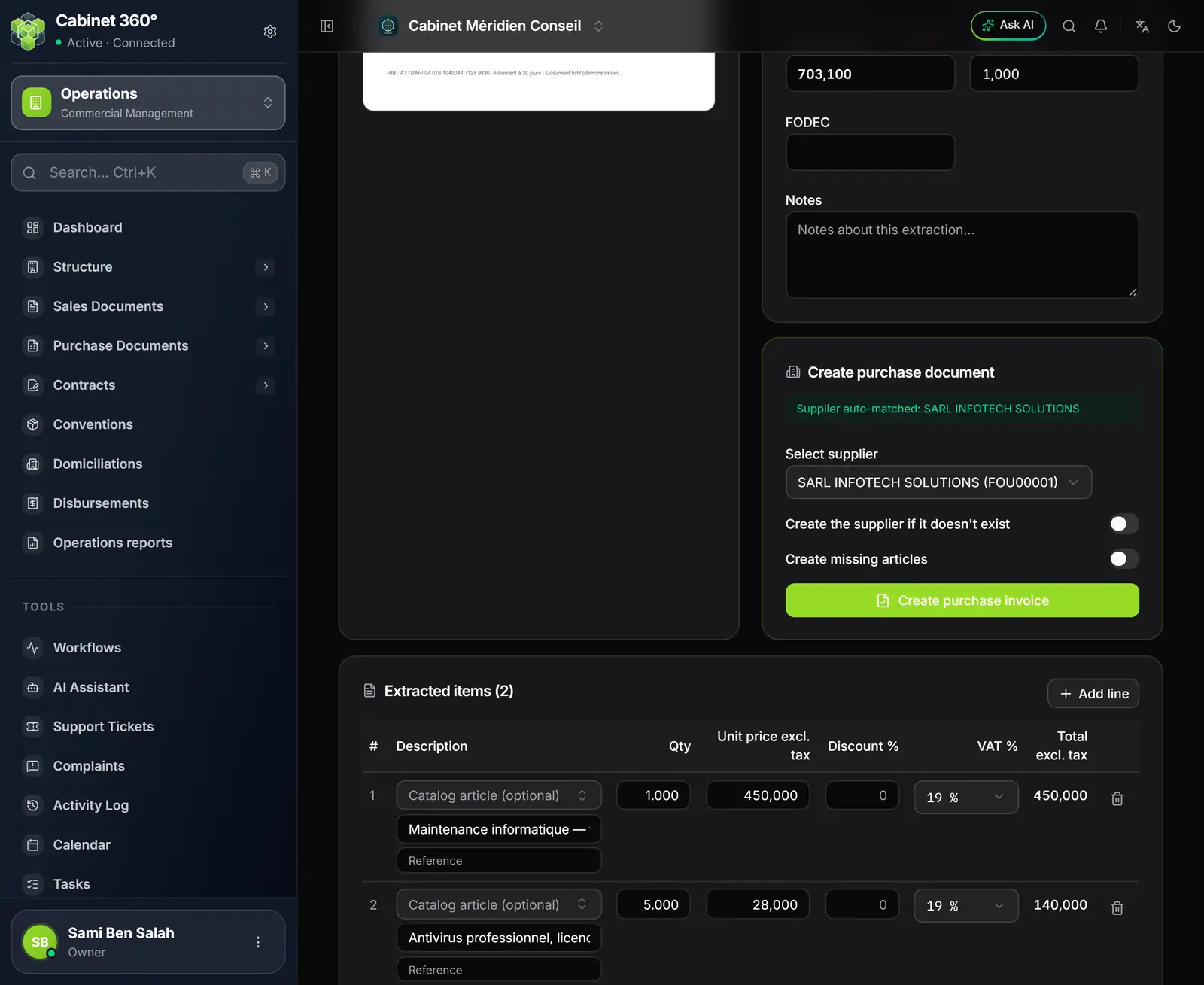
- 1. Supplier auto-matched: the extractor found the supplier in your records.
- 2. Select supplier: the supplier chosen, to be changed if needed.
- 3. Two switches: create the supplier if it is missing, create the missing articles.
- 4. Create purchase invoice: the conversion.
- 5. Extracted items: the lines that will become those of the invoice.
The supplier
The extractor looks for the supplier in your records, first by its tax ID, then by its exact name. Once found, the supplier is announced in the panel (« Supplier auto-matched: … ») and selected in the list.
When it does not find it, two paths:
- choose it yourself in Select supplier;
- or switch on Create the supplier if it doesn't exist: the record is created with the name and the tax ID read.
The articles
A line linked to a Catalog article (chapter 10) keeps that article. For the others, the extractor looks among your purchase articles for the one whose code is the reference read, then the one with exactly the same description. If it finds none:
- with Create missing articles switched on, an article record is born from the line: its code is the
reference read, or
EXT-00001,EXT-00002… when the line has none or that code already exists; - otherwise, the line keeps only its description and its reference.
Creating the invoice
- Check that the extraction is saved (status Vérifié, chapter 10).
- Choose the supplier, or switch on its creation.
- Click Create purchase invoice. The button shows « Converting... ».
- The message « Purchase document FA00024 created successfully » appears and the screen opens the invoice.
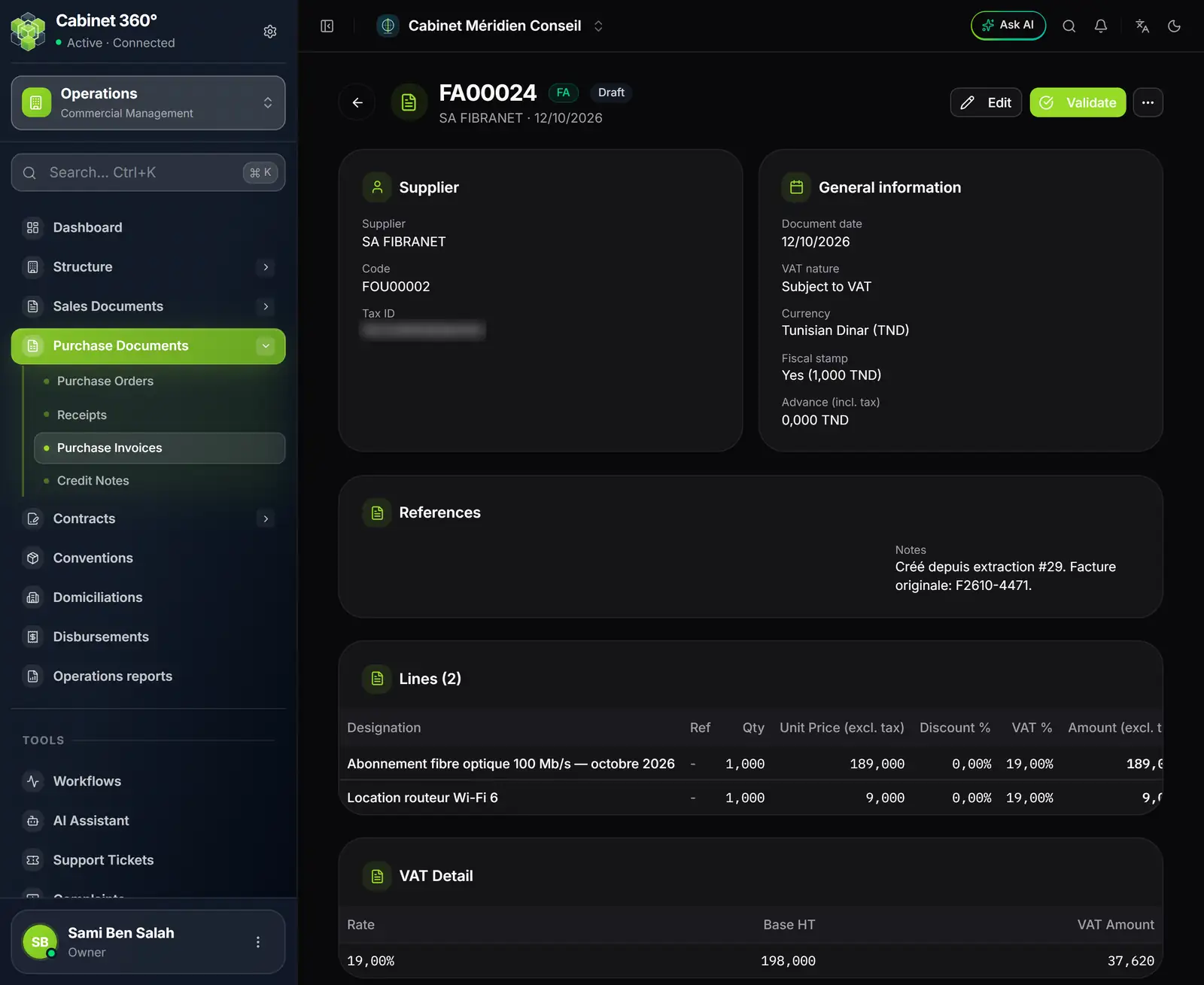
- 1. FA00024, Draft: the purchase invoice has its number and waits for your validation.
- 2. Validate: the next step happens here, as for any purchase invoice.
- 3. General information: document date, VAT nature, currency, fiscal stamp.
- 4. The origin note: « Créé depuis extraction #29. Facture originale: F2610-4471. » (created from extraction #29; original invoice: F2610-4471).
The purchase invoice is born as a Draft, with:
- the supplier, the date of the invoice read (never today's date), the currency and the fiscal stamp;
- one line per extracted item, with its quantity, its price, its discount and its VAT rate;
- in its Notes, the number of the extraction and that of the supplier's invoice.
On the extractor's side, the extraction moves to the status Converti and shows « Document converted » with a View purchase button. An extraction can be converted only once.
The corrections the extractor makes by itself
Several cases are corrected automatically, and the success message names three at most (« 1 automatic correction, noted on the purchase »):
- prices read incl. tax instead of excl. tax: when the sum of the lines strays from the printed total excl. tax, the prices are scaled back to that total, within a 25 % gap;
- a VAT rate refused or read nowhere: the line receives the rate in the invoice footer, otherwise 19 %;
- a quantity read as 0: it becomes 1;
- a description or a reference too long: it is cut.
Each correction is written in the purchase invoice's notes. A stamp read other than 1,000 is only flagged: the purchase invoice carries the stamp of 1,000.
The refusals, and what they ask of you
Nothing is created while a refusal stands: no supplier, no article, no invoice. The message says each time what to do.
| The message starts with… | What is happening | What to do |
|---|---|---|
| « La facture … de ce fournisseur a déjà été convertie… Confirmer la conversion ? » (this supplier's invoice … has already been converted… Confirm the conversion?) | Same tax ID and same number (both read) as an extraction already converted and still present. | If it is a duplicate, stop. If the supplier really issued the invoice again, click Convert anyway. |
| « Ce document a déjà été converti en achat… » (this document has already been converted into a purchase…) | This extraction already has its invoice. | Open it with View purchase. |
| « Aucune date de facture n'a été lue… » (no invoice date was read…) | The date is missing. | Enter it in the review, save, start again. |
| « Les lignes lues totalisent … pour un total HT imprimé de … » (the lines read add up to … for a printed total excl. tax of …) | More than a 25 % gap: a line is missing or misread. | Correct the lines, save, start again. |
| « Aucune ligne n'a été lue sur ce document… » (no line was read on this document…) | Totals without lines would give a purchase at zero. | Add the lines, save, start again. |
| « La TVA calculée sur les lignes (…) ne rejoint pas la TVA imprimée… » (the VAT calculated on the lines (…) does not match the printed VAT…) | A line's rate is misread, or a line is missing. | Correct the rates and the lines. |
| « Ce document porte un FODEC de … » (this document carries a FODEC of …) | The purchase invoice does not carry a FODEC. | Enter the invoice by hand in purchases, or set the FODEC to zero if it was misread. |
| « Ce document a été lu comme un AVOIR… » (this document was read as a CREDIT NOTE…) | It is a credit note from the supplier. | Enter it in Credit Notes (see below). |
| « Ce document n'a pas été lu comme une facture… » (this document was not read as an invoice…) | Quote, pro forma, purchase order or delivery note. | Enter it by hand in purchases. |
What the extractor does not do
- It creates only purchase invoices. A credit note, a purchase order or a receipt is entered by hand in Purchase Documents. For a credit note read by the extractor, the screen offers no way to convert it: enter it in Credit Notes.
- It posts no accounting entry. That is the job of the accounting file's OCR (Pre-accounting) inbox (book Accounting & Financial Statements).
- It does not validate the invoice. Validation, payment and following up the supplier happen in purchases (books Operations and Finance & Cash Register).