
Three ways to open it
| Where | How |
|---|---|
| The « Ask AI » button | Top right of every screen, or Ctrl+J. It opens a panel on the right, without leaving the page. Esc closes it. |
| The page | In the menu: Tools › AI Assistant. The conversation takes the full width there. |
| The green bubble | On a phone, at the bottom right of the screen. It opens the panel full screen. |
The panel and the page share the same conversation: a question asked in one shows up in the other.
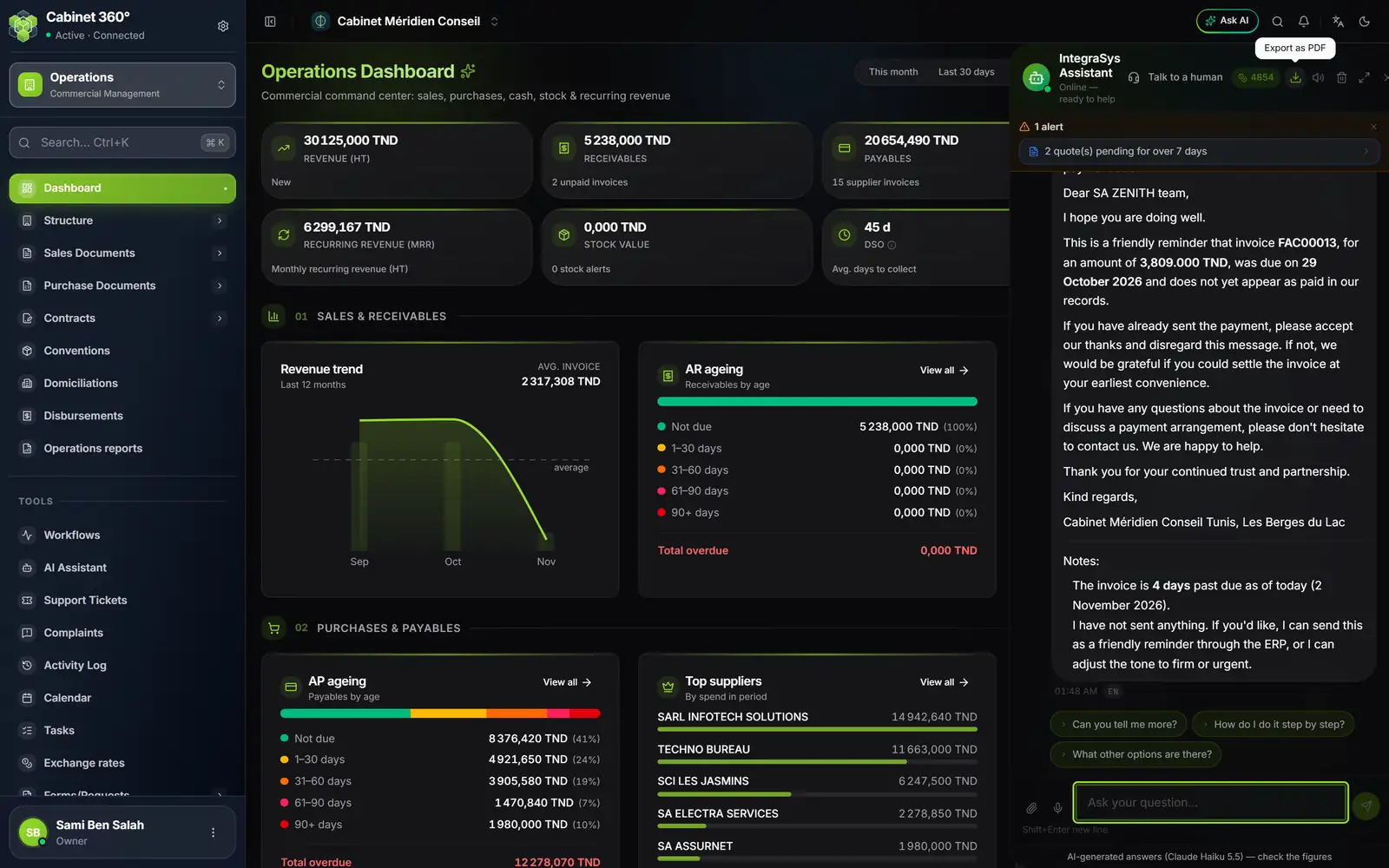
- 1. Ask AI: the button in the top bar, on every screen.
- 2. The credit counter of the firm.
- 3. Export as PDF the conversation, and the sound, clear and expand buttons.
- 4. The current alerts: one click turns one into a question.
- 5. The follow-up questions offered after an answer.
- 6. The notice that the answers come from an AI, to be checked.
The panel widens with Expand and comes back with Collapse. Its header also carries Talk to a human, which opens the Complaints page on its tab for talking with the IntegraSys team.
The starter questions
On the page, an empty conversation greets you according to the time of day (« Good morning! », « Good afternoon! » or « Good evening! ») and offers six cards. A click sends the card's question:
| Card | Question sent |
|---|---|
| My revenue this month | « What is my revenue this month? » |
| Unpaid invoices | « Show me my unpaid invoices » |
| Cash flow forecast | « What will my cash position be in 30 days? » |
| Check my accounts | « Check whether there are anomalies in my accounts » |
| My top clients | « Who are my top 5 clients? » |
| Stock alerts | « Are there any stock alerts? » |
The panel, for its part, offers five practical questions: « How do I create and send an invoice? », « How do I record a payment in the cash register? », « How do I add a new client? », « How do I check stock levels? », « How do I create meeting minutes (PV)? ». As long as the company record lacks its tax ID, its VAT or its line of business, a small guide « Welcome to IntegraSys! » replaces them: four steps, each with Go (the screen) and Ask (the question).
Asking your question
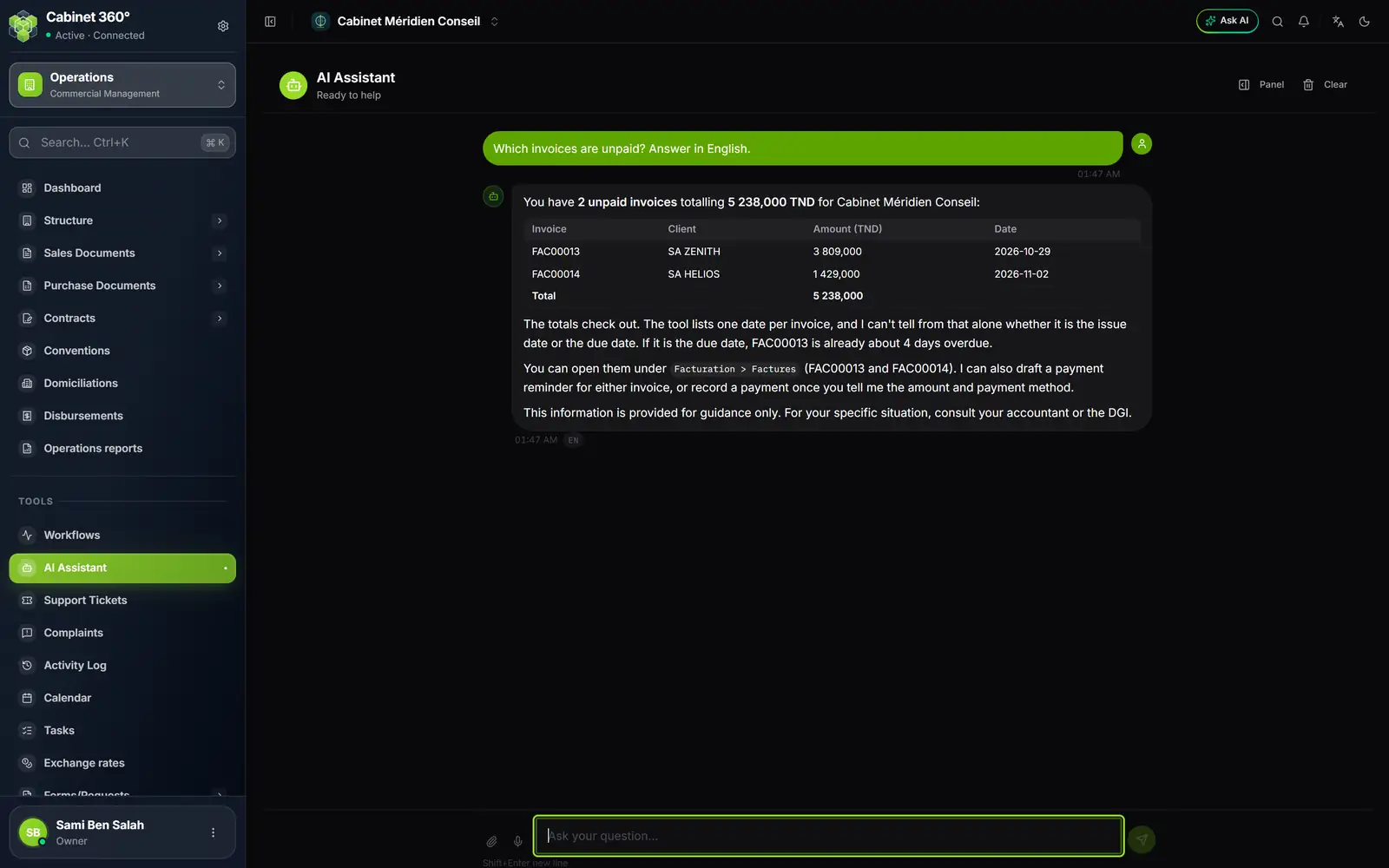
- 1. Tools › AI Assistant: the assistant's page.
- 2. Your question, as you typed it.
- 3. The answer, with a table drawn from your invoices.
- 4. Where to check, named in the answer.
- 5. The language of the answer: FR, AR or EN.
- 6. The question box and the paperclip to attach a file.
- 7. Panel (credits, capabilities) and Clear.
Type your question in Ask your question..., as you would say it to a colleague. Enter sends, Shift + Enter starts a new line. A question is 2 000 characters at most; a counter appears as you get close.
A few examples that work well:
- « Which invoices are overdue? »
- « What is the current cash register balance? »
- « How many quotes are pending? »
- « Which suppliers do I need to pay? »
- « Write a payment reminder, in a friendly tone, for invoice FAC00013. »
The language of the answer
The assistant answers in the language of your question: French, Arabic or English. Derja written in Latin letters is read as Arabic. A question too short to give away its language gets an answer in the language of your screens. Under each answer, a small badge gives the language chosen: FR, AR or EN.
Attaching a file
The paperclip Attach a file (PDF, image) adds one file to your question: PDF, PNG, JPG, GIF or WEBP. The screen accepts up to 10 MB, but on the online site a file larger than about 3 MB does not get through: make it smaller or split it. The assistant reads it along with your question: « What is the total of this invoice? », « Summarise this contract ». Always ask a question with the file: without text, the send button stays greyed out (only Enter sends it) and the assistant receives only the file's name.
Following the answer
The answer is written before your eyes. While you wait, a line says « Analyzing your question... », then, after three seconds, « Generating response... ». When the assistant reads your data, the header shows « Querying ERP data... » (« Querying data... » on the page). The square button Stop generating cuts the answer: the text already written stays.
A finished answer can carry:
- a table or a chart (bars, lines or pie);
- a link to the screen where you can check (« View invoices »);
- follow-up questions to click.
Under the question box, a notice recalls it every time: « AI-generated answers (…) — check the figures ». The brackets name the AI model planned for the assistant.