
Two assistants, two uses
IntegraSys has two ways of working with AI:
| The AI Assistant panel (chapters 3 to 6) | The work assistant (this chapter and the next) | |
|---|---|---|
| Where | In the ERP, next to your screens. | A separate application, at the address integrasys-erp.com/ai. |
| What for | A quick question, a reminder to draft. | Ongoing work in a module: prepare, check, correct. |
| Scope | Your whole company, within your rights. | One module and, depending on the module, one file (required in Accounting); or every module for the general session. |
| Writing | A few actions, each one confirmed. | Drafts and changes proposed on « Allow » cards. |
| Memory | The current conversation. | Every session is kept, can be shared and archived. |
Opening the work assistant
Type integrasys-erp.com/ai in your browser. You enter it with the same account as in the ERP; without an open
sign-in, the sign-in page appears first. No ERP button leads there for now: add the address to your bookmarks.
To go back, your account menu offers Back to the ERP. The same menu is used to switch company and theme. The language is the one you chose in the ERP.
The home page
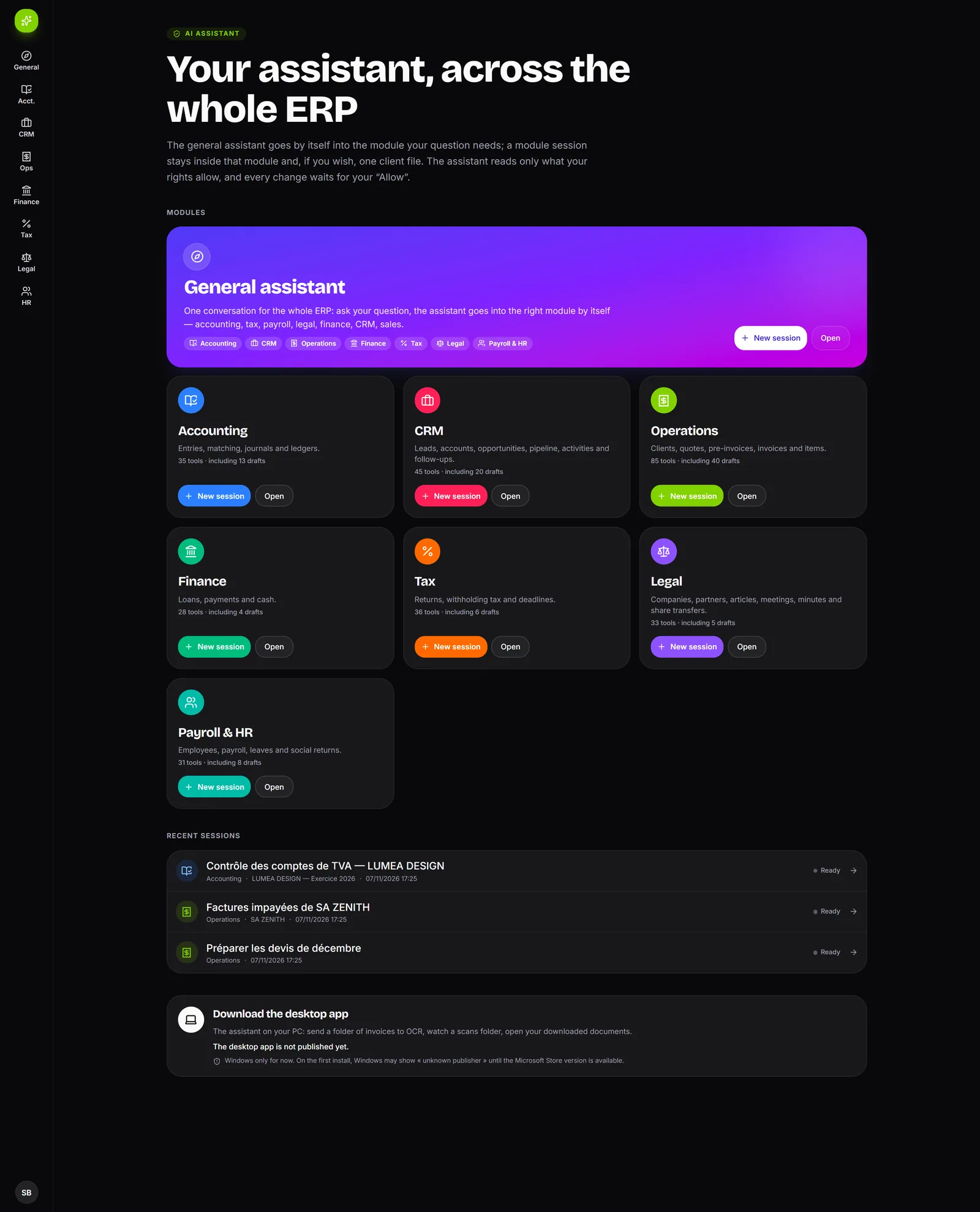
The home page, « Your assistant, across the whole ERP », shows:
- the General assistant card: « One conversation for the whole ERP: ask your question, the assistant goes into the right module by itself… »;
- one card per module: Accounting, CRM, Operations, Finance, Tax, Legal, Payroll & HR. Each says how many tools the assistant has there, including how many drafts, and carries New session and Open;
- Recent sessions: your last eight sessions, with their module, their file, their date and their status.
A card marked Soon is not open to you: you lack the right or the firm's module, or the firm's AI policy does not allow it.
Starting a session
- Click New session on a module's card.
- Module: already chosen if you start from a card.
- The scope: a client file, an accounting file and its financial year, or nothing (next table).
- What the assistant may do: the mode (chapter 8). By default, Ask before changing.
- Title (optional): left empty, it fills in from your first message.
- Click Start the session.
A line with a padlock sums up what the assistant will see, for example: « The assistant will see only the Operations module for SA ZENITH, with your own rights. » It will not step outside this scope.
| Module | What you choose |
|---|---|
| Operations, Payroll & HR, Legal | Client file, optional (« No client file » leaves it open to all). |
| Accounting | Accounting file then Financial year, both required. A closed financial year opens read only. |
| Tax | A tax client, or The whole tax portfolio. A colleague who only sees their own clients must choose one. |
| Finance | Nothing: « The firm's own finances: accounts, cash registers, payment orders, loans… » |
| CRM | Nothing: the firm's CRM, as your CRM screens show it to you. |
| General assistant | Nothing: it goes by itself into the modules and files your questions call for. |
The screen of a session
The screen has three parts:
- the header: the title, the module and the file, the status, and « Live » when the screen receives the work as it happens;
- the thread: your messages, the answers, the work steps and the « Allow » cards;
- the « Session context » panel: on the right on a large screen, as a side pane otherwise.
The context panel brings together:
| Section | What it shows |
|---|---|
| Session scope | The module, the file, your rights (« Yours in … ») and the mode. |
| Steps | What the assistant did to answer. |
| This module's tools | What it can read, and what it can propose to write (« with your OK »). |
| Memory | What you asked it to remember. |
| Usage | The number of rounds and the tokens read and written. |
Writing a message
The bottom box says « Ask the Operations assistant… » (or the module's name). Enter sends, Shift + Enter starts a new line. A message is 8 000 characters at most.
You can attach up to 10 files per message: PDF, images (JPEG, PNG, WEBP), Word (DOCX), Excel (XLSX), CSV or text, 30 MB at most each. Three ways: the paperclip Attach a file, dragging the files onto the session, or pasting a screenshot with Ctrl+V.
While the assistant works, the thread shows « The assistant is working… », then progress notes (« Searching the web… ») and the work steps, marked Running, Done, Error or Interrupted. The Stop button replaces Send: it interrupts the work, and the thread notes « Session stopped. ».
Under each finished answer, Report tells the IntegraSys team about an inappropriate, wrong or dangerous answer (choose the reason, add a comment). The report goes to IntegraSys, not to your firm.
Finding, sharing, archiving
A module's page (/ai/exploitation for example) lists its sessions in three tabs: My sessions, Shared
with me, Archived sessions. They are grouped by client file; those without a file are under No client
file. Search sessions filters by title and by client.
The status of a session:
| Status | Meaning |
|---|---|
| Ready | It is waiting for your message. |
| Running | The assistant is working. |
| Waiting for your OK | An « Allow » card is waiting for your decision (chapter 8). |
| Stopped | You stopped it. |
| Failed | The work stopped on an error. |
| Limit reached | The session is full: start a new one (chapter 8). |
Only the author of a session changes it. In its header:
- Share with the team makes it readable by your colleagues, who read there « Session shared by a colleague: you can read it, only its author writes in it. ». A colleague sees it only if they themselves have the read rights to what the session may have read. Stop sharing takes it back;
- More actions › Rename, Archive (it can still be read but takes no more messages) or Unarchive.
A session cannot be deleted: archive those you no longer use. Beyond 200 sessions not archived, you can no longer start one.
The desktop app
The account menu and the home page offer Download the desktop app: « The assistant on your PC: send a folder of invoices to OCR, watch a scans folder, open your downloaded documents. » It exists for Windows; on the first install, Windows may show « unknown publisher ».
It adds to the work assistant:
- a shared folder: a single folder of your PC, chosen in its settings, from which you attach files in one click;
- actions on this PC: send a folder to OCR, watch a scans folder, open a downloaded document;
- a pane on the right where the assistant opens an ERP or web page to show it to you.