
Where the statements the ratios read are
There is no "Financial statements" screen in the Financial ratios group. The ratios read the financial statements of the accounting file, in the group just above:
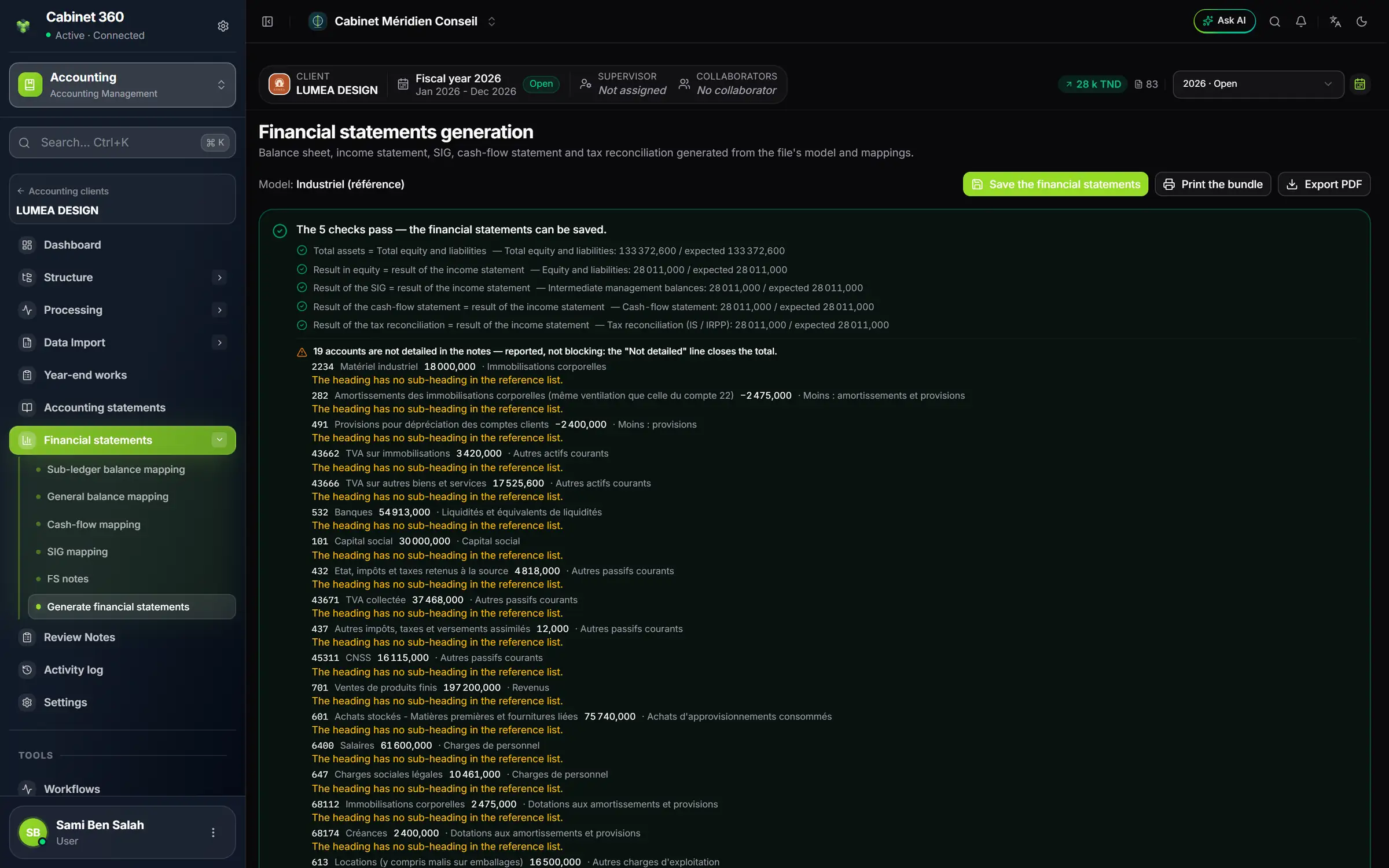
- 1. The fiscal-year selector of the file's bar: the ratios cover this fiscal year and the previous one.
- 2. The template of the file's statements: the ratios are computed on this template.
- 3. The checks: get them to pass before computing the ratios.
- 4. Financial statements, in the file's menu; Financial ratios comes right after.
The page shows the statements of the chosen year and of the previous year: Assets, Equity and liabilities, Income statement, Cash-flow statement and Intermediate management balances, plus the Tax reconciliation. These are the statements the ratios read, with the mappings the accountant made in the other screens of the group.
At each calculation, IntegraSys reads the year's entries and these mappings again: the ratios read the statements as they are now, not a bundle saved earlier. The book "Accounting & Financial Statements" describes the Financial statements group in detail.
What the ratios read
The ratios do not read the five statements in the same way:
| Statement | What the ratios read from it |
|---|---|
| Assets | Fixed assets, inventories, trade receivables, other current assets, investments, cash and the totals. |
| Equity and liabilities | Equity, loans, suppliers, other current liabilities, bank overdrafts and the totals. |
| Intermediate management balances | Revenue, purchases, margin, value added, staff costs, EBITDA, depreciation and provisions, financial expenses and net income. |
| Income statement | Nothing directly: its result goes into the equity of the balance sheet. |
| Cash-flow statement | Nothing. |
Correcting a figure
Nothing is adjusted in the Financial ratios group: a figure of the statements is corrected where it is born, in the client's accounting.
- Find where the figure comes from: a missing or wrong entry, or an account mapped to the wrong line of the statements.
- Correct it in the accounting: post or correct the entry, or change the mapping in Financial statements › General balance mapping.
- Check the result in Financial statements › Generate financial statements.
- Open Financial ratios › Ratio generation and click Recalculate (chapter 6).
The previous year
The ratios compare the chosen fiscal year with the file's previous fiscal year, which they read through its entries.
The balances adjusted in the former screen
Until 11/11/2026, a "Financial statements" screen that belonged to the ratios let you adjust a balance for the analysis only. It was removed: it duplicated the file's statements.
- A balance adjusted in that former screen is no longer read. At the next Recalculate, the ratios go back to the file's financial statements.
- An analysis saved before that date stays displayed as it is, with its former balances, until you recalculate it. The line "Analysis saved on …" in Ratio generation tells you how old it is.
- The former screen also printed the statements as PDF and to Word. The file's statements are now printed from Generate financial statements; the analysis report keeps the balance sheet and the income statement in the appendix (chapter 8).
When the statements are missing
| Message | What it means |
|---|---|
| « Aucun modèle d'états financiers n'est associé au dossier comptable (configurez le secteur / type dans la fiche comptable du client). » (no financial statements template is linked to the accounting file) | Choose the FS template and the Template type in the client's accounting file, then recalculate. |
| « Données indisponibles pour cet exercice. » (no data for this year) | The year's statements have no amount: check that it has entries, or choose another year. |