
Opening the accounting file
A client's analysis is in its accounting file. Choose Accounting in the module selector at the top of the sidebar.
In the Active files tab, look for the client by its name or its number, then click its row. The Select a fiscal year window opens: choose the year to analyse. You are in the file.
Choosing the fiscal year
The file's bar stays at the top of every screen. It recalls the client, the fiscal year, its period and its status, Open or Closed. On the right, the fiscal-year selector changes year without leaving the screen: the fiscal year chosen applies to every screen of the file, the ratio screens included.
There is no fiscal year that belongs to the ratios only: they are the fiscal years of the accounting file. If one is missing, create it in the file (the calendar icon of the bar opens the fiscal years page); it needs the right to create a fiscal year in Accounting.
With no fiscal year chosen, the ratio screens say "Select a fiscal year."
The Financial ratios group
In the file's menu, unfold Financial ratios, right after Financial statements. It lists four screens:
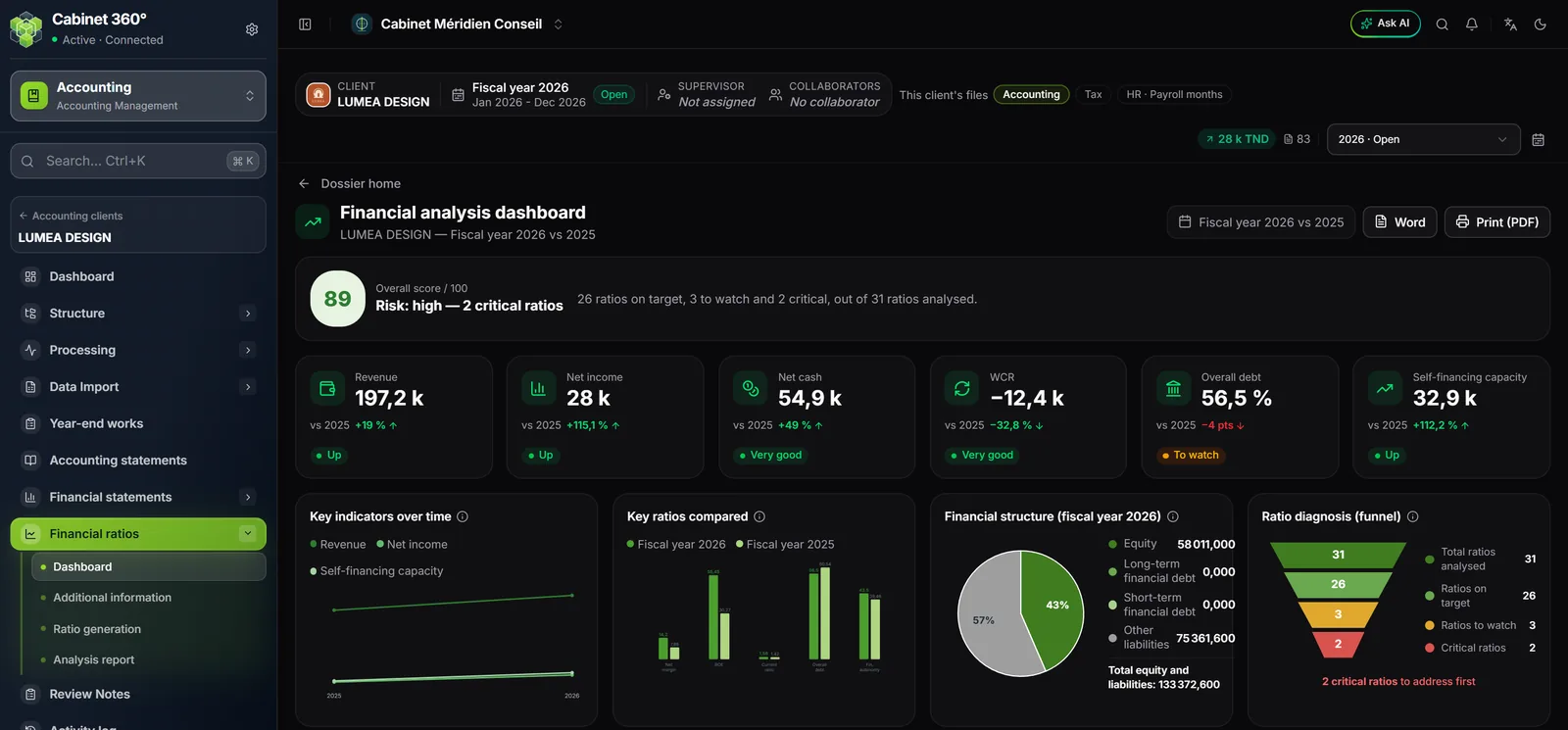
- 1. The fiscal-year selector of the file's bar: the chosen year applies to every screen, the ratio screens included.
- 2. Financial ratios, right after Financial statements, and its four screens.
- 3. Dashboard, the group's first screen, open here on fiscal year 2026.
The group has no "Financial statements" screen: the ratios read the file's financial statements, those of the Financial statements group just above. There is nothing to take over or type again (chapter 4).
To switch to another client, click Accounting clients at the top of the sidebar, above the client's name, then open another file.
The order the first time
The first time, follow the order of the work rather than the order of the menu:
- Check the file's financial statements, in Financial statements › Generate financial statements (chapter 4).
- Complete the Additional information (chapter 5).
- Open Ratio generation and click Generate the ratios (chapter 6).
- Read the Dashboard (chapter 3), then review the Analysis report (chapter 8).