
The pre-invoices list
The pre-invoices generated by your conventions and your domiciliations appear there with all the others. To find those of a contract, search for the client's name: their numbers follow one another, in period order. On a pre-invoice's record, Linked agreement names the convention that produced it; its subject reads “Préfacture 3/12 - Convention CON00002” or “… - Domiciliation DOM00008”.
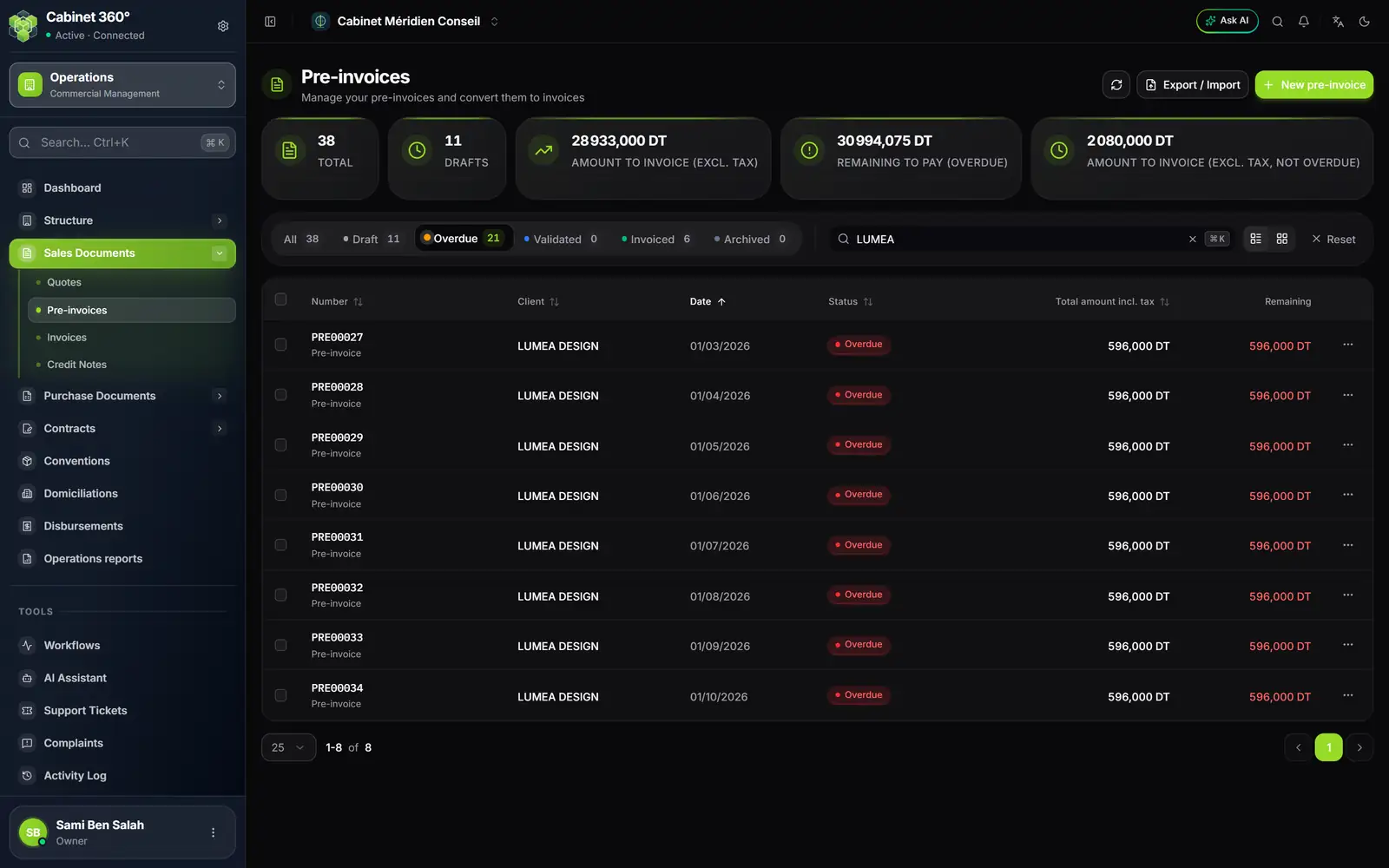
- 1. Amount to invoice (excl. tax): everything still waiting for its invoice, whatever the date.
- 2. Remaining to pay (Overdue): what the overdue pre-invoices leave to be paid.
- 3. Amount to invoice (excl. tax, not overdue): the part dated after today.
- 4. Overdue: the drafts whose date passed more than one day ago.
- 5. The search: the client's name finds a contract's pre-invoices.
- 6. The status of each pre-invoice.
- 7. The remaining amount to pay on each pre-invoice.
- The tabs: All, Draft, Overdue, Validated, Invoiced, Archived.
- Overdue gathers the late drafts: their date passed more than one day ago and they have not been validated. It is the month's work queue.
- The two Amount to invoice figures count the pre-invoices that have not given an invoice yet (cancelled ones excluded); the second one is limited to those dated after today.
Validating, then converting
Each month, for the month's pre-invoices:
- Open the pre-invoice and review it. As a draft, it can still be corrected (lines, notes, stamp).
- Validate it: it becomes Validated.
- Choose Convert to invoice. The window shows the invoice that will be created, its stamp and its totals; confirm.
- The invoice is born as a draft: validate it to issue it.
- Several pre-invoices of the same client can be converted together into a single invoice: tick them in the list, then convert from the selection bar. They must all belong to the same client. That invoice carries only one tax stamp, whatever the number of pre-invoices combined.
- A pre-invoice already collected (paid on the pre-invoice, at the cash register) can be converted too: the invoice takes over its payment and is born validated.
- A converted pre-invoice becomes Invoiced. It is the one a convention's termination keeps.
The “Operations” book, chapter “The pre-invoice”, details validation, conversion, archiving and the stamp; the “Finance & Cash Register” book, the collection of the invoice.
The “Convention to Invoice” wizard
For a convention, a wizard chains the four actions on a single screen. Open the workflows page, then the Convention to Invoice card:
- Choose a convention In progress.
- Generate its pre-invoices (or regenerate them while they are drafts).
- Validate them one by one, or all at once with Validate all.
- Convert to invoices combines them into one invoice.
What your client sees
My Agreements
In the portal menu, Agreements opens “My Agreements”.
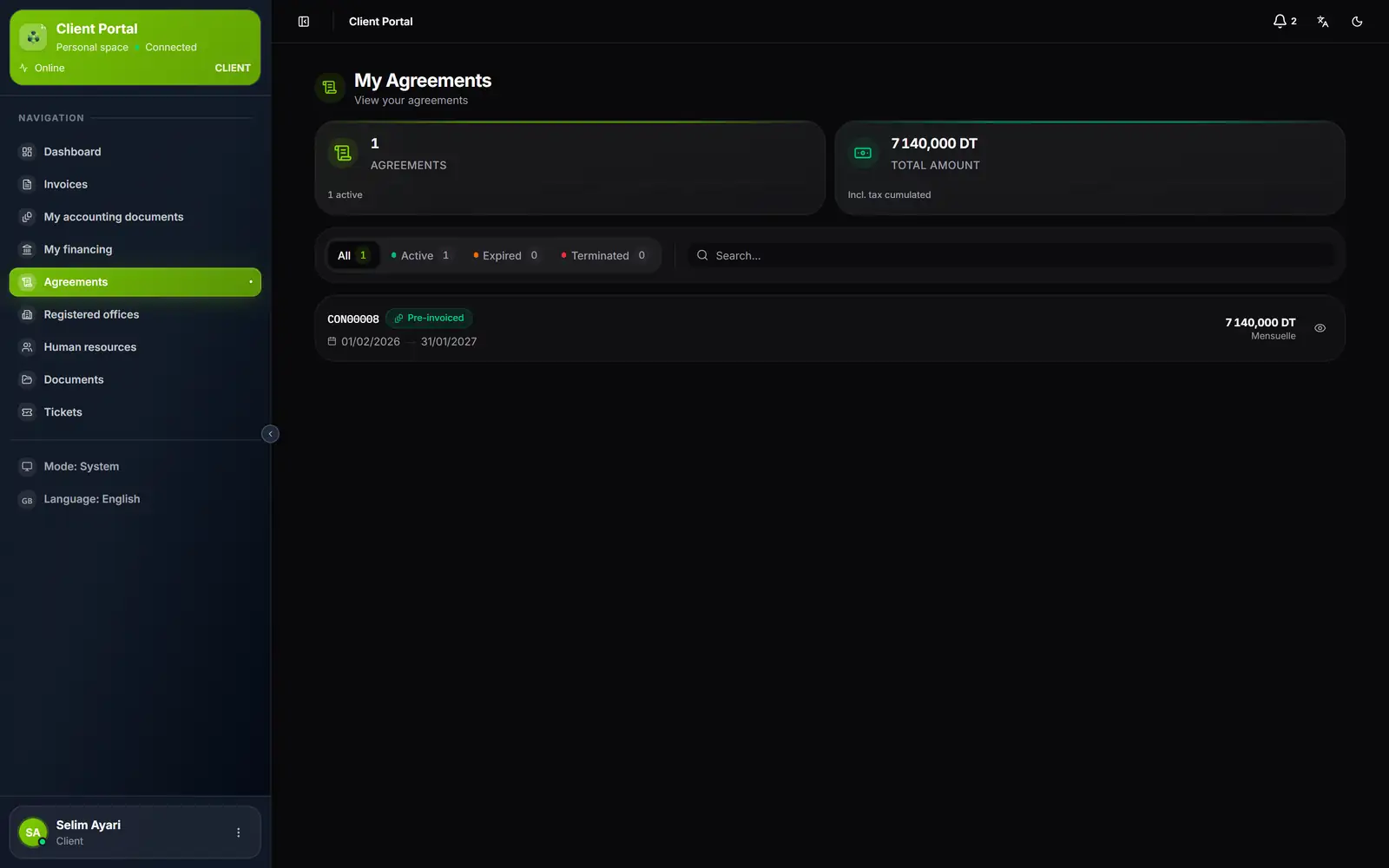
- 1. Agreements: their number, and how many are active.
- 2. Total amount: the cumulated amount incl. tax of all the client's conventions.
- 3. Active also counts the pre-invoiced conventions.
- 4. The status of the convention, with its dates.
- 5. The amount and the periodicity.
- The filters: All, Active, Expired, Terminated, and a search.
- Active includes the Pre-invoiced conventions: that is the normal state of a convention being billed.
- Total amount adds up the amount incl. tax of all the client's conventions, whatever their status.
- A click on a row (or on the eye) opens the detail: Start date, End date, Amount excl. tax, Amount incl. tax, and in the Details card the Periodicity and, if there is one, the Annual increase. The special conditions do not appear there, and the convention cannot be downloaded there as a PDF.
My Domiciliations
Registered offices opens “My Domiciliations”, which reads the same way.
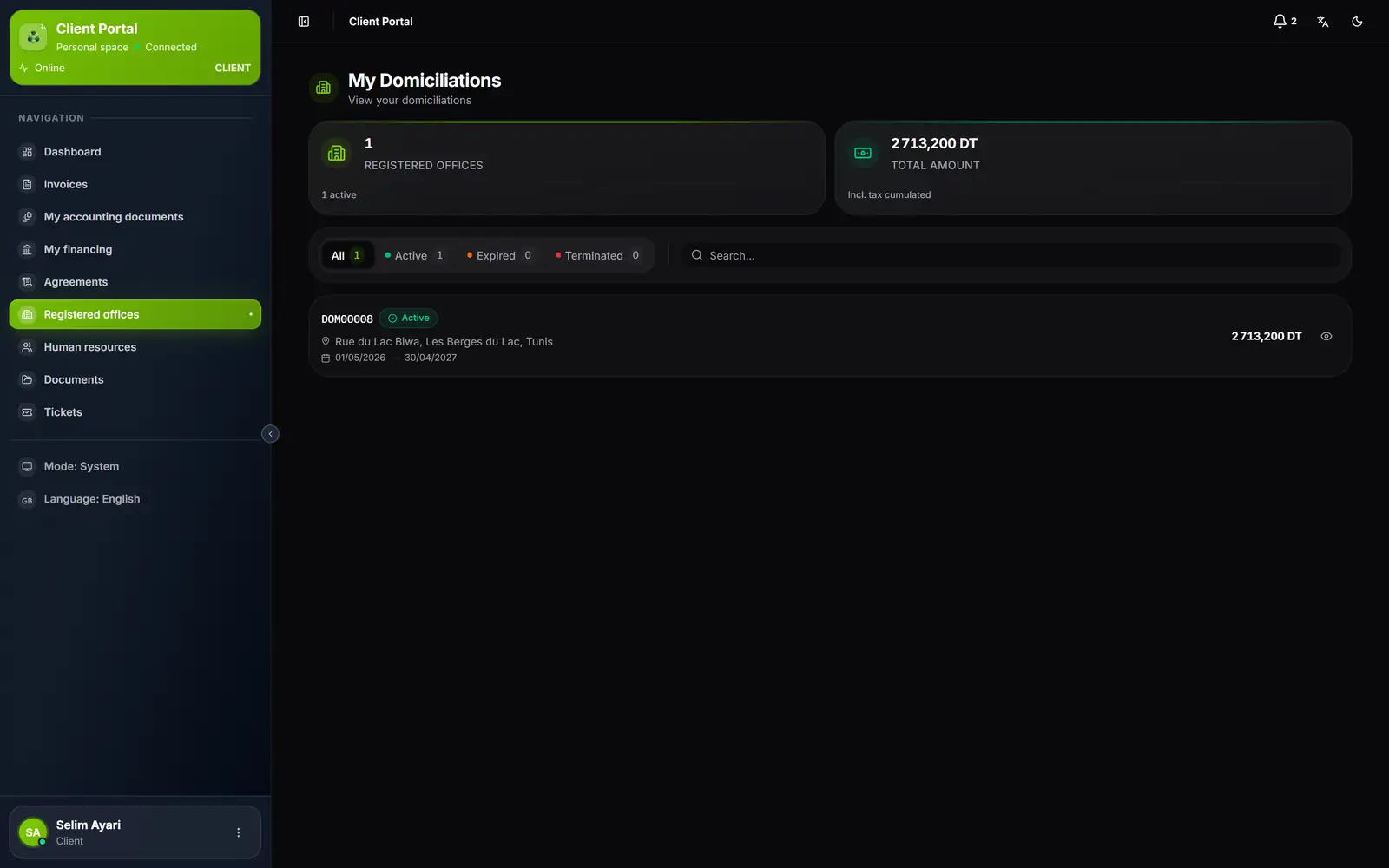
- 1. Registered offices: their number, and how many are active.
- 2. Total amount: the cumulated amount incl. tax.
- 3. The status of the domiciliation.
- 4. The domiciliation address and the period.
- 5. The amount incl. tax.
The detail of a domiciliation gives its Address, its Period, its Total incl. tax (with the amount excl. tax, the VAT and the monthly amount) and its Included services.
What the client does not see
- The pre-invoices: the portal only shows issued invoices and credit notes (validated, sent, paid…), never a draft or a cancelled document. The client therefore sees their invoices as they are validated (a converted invoice is born as a draft).
- The actions: the client changes nothing. To correct an address, an amount or a name, they write to the firm (a ticket, from the portal).
The portal requires the “Client Portal” module. Opening access for a client (Settings › Exchanges & data › Client Portal) is explained in the “Client Portal” book.