The three stubs
A stub (the numbering series) gives its numbers to one type of document. Three serve this module, and all three are mandatory:
| Stub | Numbers | Without it |
|---|---|---|
| Agreement | the conventions | “Create agreement” stays greyed out |
| Domiciliation | the domiciliations | “Create domiciliation” stays greyed out |
| Pre-invoice | the generated pre-invoices | generation is refused, naming the stub |
As long as a stub is missing, the screen concerned shows “Reminder: the ‘…’ sequence is not set up” and a link to set it up. Converting pre-invoices into invoices also requires the “Invoice” stub. The “Firm setup” book explains how to create a stub (prefix, counter, annual series).
The firm profile
Four sections of the profile serve this module:
- Legal and tax: the company's Tax stamp. It is the amount placed on each pre-invoice (failing that, 1,000 DT).
- Addresses: the firm's Domiciliation address. It is suggested by default on each new domiciliation (failing that, the main address).
- Managers: the firm's executives, the people who sign for it. They are the ones offered by the “Provider signatory” of a convention and the “Domiciliary's signatory” of a domiciliation (Add a director). Only the owner and the administrators change them.
- Payment methods (Manage button): the active methods are the ones the contracts' “Payment method” offers, in their order. A firm that sets none up is offered Espèces (cash), Chèque (cheque) and Virement (transfer).
The client's managers
The “Client signatory” of a convention and the “Domiciled party's signatory” of a domiciliation are the managers recorded on the client's record, Legal tab, Managers section (Add a manager), with the start and end date of their mandate. A domiciliation refuses a manager whose mandate does not cover its start date: keep the mandates up to date.
The signatories' “+” opens the client's record directly on adding a manager, then brings you back.
The articles
In Operations › Structure › Articles, each service has its reference, its designation, its price excl. tax and its VAT rate. The price is suggested on the convention; the rate is, as a rule, the one its pre-invoices will bill (chapter 4). The “Operations” book details the article and its family.
The convention objects
What an object is for
When you add an object to a convention or a domiciliation, IntegraSys adds its billing articles to it: the pre-invoice line will carry the article's reference, designation and VAT rate, with nothing to retype. That is why an object always has at least one article.
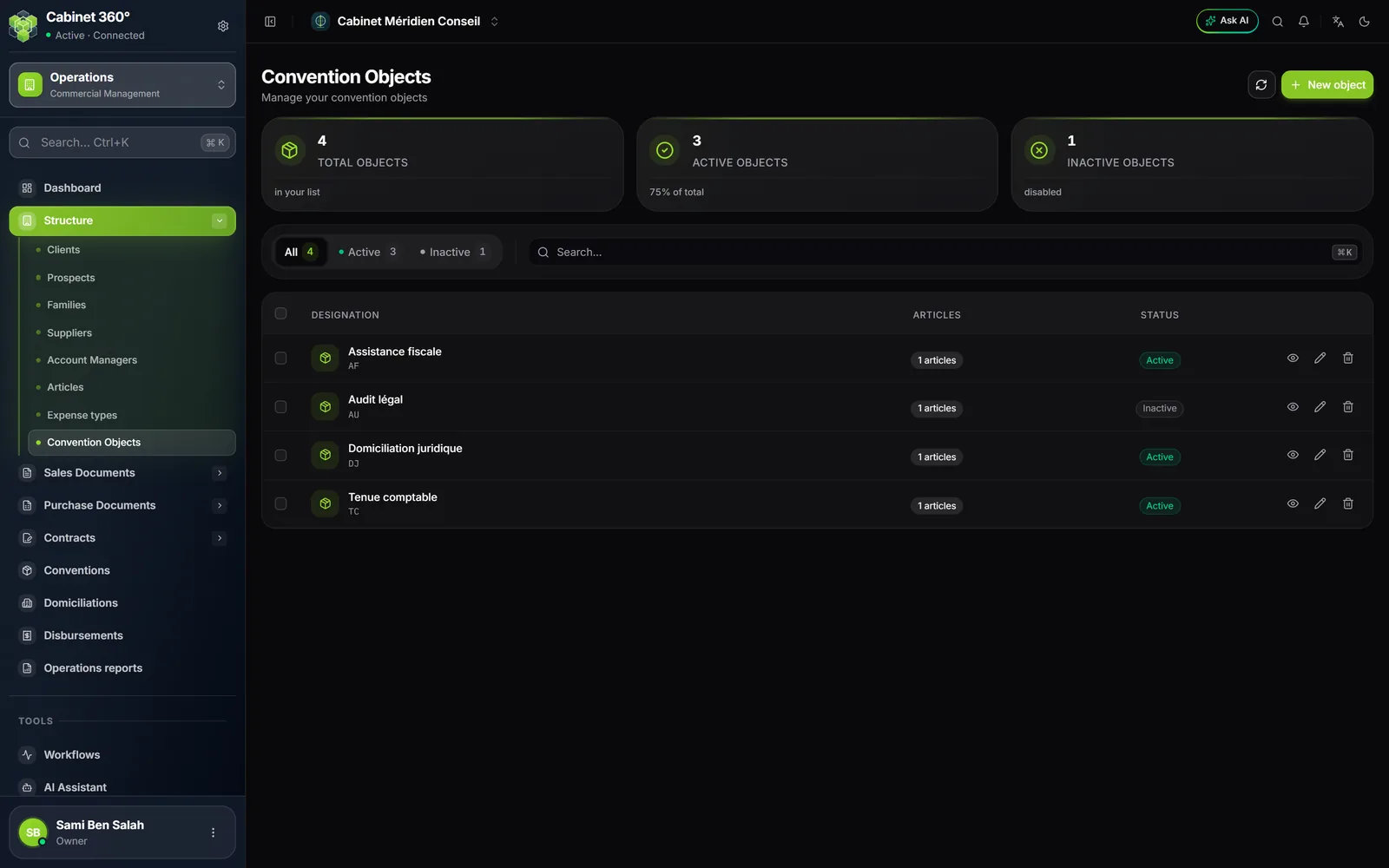
The page
- At the top: the refresh button and New object.
- Three counters: Total objects, Active objects, Inactive objects.
- The filters All, Active, Inactive, the search, and Reset.
- The table: Designation, Articles (their number), Status (Active or Inactive). Each row's menu: View details, Edit, Delete.
- An object saved without an article (created before the article became mandatory) shows its number of articles in orange; on hover: “No billing item: set one up (‘Edit’).”
Creating an object
- Click New object. The “New convention object” window opens.
- Under General information, enter the Designation (for example “Tenue comptable”) and leave the Status active.
- Under Billing accounts, choose the article of the first line from your catalogue (“Select an article”, with a search). Add an article adds one more line.
- Click Save.
Coming from a convention
The “+” of a convention or a domiciliation opens this window directly. A banner recalls it: “You came from an agreement: once the object is saved, you will return to it, with the object added along with its billing items.” Likewise, Configure the object opens the object for editing so you can give it its articles.
Deactivating, deleting
- An Inactive object is no longer offered in “Add an object”. The contracts that already carry it do not change.
- Delete (one row, or several with the selection) removes the object from the list, after confirmation. The conventions and domiciliations already saved keep the designation and the articles they received from it, and go on generating their pre-invoices.
The rights
In “Rights per screen”, the “Convention Objects” screen only gives viewing of the objects: creating, editing or deleting them requires the “Agreement settings” rights, which are set through “Set by permission groups”. Without them, the “+” that creates an object from a contract is greyed out and says why.
The print templates
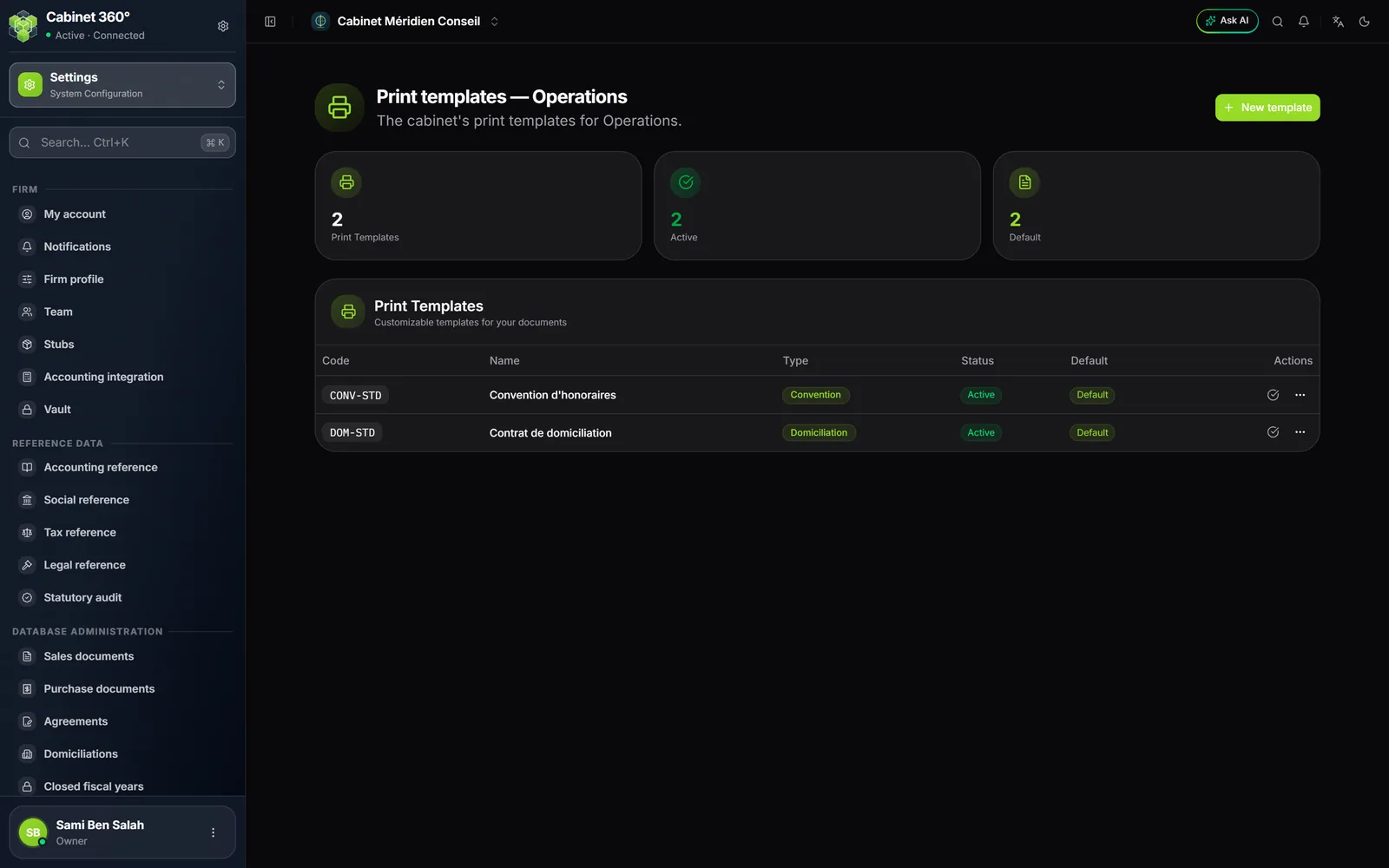
“Download PDF” on a convention works without any setup. Print, on the other hand, puts the contract into your print template: a template of type “Convention” for conventions, of type “Domiciliation” for domiciliations. Without a template, “Print” answers “Print not configured” (“Template not configured” from a convention's record).
The default template of each type is the one “Print” uses. The “Firm setup” book explains the template editor and its fields.