
Opening the page
Click New convention, at the top right. The “New agreement” page opens. The number is not known yet: it is assigned when you save, by the “Agreement” stub.
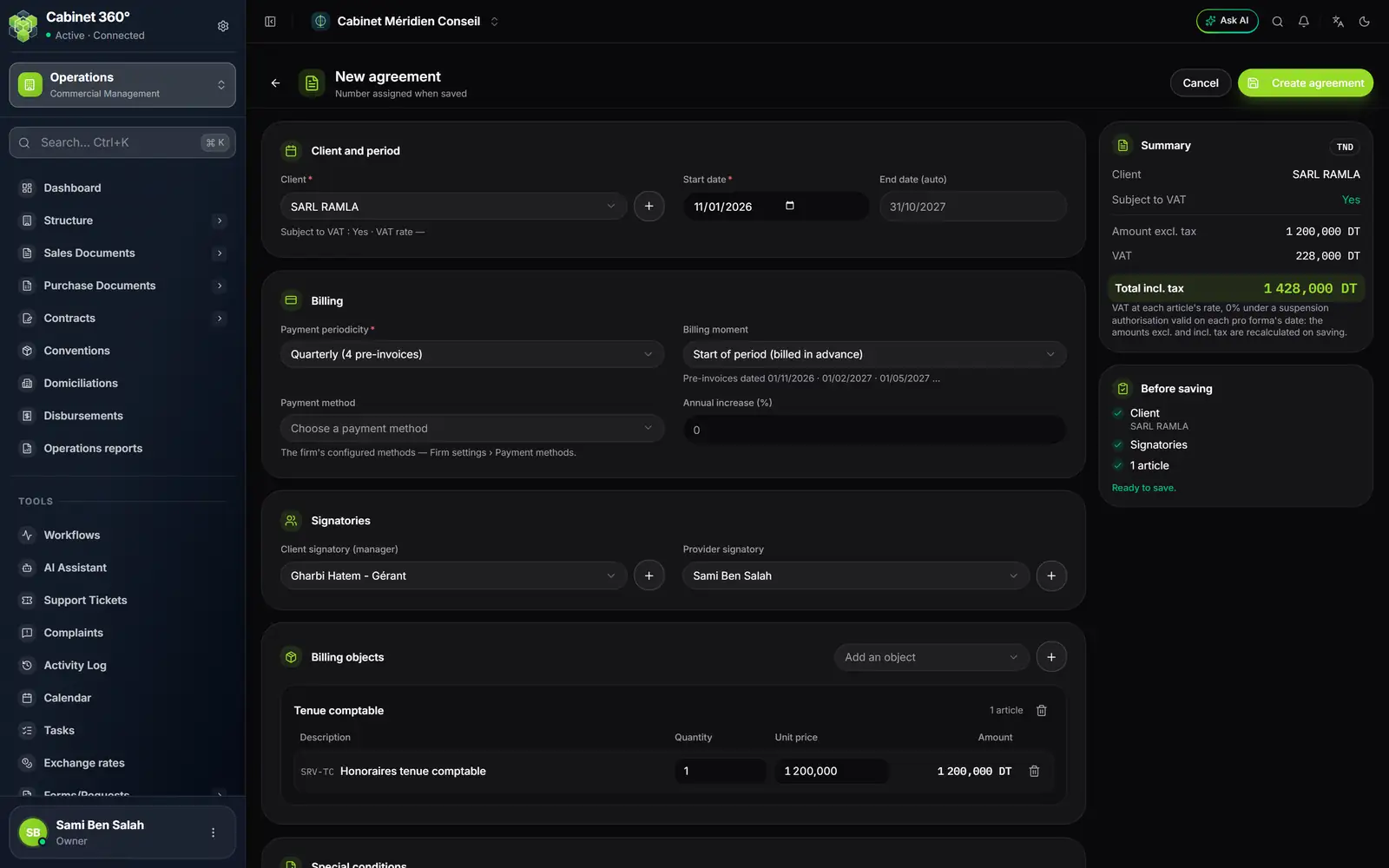
- 1. Client: the list of clients; the “+” creates a client that does not exist yet.
- 2. End date (auto): one year minus one day after the start date.
- 3. Payment periodicity: each choice states the number of pre-invoices.
- 4. The first dates the pre-invoices will carry.
- 5. Signatories: the client's manager on the left, the firm's executive on the right.
- 6. Add an object: the object brings its billing articles.
- 7. The object's article: fixed reference and designation; quantity and price can be changed.
- 8. Total incl. tax of the convention, at each article's rate.
- 9. Before saving: ticked in green, the convention can be created.
Client and period
- Client: choose the client from the list. Below the list, IntegraSys recalls whether it is subject to VAT. The “+” next to it opens the “New client” page; once the client is saved, you come back to your convention, with the client already chosen. This “+” only exists at creation: the client of a saved convention no longer changes.
- Start date: the first day covered by the convention.
- End date (auto): it is worked out on its own, one year minus one day later. It cannot be typed.
Billing
- Payment periodicity: Monthly (12 pre-invoices), Bimonthly (6 pre-invoices, one every two months), Quarterly (4 pre-invoices), Semi-annual (2 pre-invoices), Annual (1 pre-invoice) or Other (custom). The “Other” choice opens two more blocks, explained at the end of this chapter.
- Billing moment: Start of period (billed in advance) dates each pre-invoice on the first day of its period; End of period (billed in arrears), on the last. Below the list, “Pre-invoices dated …” shows the first three dates. Under “Other”, the choice is greyed out: each due date carries its own date.
- Payment method: your firm's methods (Firm profile, “Payment methods” section: chapter 2). If the client's record carries one, it is suggested by default.
- Annual increase (%): the percentage planned from one year to the next, from 0 to 100. The convention's record recalls it, and the “Statement by client” uses it for the year's target (chapter 6). It does not change the convention's amount.
Signatories
- Client signatory (manager): the managers recorded on the client's record, in the form “Last name First name - Capacity”. The list waits for the client to be chosen. If the client has no manager, the “+” opens the client's record on its managers so you can add one; you come back with the manager chosen.
- Provider signatory: the firm's executives. If none is declared, a free box lets you type the name. The “+” opens the firm's executives; it is reserved for the owner and the administrators.
When you choose the manager, if the start date falls before the start of their mandate, or after its end, a warning says so below the list. It does not block saving: check the mandate. If you change the date afterwards, choose the manager again to run the check again.
Billing objects
A convention object (chapter 2) says what you bill: “Tenue comptable”, “Conseil fiscal”… Each object brings its billing articles.
- Open the Add an object list and choose the object. Only the objects not added yet appear in it.
- Its articles are added: one line per article, quantity 1, at the catalogue price.
- Set the Quantity and the Unit price of each line. The Amount follows: quantity × price.
- Add other objects if the convention covers several.
- The article's reference and designation come from the object and cannot be changed.
- A line's bin removes the article; Restore an item of the object puts it back. Only this object's articles can be put back.
- The bin in the header removes the whole object.
- An object without an article shows “No billing item is configured for the object ‘…’.” and the Configure the object link, which opens the object; you come back with its articles.
- The “+” next to “Add an object” creates an object that does not exist yet, then brings you back.
Special conditions
A free text box. When it is filled in, it is printed on the convention PDF, in the section “6 - CONDITIONS PARTICULIÈRES”.
The summary and “Before saving”
The right-hand column follows your entry:
- Summary: the client, whether it is subject to VAT, the Amount excl. tax, the VAT and the Total incl. tax. The VAT is worked out at each article's rate. On saving, the server recalculates the amounts excl. and incl. tax as the pre-invoices will bill them.
- Before saving: the client, the signatories, the number of articles, and under “Other” the due dates and the breakdown. While something is missing, the list says what; when everything is there, it shows “Ready to save.”.
Click Create agreement. The message “Agreement created successfully” shows and the list of conventions comes back. The new convention has the status In progress.
“An agreement already exists for the same period”
If the same client already has a convention whose period touches the one you are creating (a single day in common is enough), IntegraSys creates nothing and asks for confirmation.
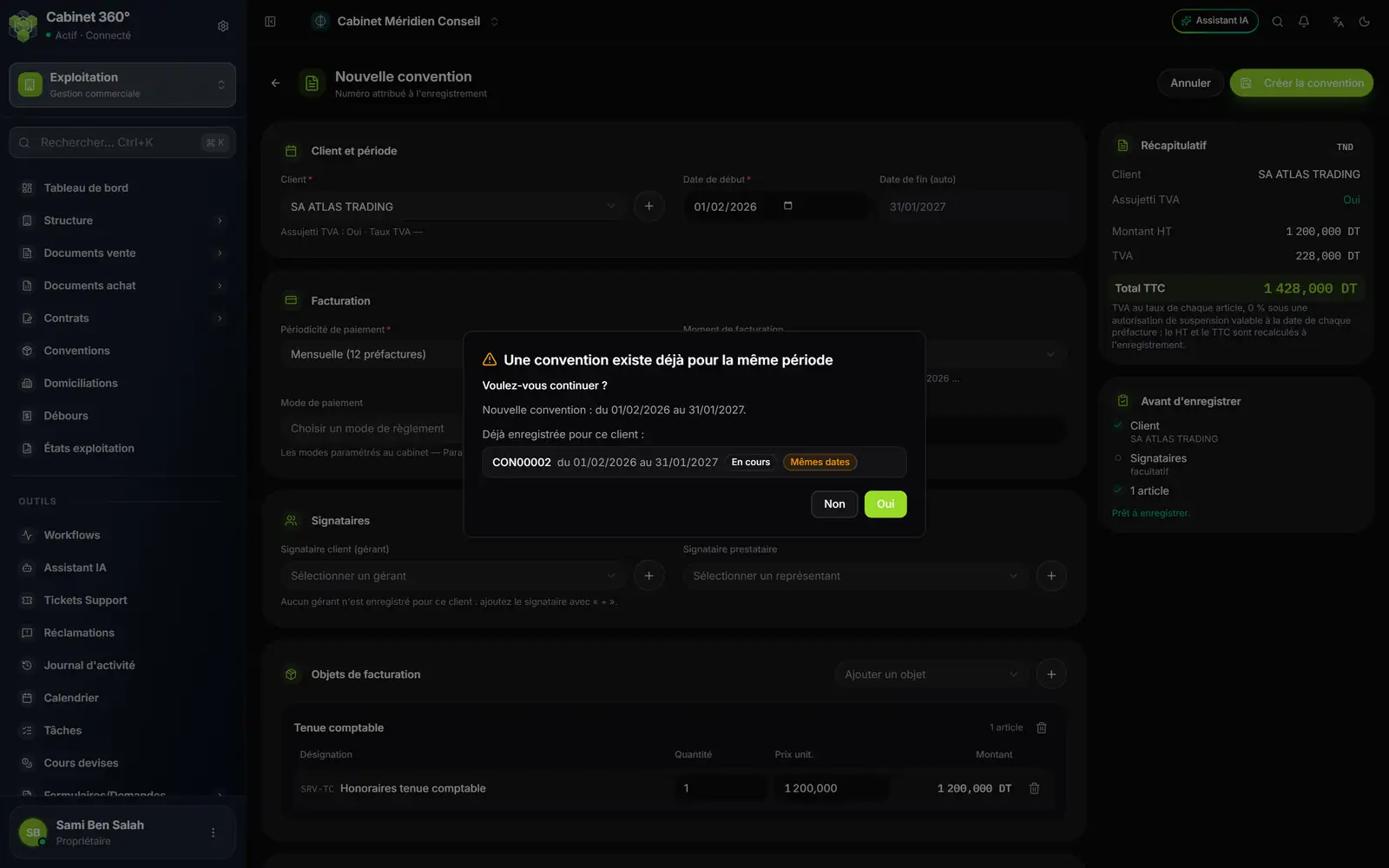
- 1. The question: “the same period” if the dates are identical, otherwise “a period that overlaps this one”.
- 2. Each convention already recorded: number, dates, status; “Same dates” when they are identical.
- 3. No keeps your entry on screen; Yes creates the convention.
Answer Yes for a genuine second engagement over the same year. Answer No when it is a duplicate: an entry started over, a renewal created twice. The duplicate would only show at billing time, when both contracts would pre-invoice the same months.
A Terminated or archived convention does not count: replacing it is the normal move. An Expired convention, however, does count: its months have been billed. A renewal that starts the day after the end overlaps nothing.
The “Other” periodicity: your own due dates
Some clients pay on dates that do not follow the calendar: a down payment on signing, the balance when the annual accounts are done. The “Other” periodicity lets you set each due date and say what share of each article it bills.
Three blocks that answer one another
Choose Other (custom) in Payment periodicity. The Billing moment is greyed out (“No effect: custom schedules carry their own dates.”) and two blocks appear. They work with the billing objects, which stay where they are:
| Block | It says | Example |
|---|---|---|
| Billing objects | What and how much: each article, quantity × price | Honoraires: 1 000,000 DT |
| Custom due dates | When: a date and an amount per due date | 01/03/2026: 400,000 DT; 01/09/2026: 600,000 DT |
| Breakdown by schedule | The share of each article at each due date | Honoraires: 400,000 then 600,000 |
The convention's amount excl. tax stays the sum of the articles. The due dates and the breakdown spread it out; they do not replace it.
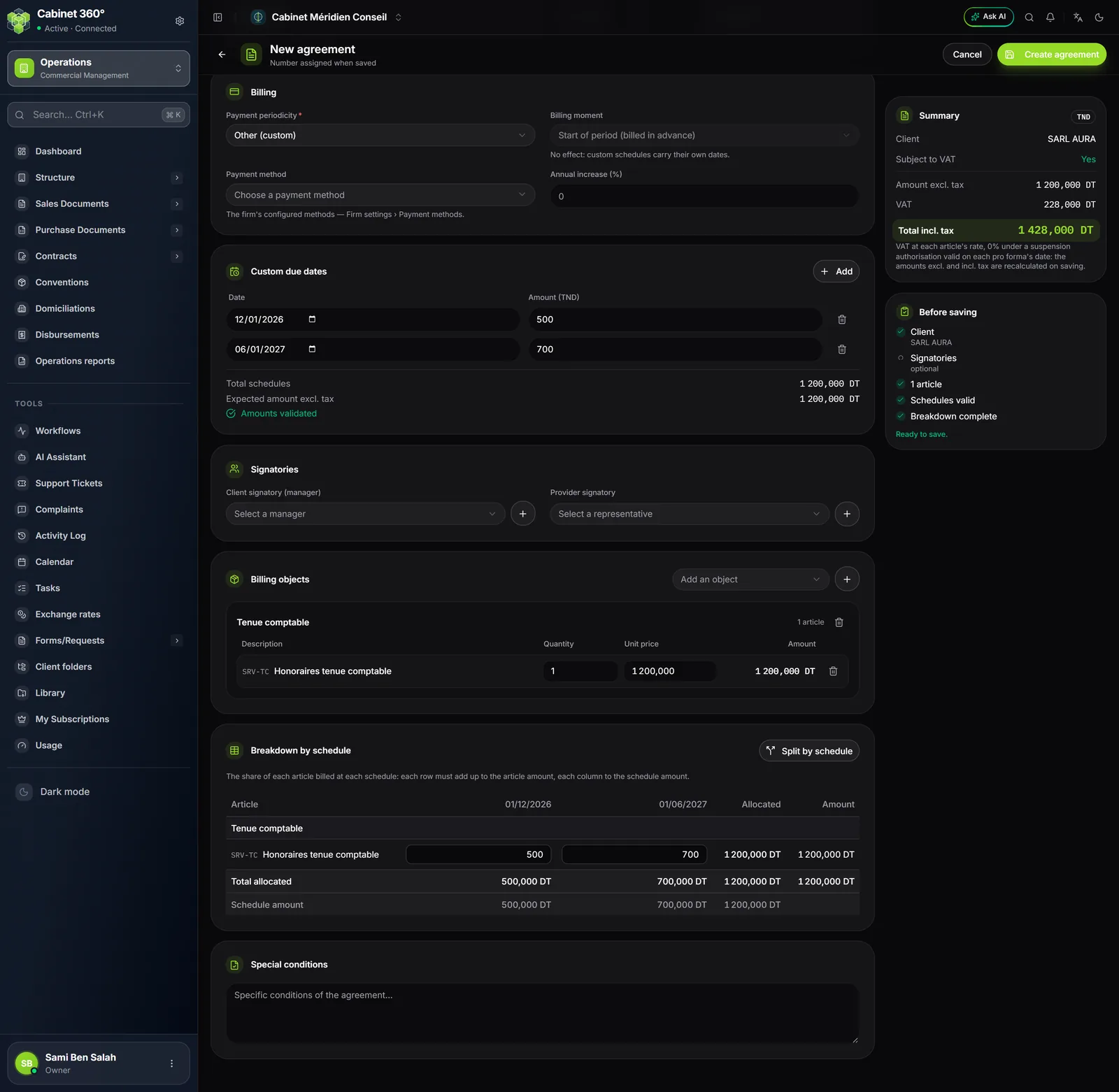
Entering the due dates
- In Custom due dates, click Add. A line appears.
- Enter the due date's Date and its Amount (TND) excl. tax.
- Do the same for each due date. A line's bin removes it.
- Read the foot of the block: Total schedules, Expected amount excl. tax, then “Amounts validated” when the two are equal, or “Difference: …” as long as they are not.
Splitting the articles across the due dates
The grid has one row per article and one column per dated due date. Each cell is the share of the article billed at that due date. Two rules:
- each row must add up to the article's amount (Allocated column against Amount column);
- each column must add up to the due date's amount (Total allocated row against Schedule amount row).
The simplest way: click Split by schedule. IntegraSys shares out each article in proportion to the due dates' amounts, to the millime. This button replaces the breakdown already entered. It becomes active as soon as one due date has its date and an amount; due dates without a date stay out of the breakdown.
You can then correct a cell by hand, for example to bill a whole article at a single due date.
The gaps that block
As long as the grid does not land on the amounts, it names each gap below it:
- “‘Honoraires’: 900,000 DT allocated out of 1 000,000 DT.”: 100,000 DT is missing on the article's row;
- “Schedule of 01/03/2026: … allocated out of ….”: the column does not make the due date's amount.
“Before saving” then shows Breakdown incomplete and the convention is not saved. When everything lands (to within 0,01), it shows Breakdown complete.
The grid also says what it lacks:
- without an article: “First add the articles in ‘Billing objects’ …”;
- without a dated due date: “First add the custom schedules, with their date …”;
- a due date without a date has no column: the grid flags it and asks for its date.